
💰 Payments
What is it?
This is a spot to view your information about PAYMENTS. The key to remember is that CommandCenter is NOT a CRM. That means that you're not going to be managing your invoices or payments. The reason this exists in the CommandCenter is to provide amazing information in the Executive Dashboard.
Inputting this information is a task that you can either assign to a VA or set up Zapier automations for.
Usability Checklist
Have you done all of this?
- Input all of your Clients
- Created your Projects
- Connected the two
- Created your Invoices
- Input your Payments
How do I use it?
This is pretty simple! Input all of your payments so that you have them all in one place and can easily be shared with your team!
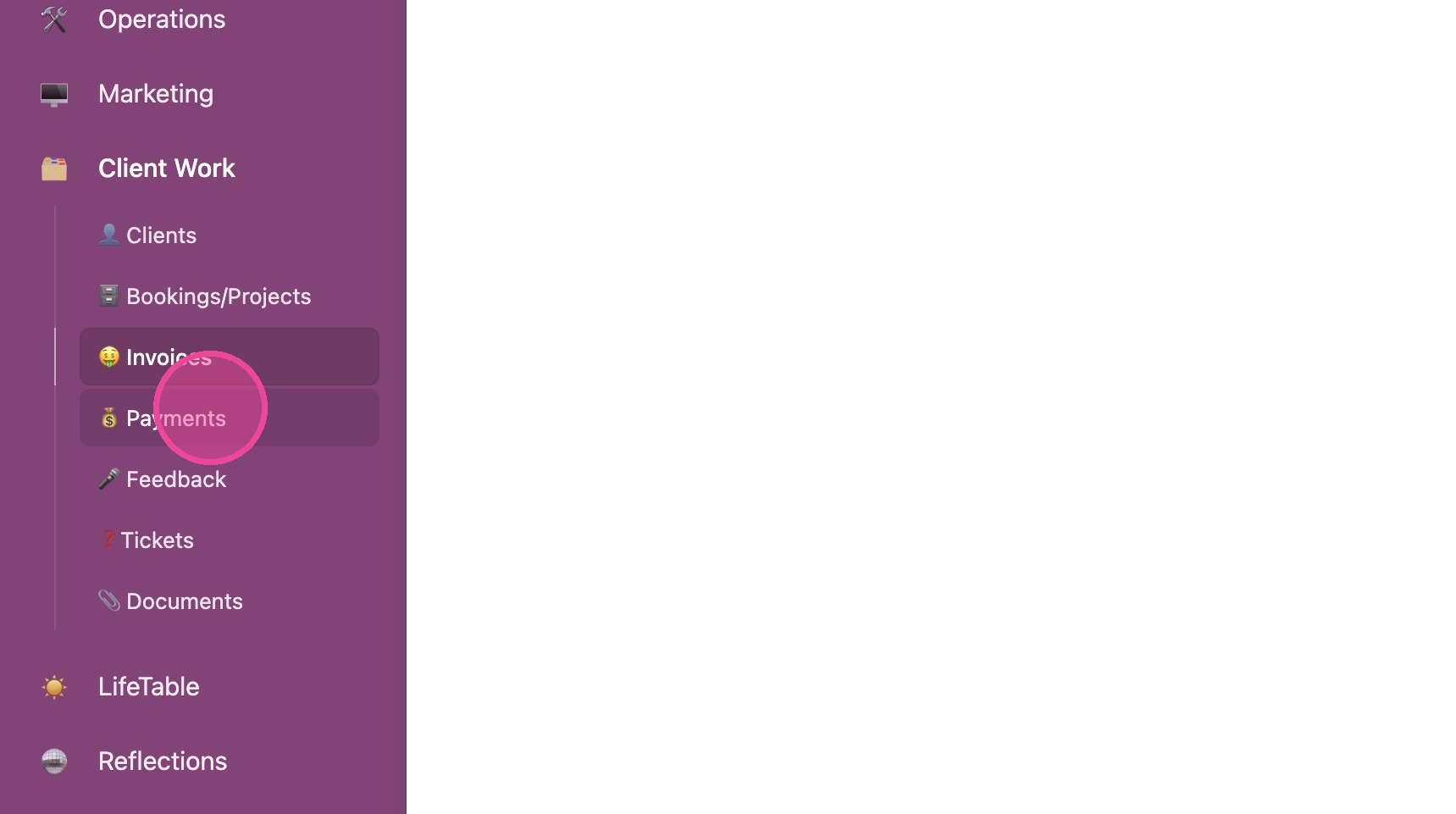
1. Click "💰 Payments"
View Details
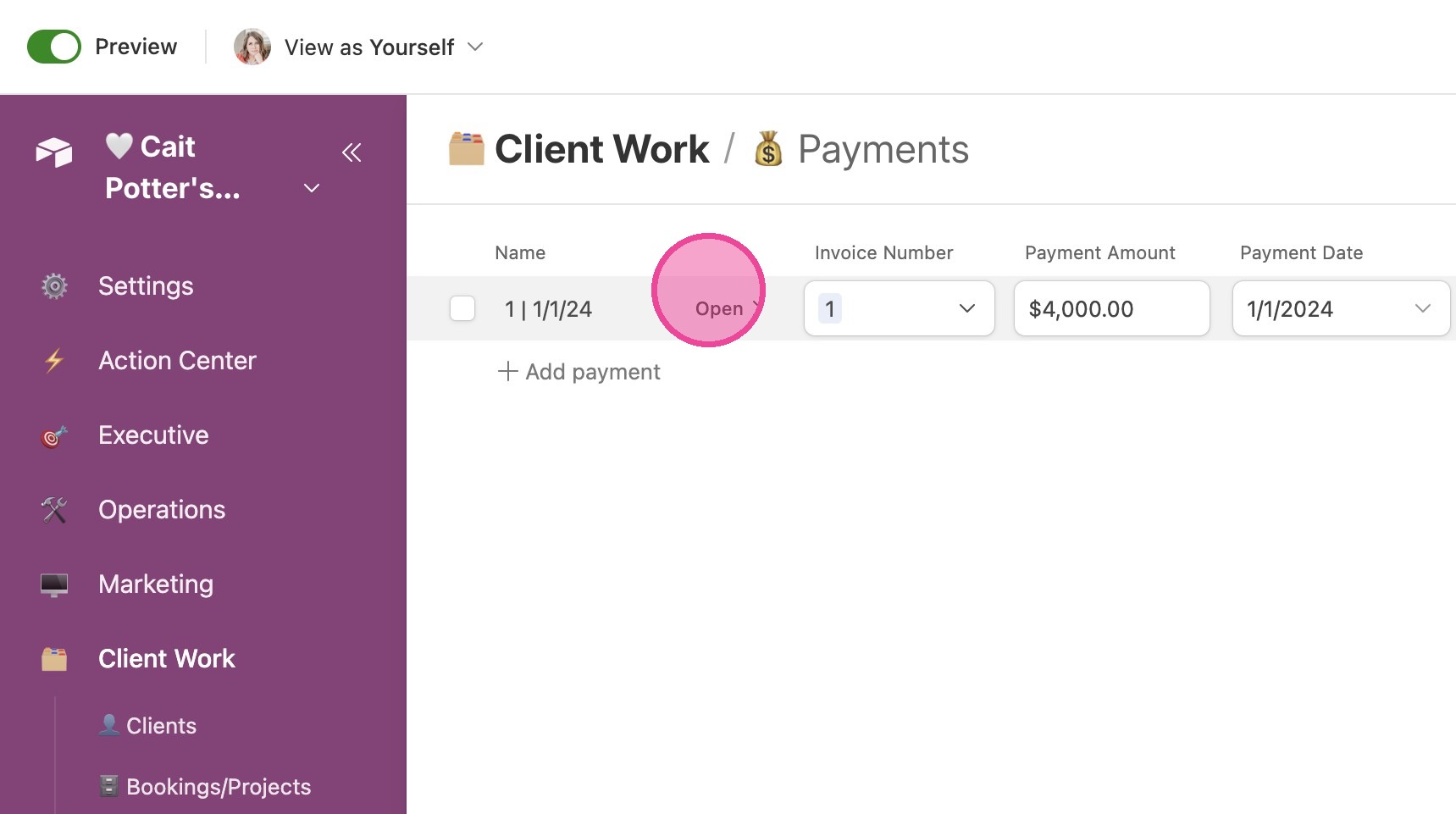
2. Click here.
3. You will be able to edit all details related to this payment here. Note that each payment can only be tied to ONE invoice.
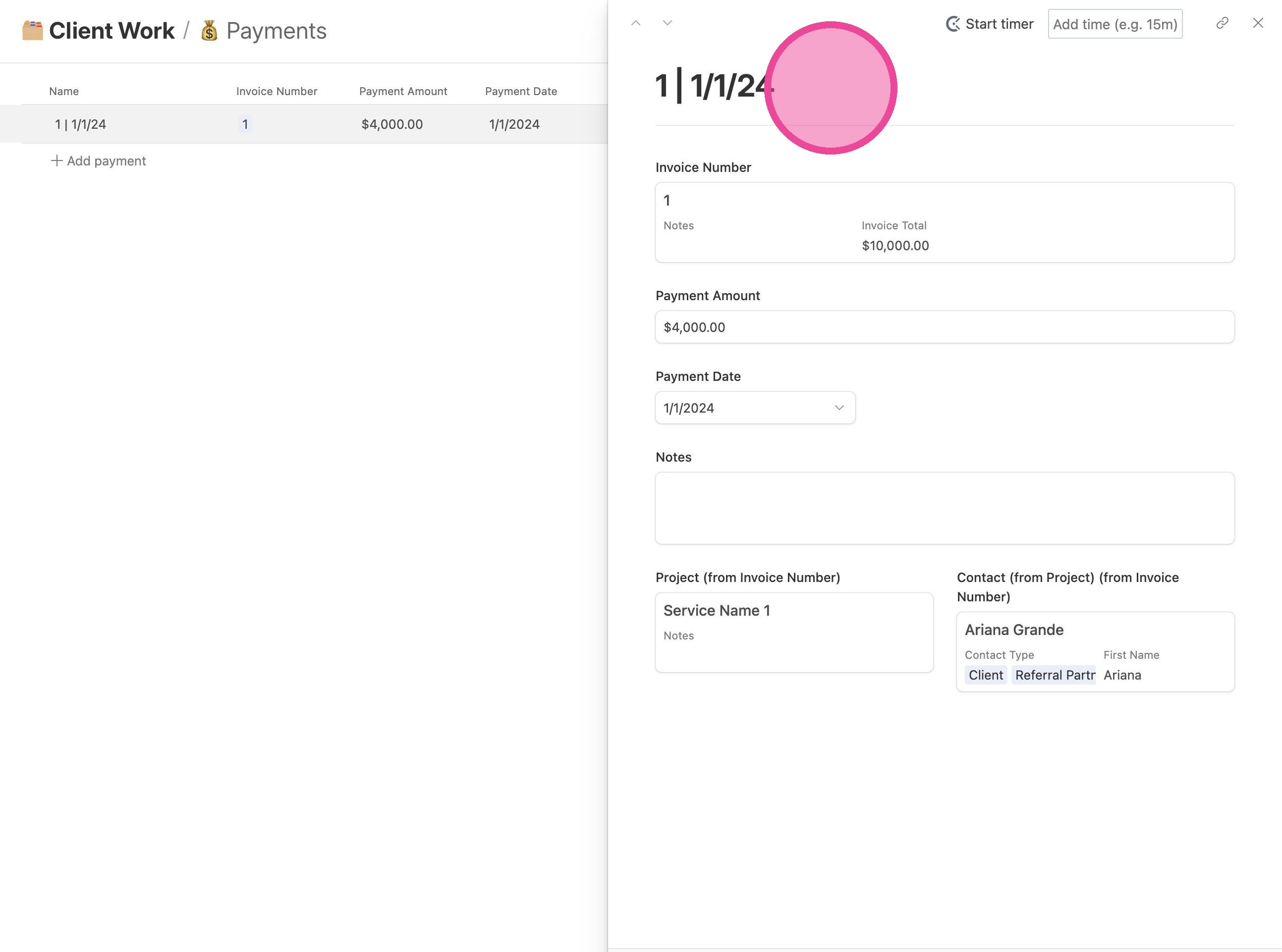
Tip: Tip! The Client and Project information flow in from the Invoice- so if any of those are blank, head back to the Invoices tab to hook up the information as appropriate.
Create a New Payment
4. Click "Add Payment"
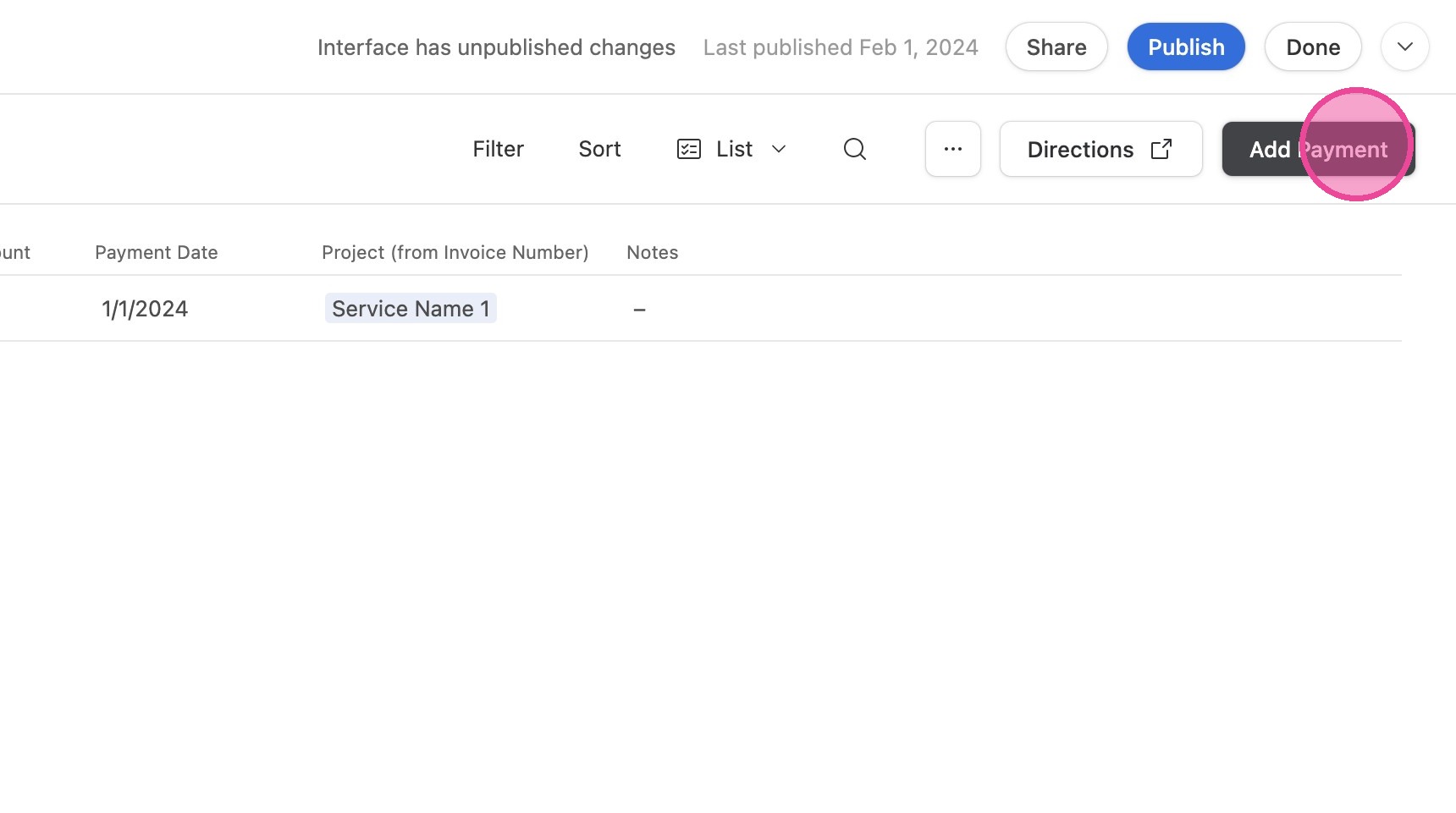
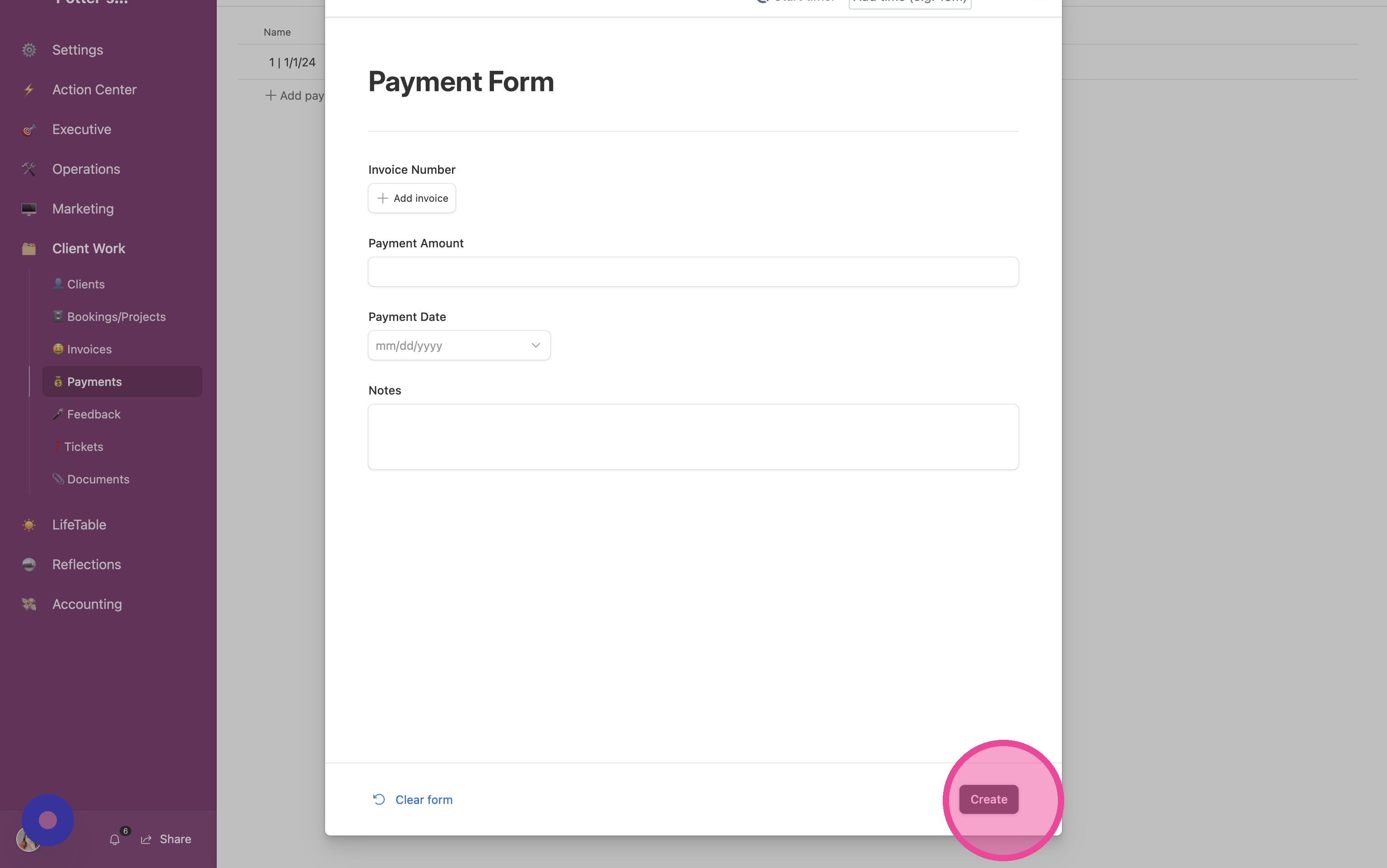
5. Fill out the form and click "Create"
Change Views
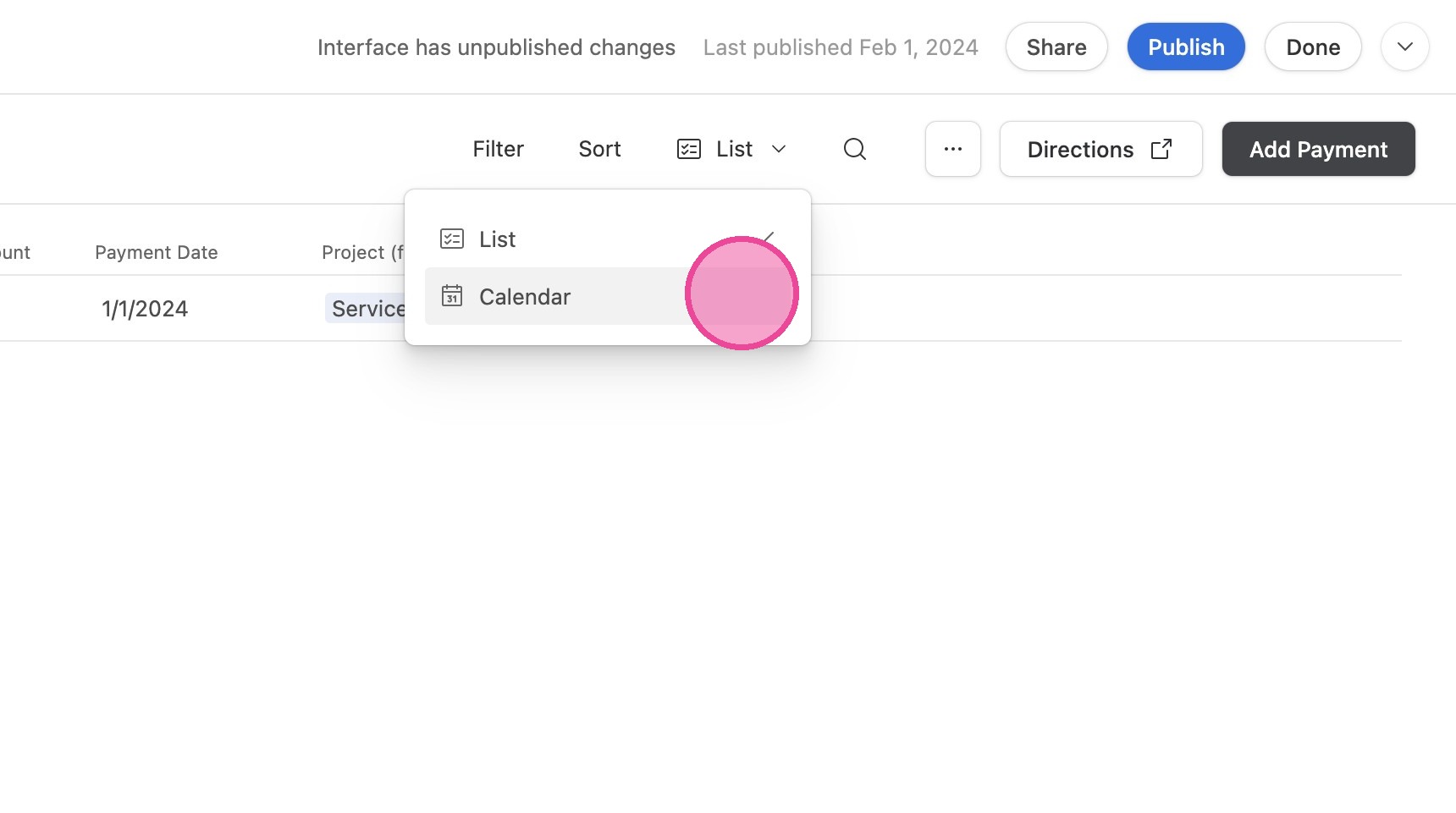
6. You can toggle between List view and Calendar View for this tab.
Tip! Note that the (1) Client, (2) Booking/Project, and (3) Invoice should be created BEFORE creating any Payments.