
📎 Operations Documents
What is it?
This area gives you a beautiful and convenient spot to store all of your IMPORTANT files. This is probably NOT where you are going to save all of your daily files. Think of this more like a filing cabinet in your office where you store the stuff you need to keep long term- things like tax information, business licenses, contracts, and the like.
How do I use it?
Note that this area is intended for business documents that people on your Operations team may need access to. There is a separate area for personal documents. You can manage all business documents in the "All Documents" section of the Executive Interface.
1. Click "📎 Documents"
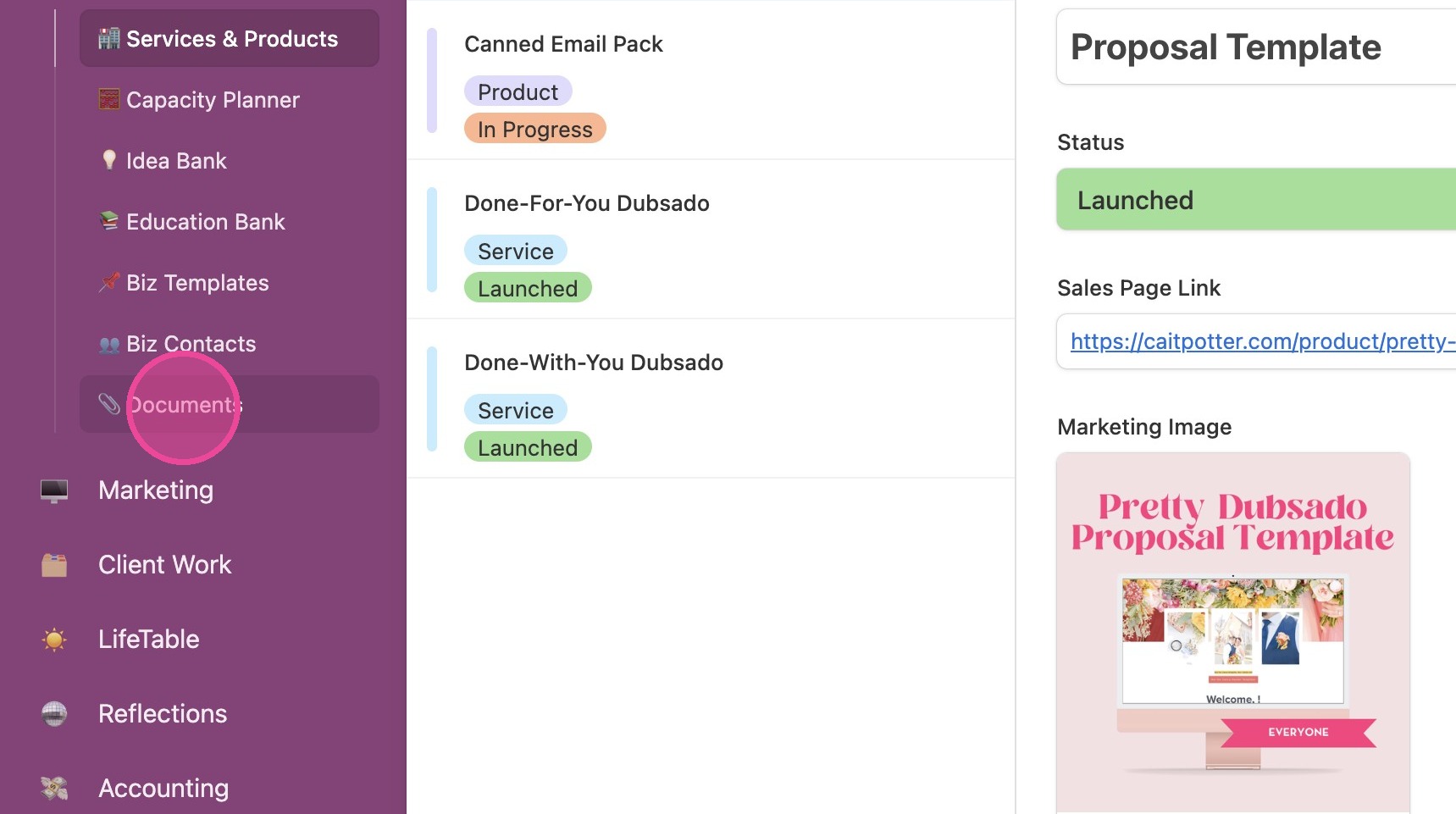
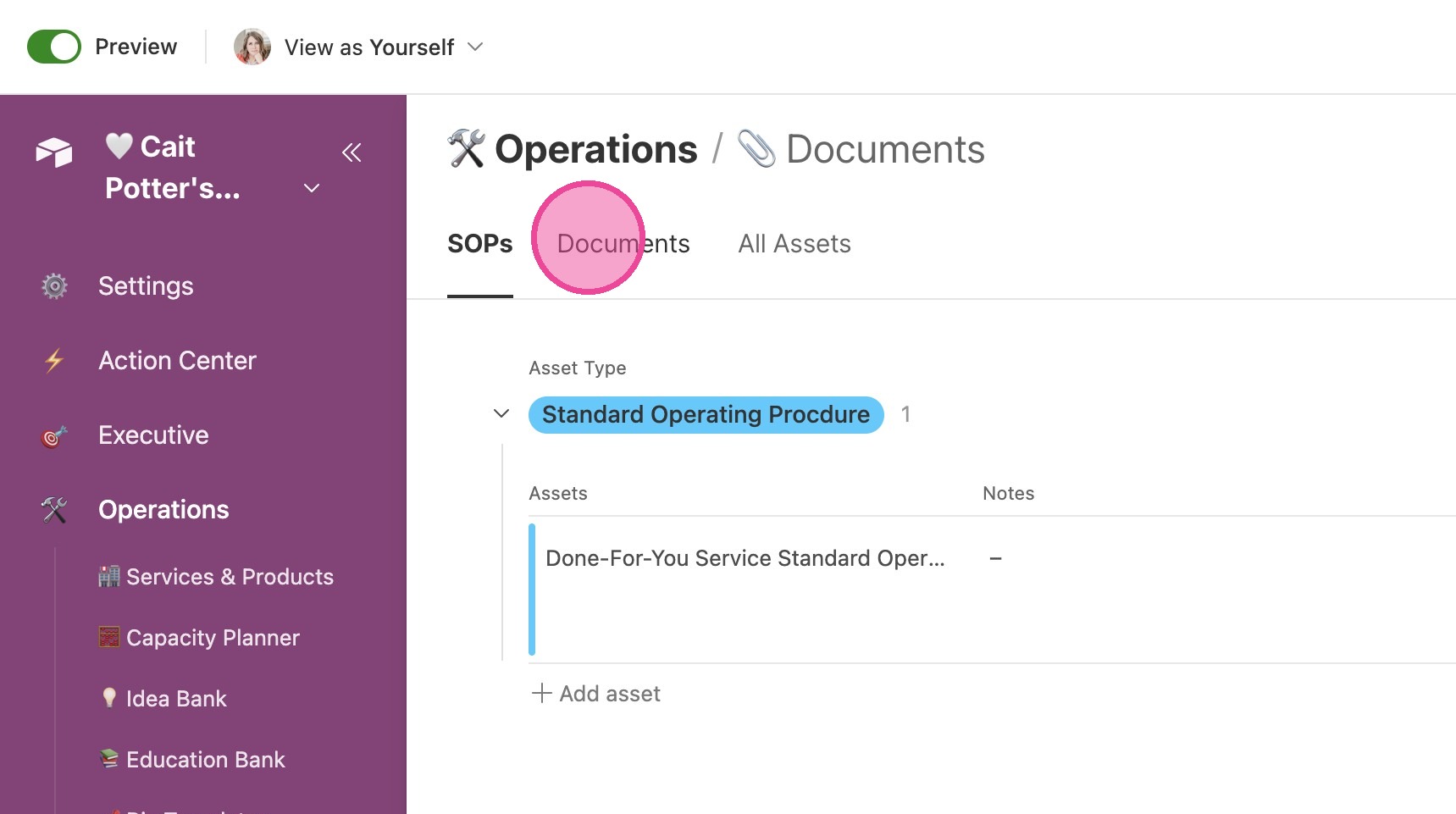
2. Note that all of the documents visible here are ALSO visible in the "All Documents" section of the Executive base.
3. You can toggle between different types of operations documents using these tabs.
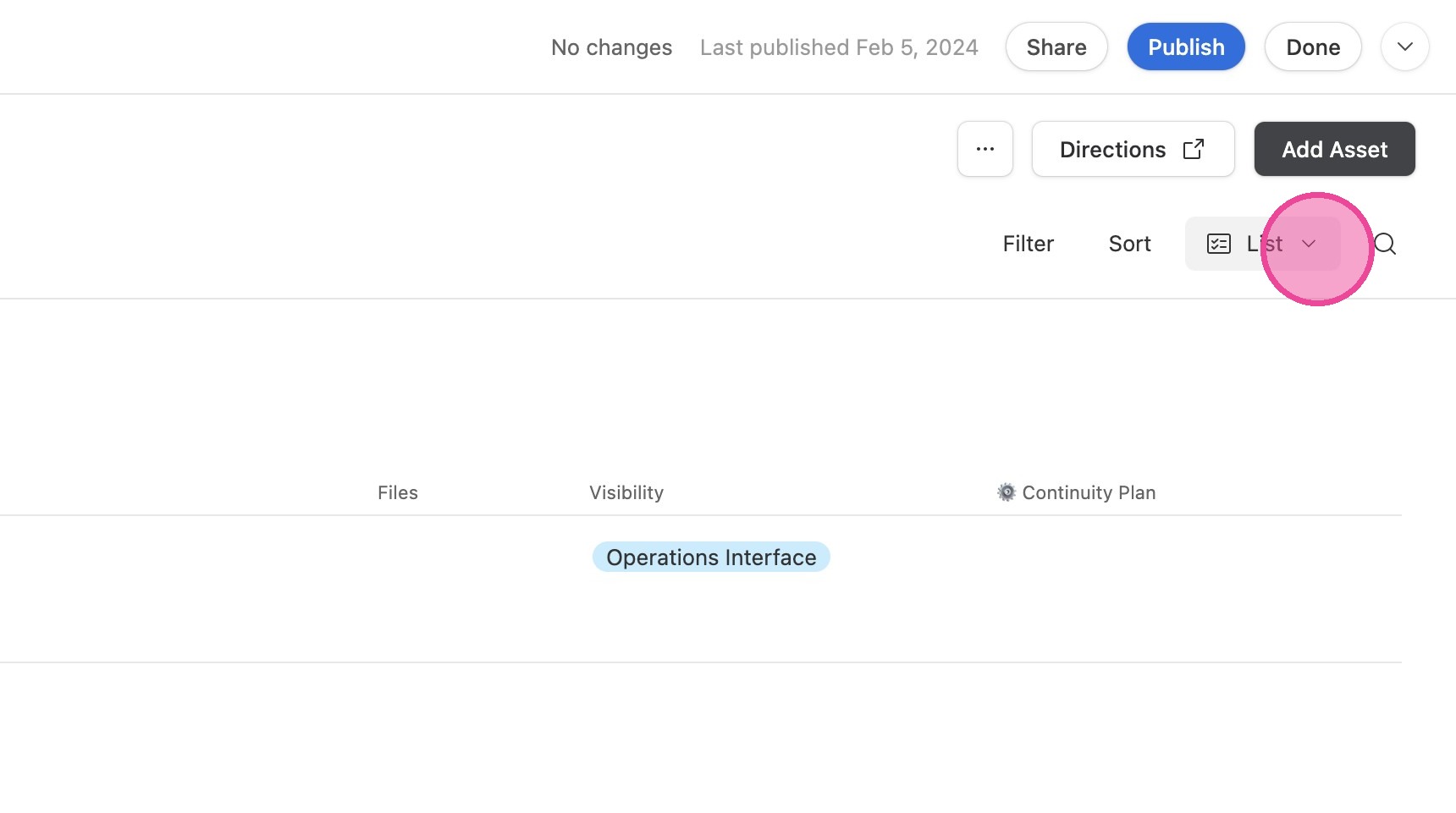
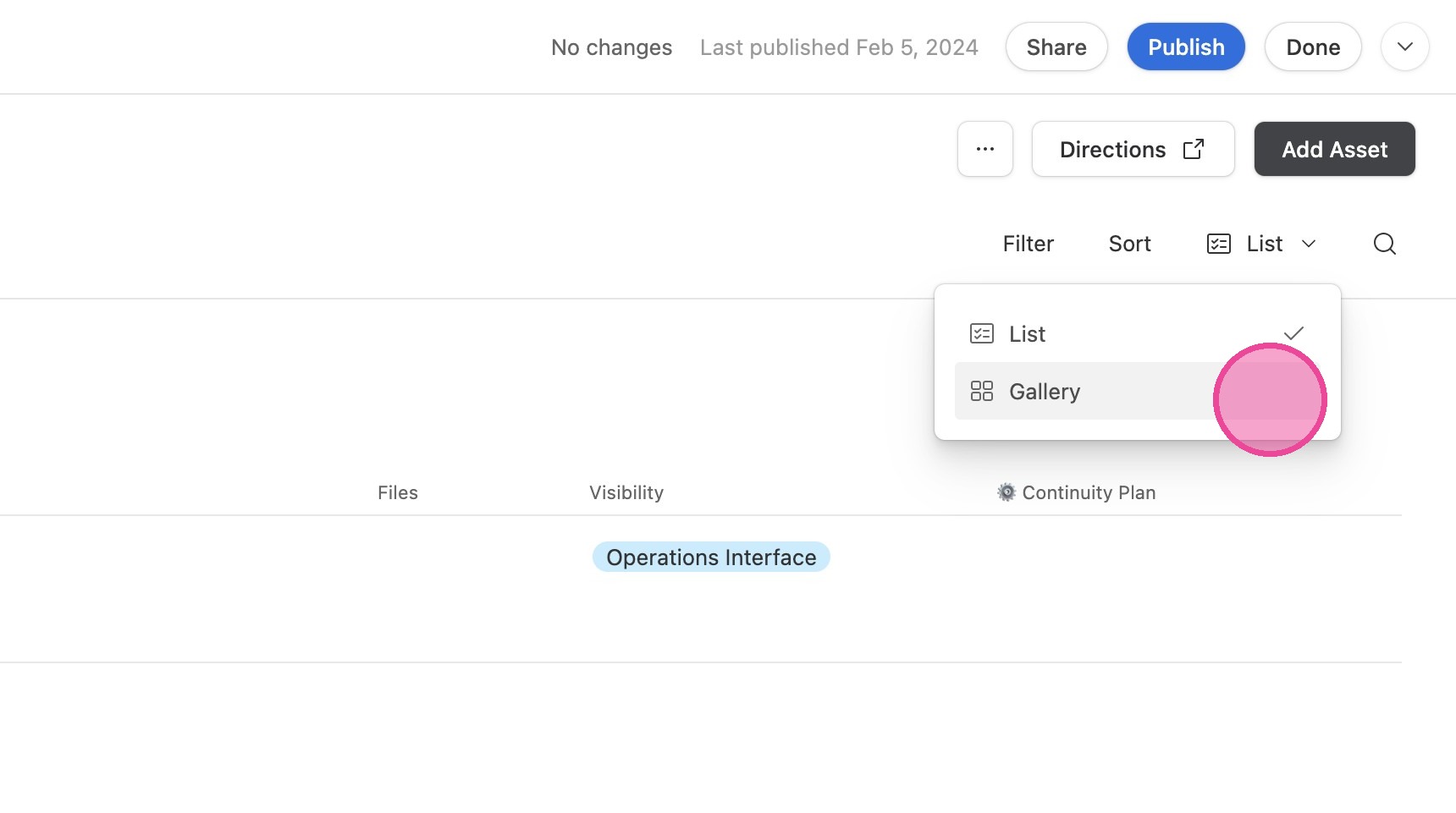
Change Document View
4. Click "List"
5. Click "Gallery"
Create / Add New Asset
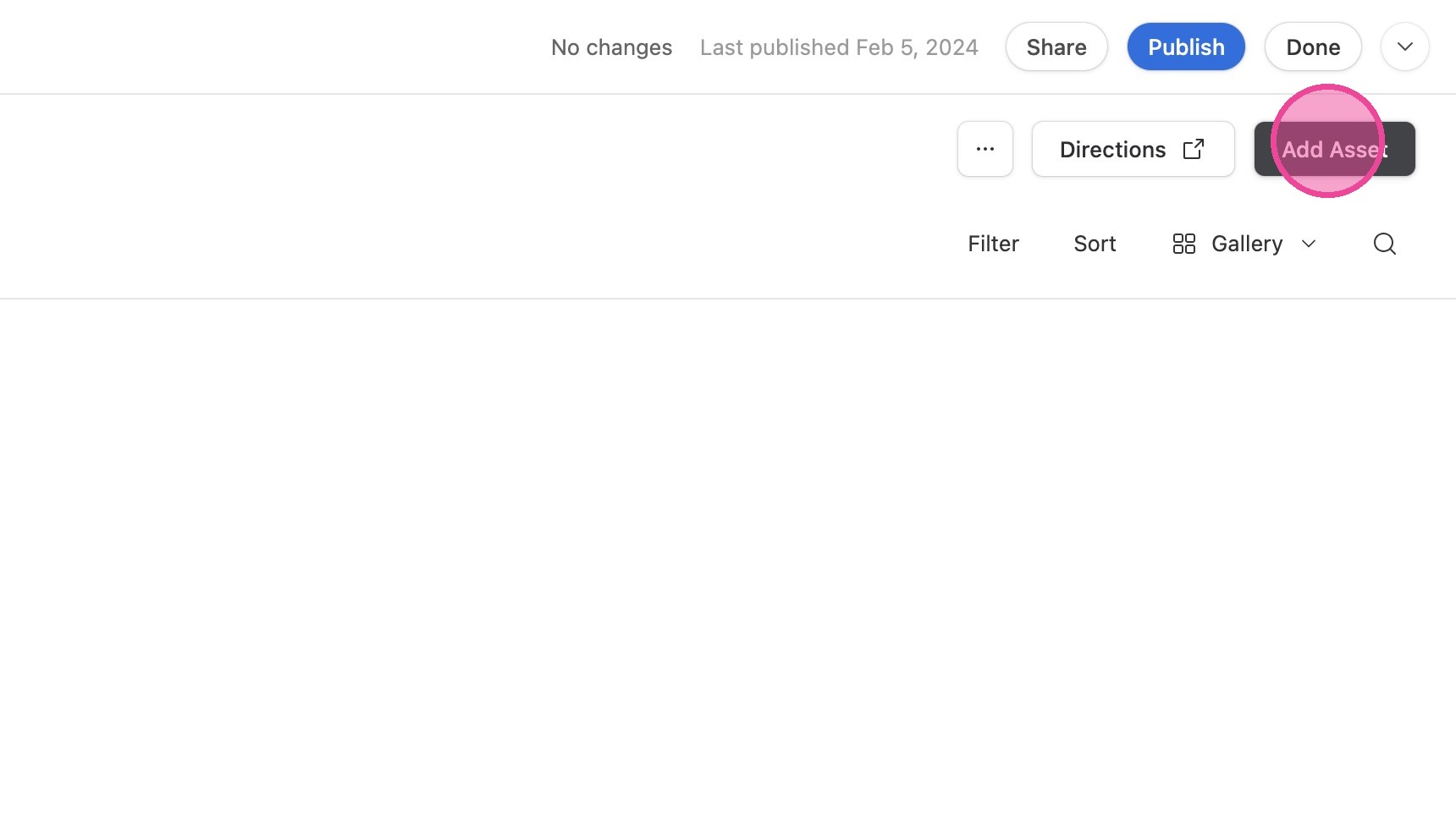
6. Click "Add Asset"
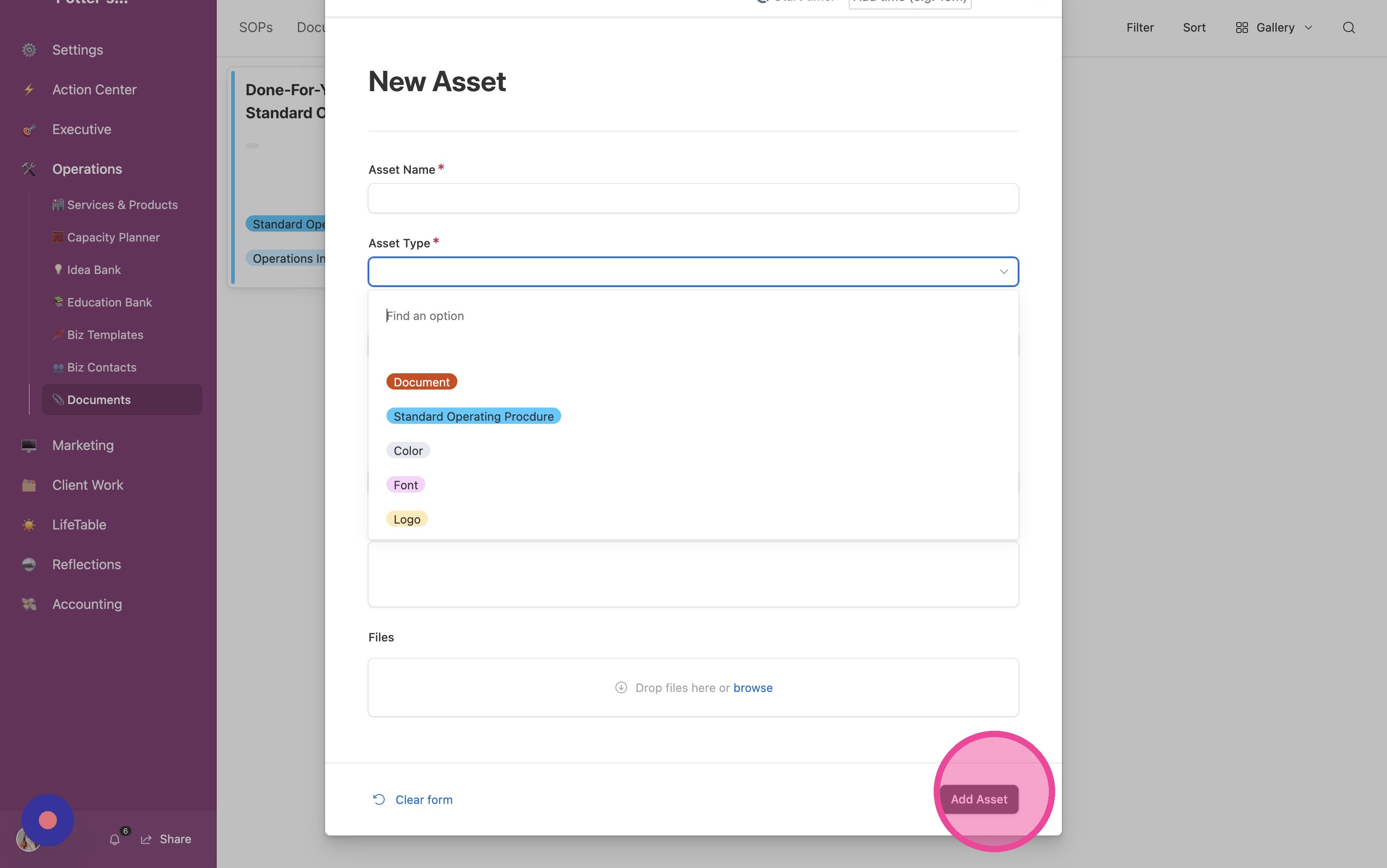
7. Fill out the form and click "Add Asset"
Open Details
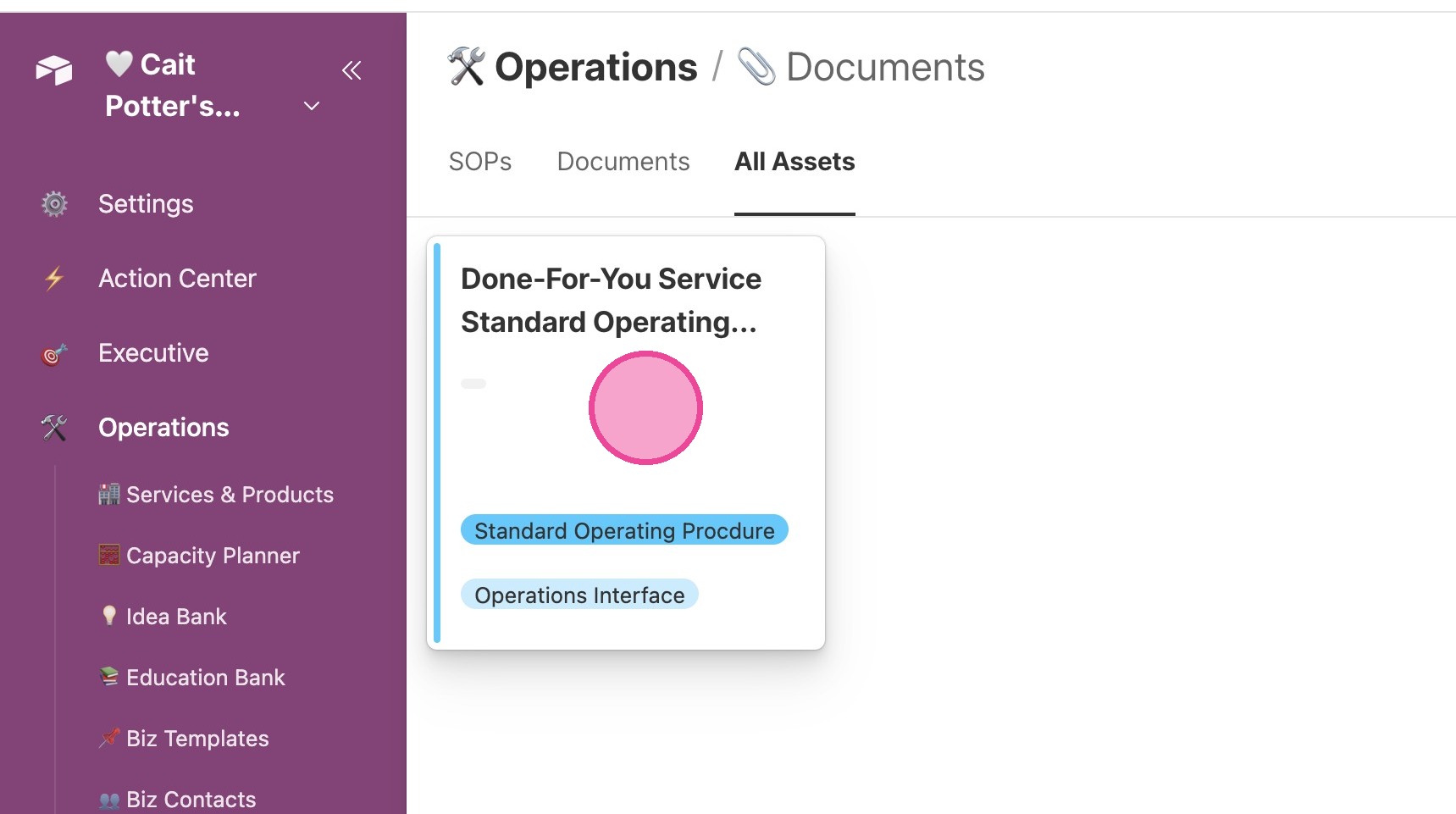
8. Click an asset in either view to open the detail view.
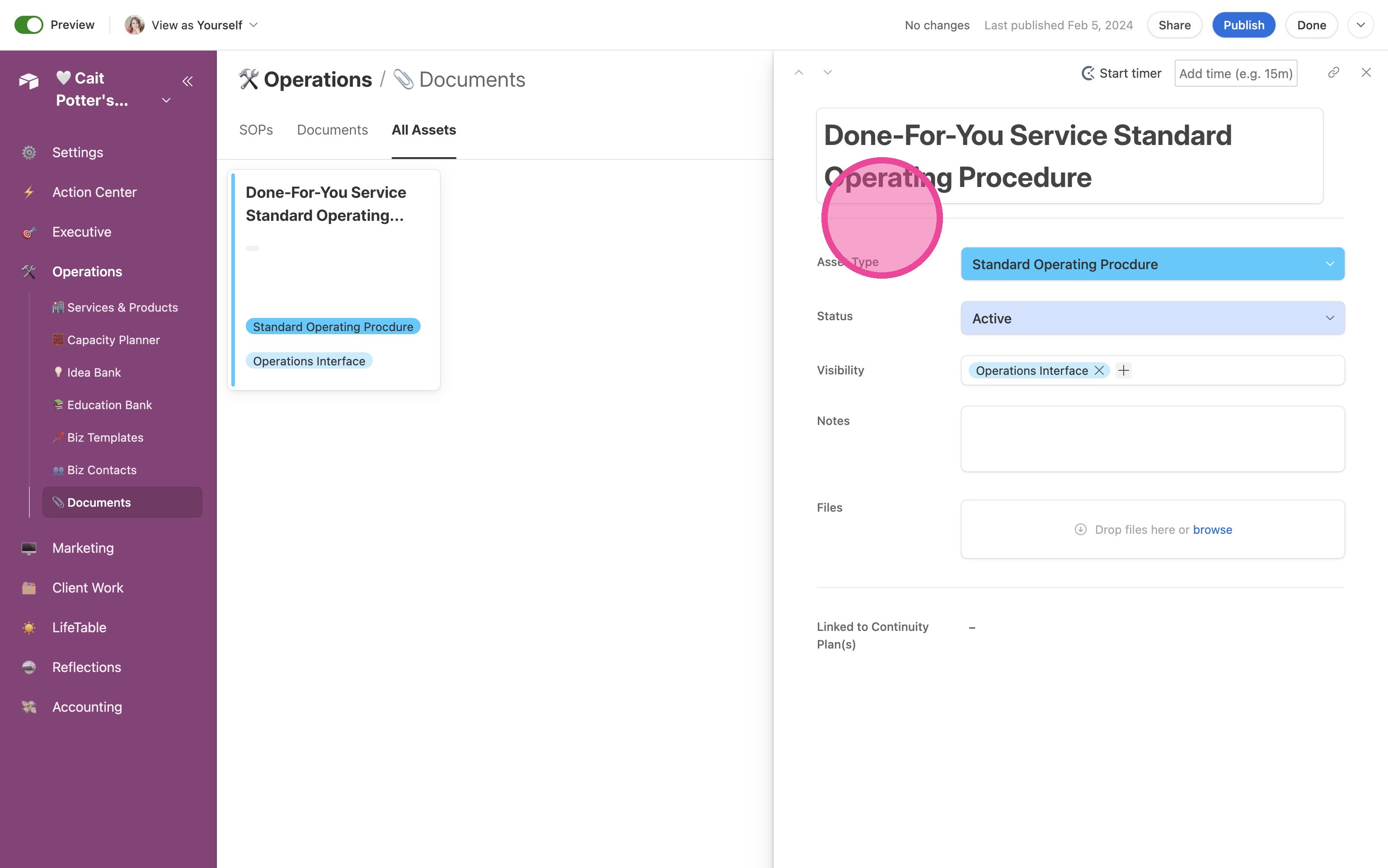
9. Once the detailed view is opened, you can review and edit all information.
Tip: Refer to a separate tutorial on creating new asset types & adding tabs.