📎 All Documents
What is it?
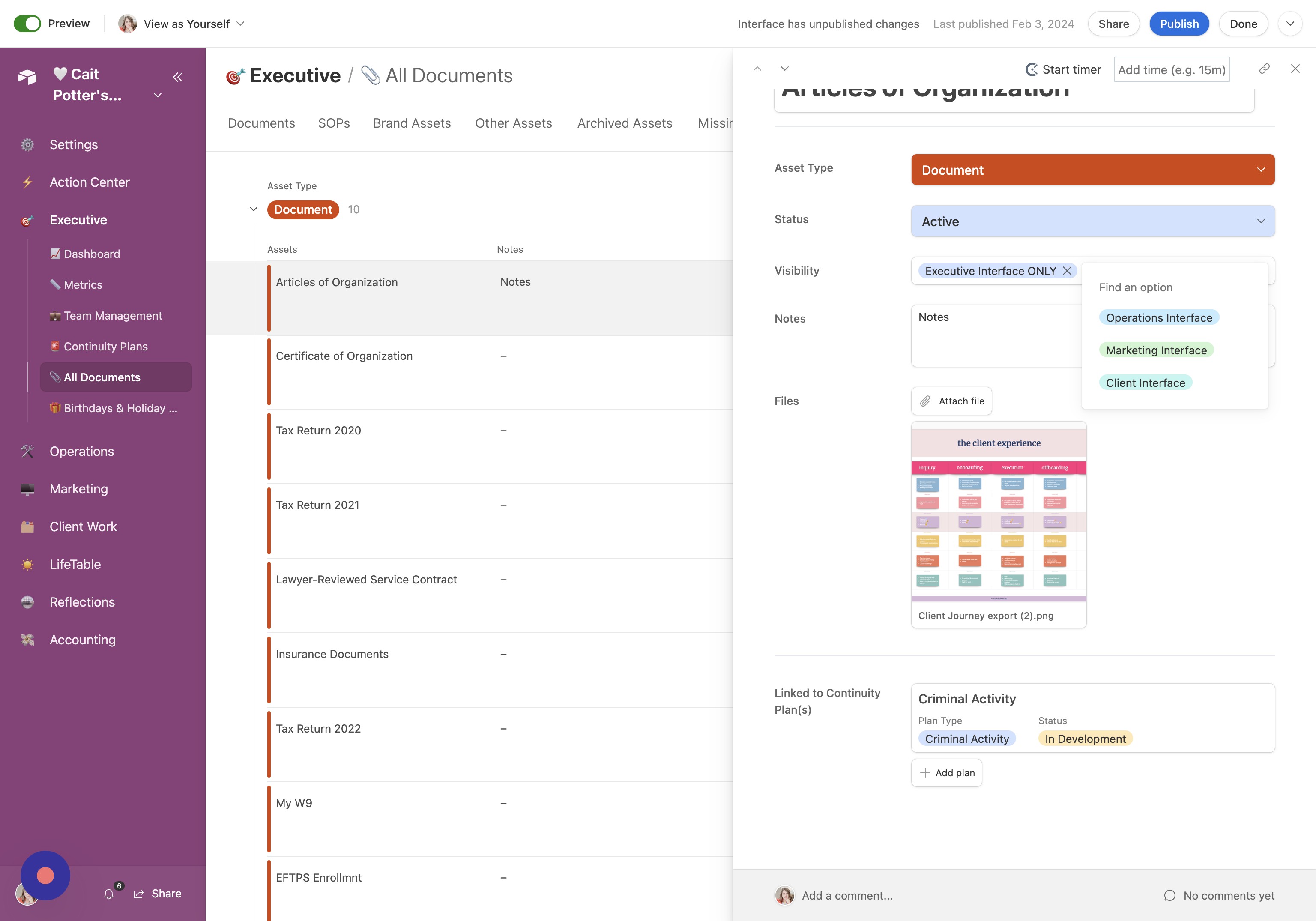
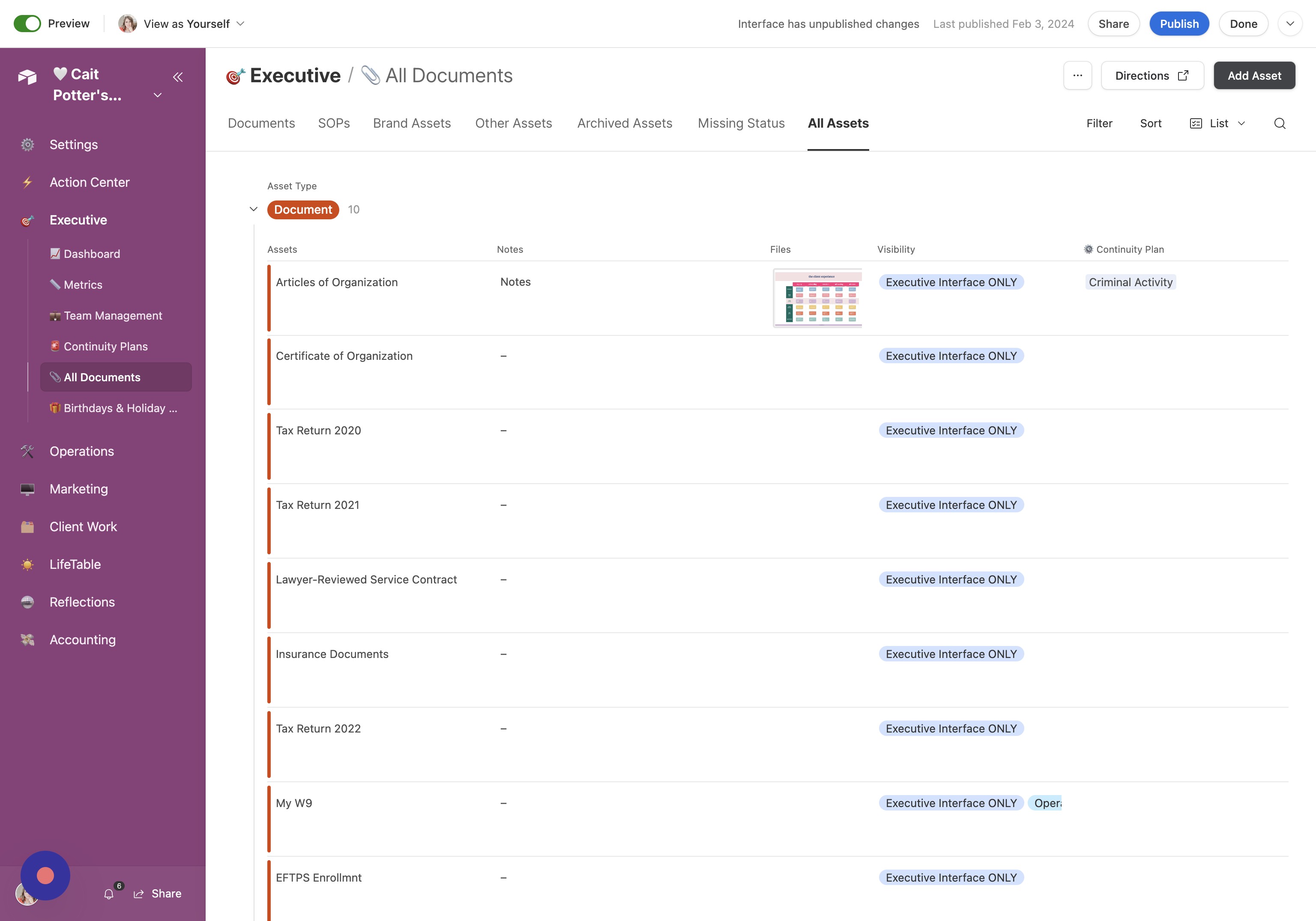
This area gives you a beautiful and convenient spot to store all of your IMPORTANT files. This is probably NOT where you are going to save all of your daily files. Think of this more like a filing cabinet in your office where you store the stuff you need to keep long term- things like tax information, business licenses, contracts, and the like.
How do I use it?
In this area, you'll see ALL of your own documents, and you'll be able to dictate what documents to show in other Interfaces that may be visible to subsets of your team.
Note that this area is intended for business documents. There is a separate area for personal documents.
There is a default list of document/asset types already created for you, but you may need to customize this list to your business. Here's a tutorial on how to do that specifically!
Usability Checklist
Have you done all of this?
Uploaded all of your important business documents
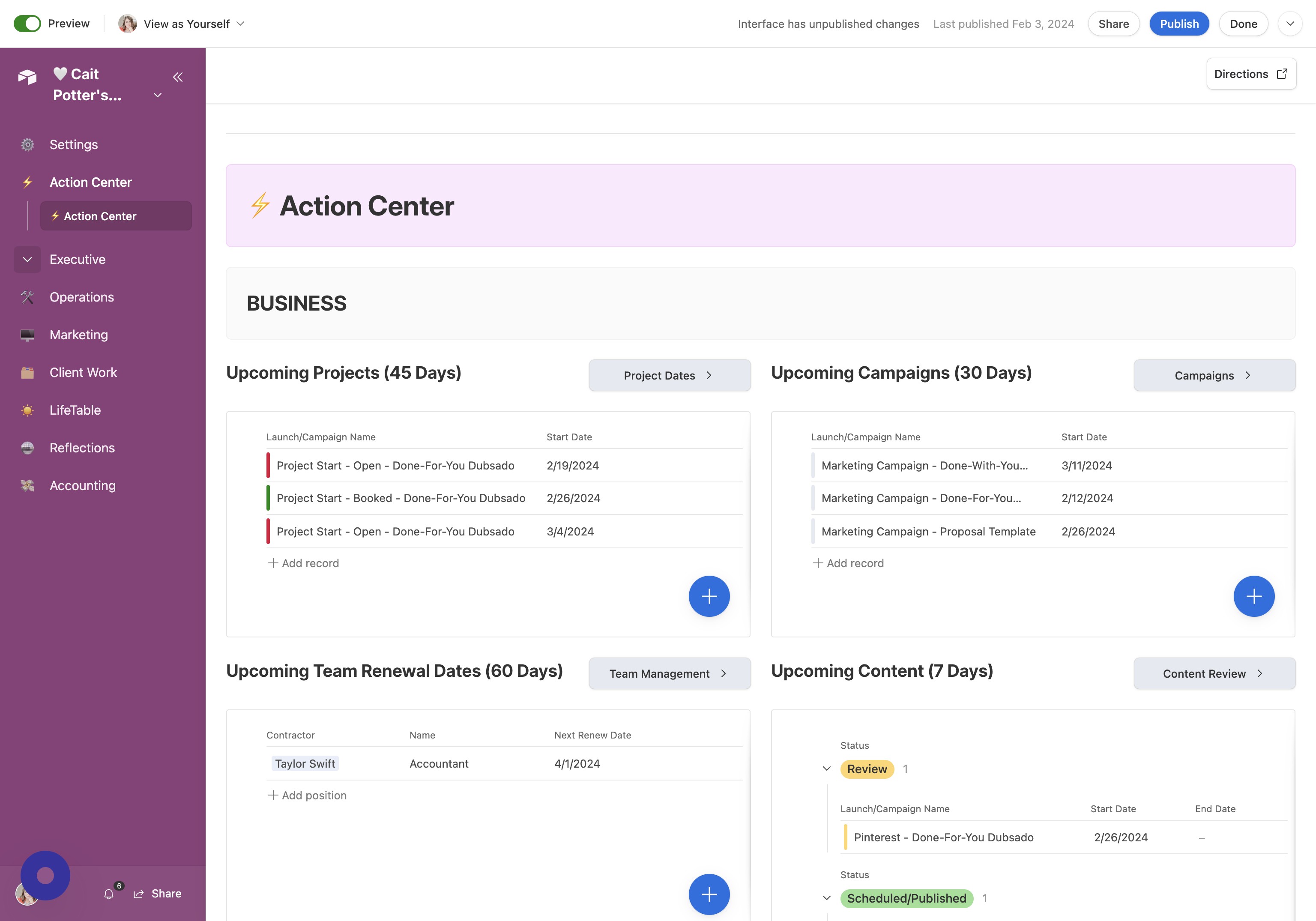
- Open Executive Section Click "Executive"
- Go to All Documents Click "📎 All Documents"
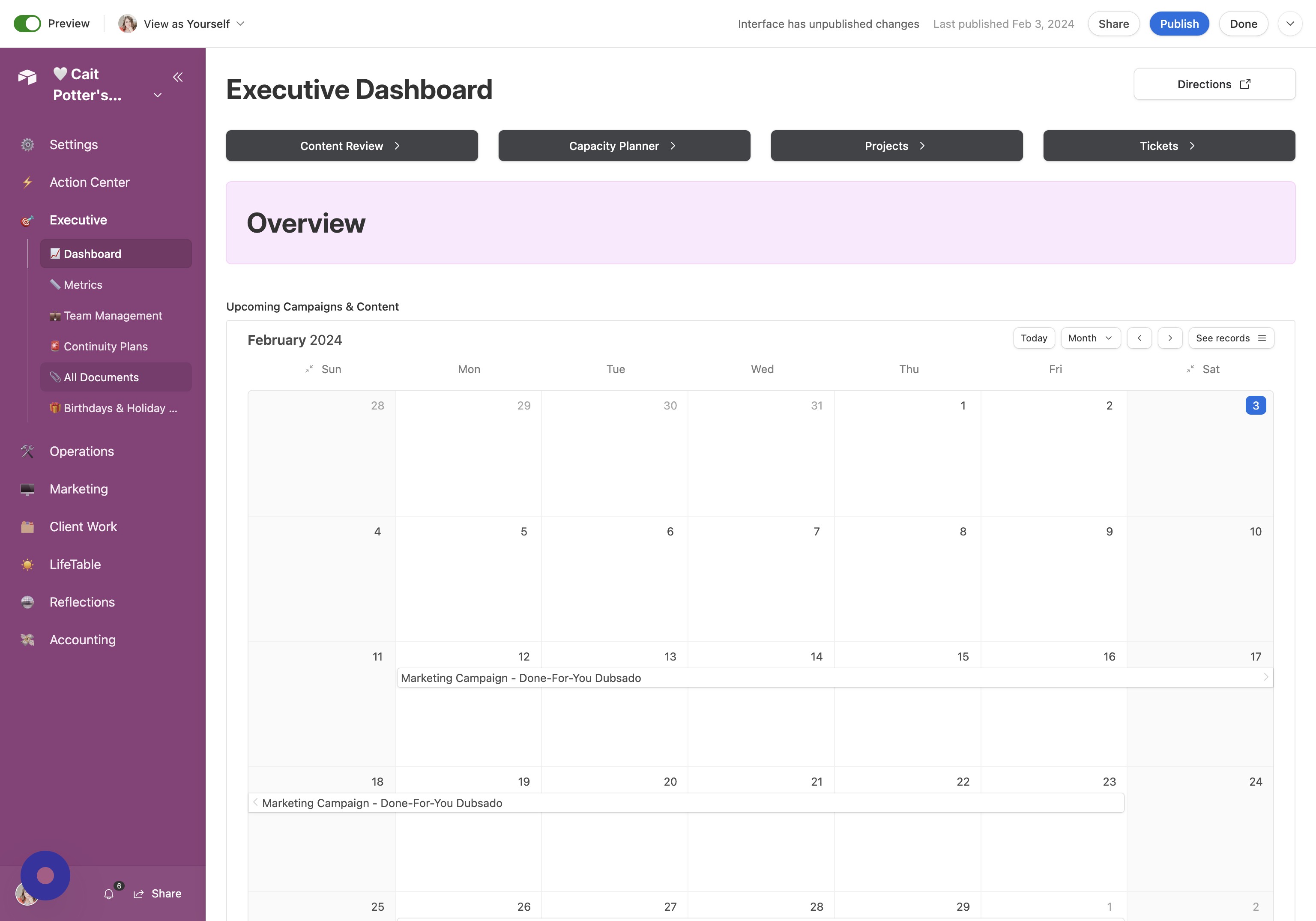
- Review Categories Note that across the top you have different categories for different types of Documents & Assets.
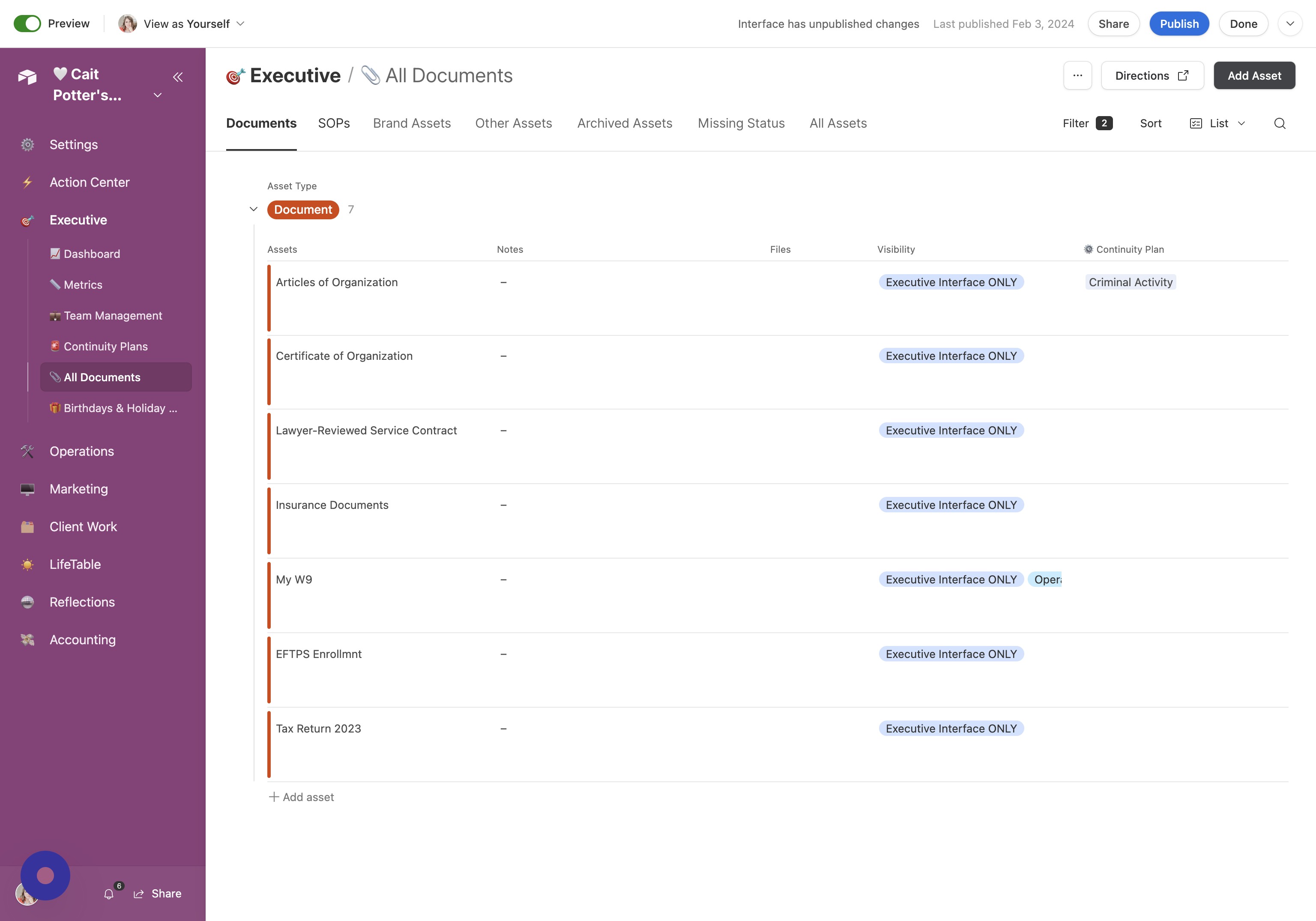
Create New Documents / Assets
- Add Asset Click "Add Asset"
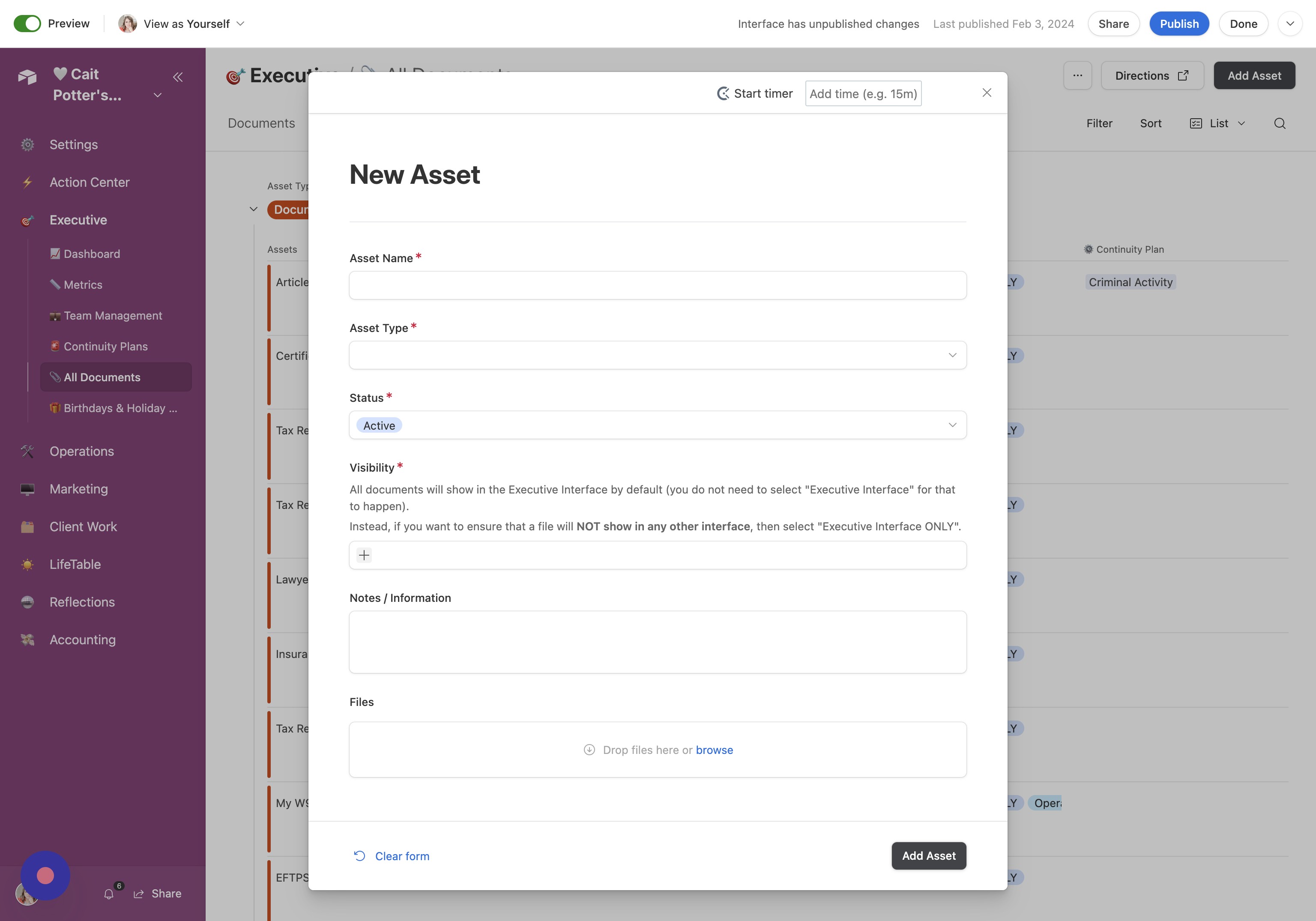
- Complete Asset Form Fill in all of the fields on the form and click "Add Asset"
View/Edit Existing Assets
- Open Asset Details Hover over the document and click "Open" to see all the details of an asset.
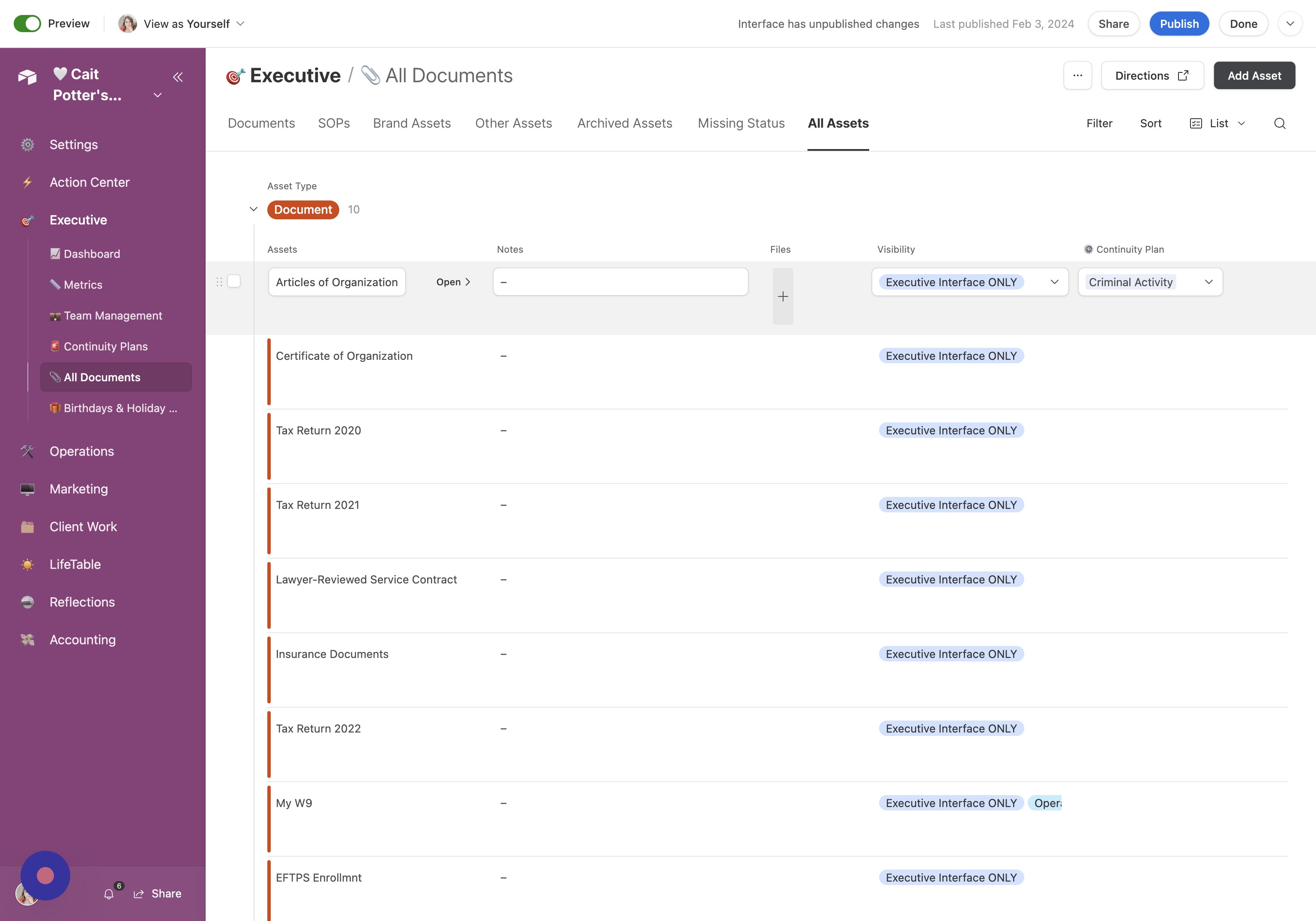
- Use Comments for Collaboration There is also a comments section available for collaboration and notes as desired.