
Editing the price for a paid appointment in Dubsado
1. Navigate to https://hello.dubsado.com/dashboard
2. Click here.

3. Click "Scheduler"
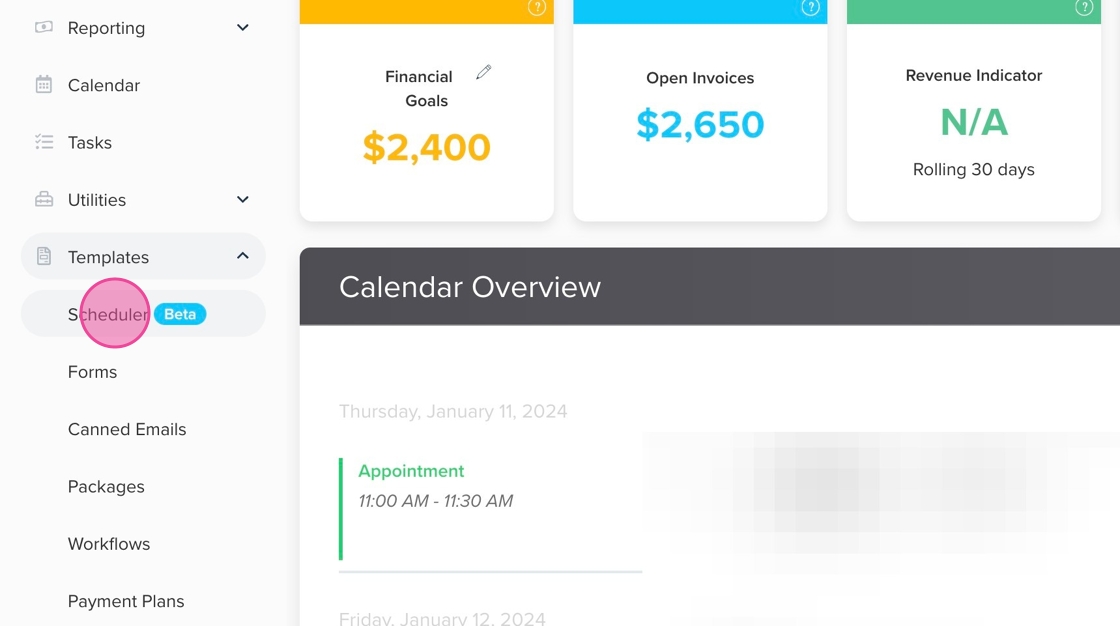
4. Select the scheduler/appointment that you need to change the price for

5. Click "Advanced"
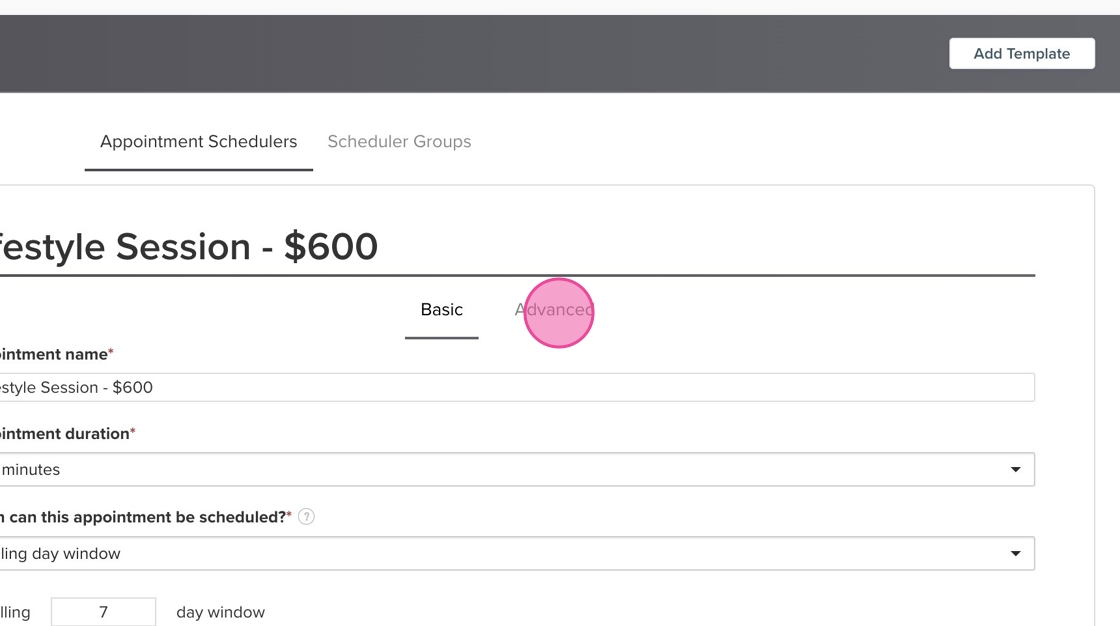
6. Click here.

7. Click "Edit"

8. Make any changes to the package- whether the title, description, price, etc.

9. Click "Save Item"

10. Click "Save" on the scheduler overall.
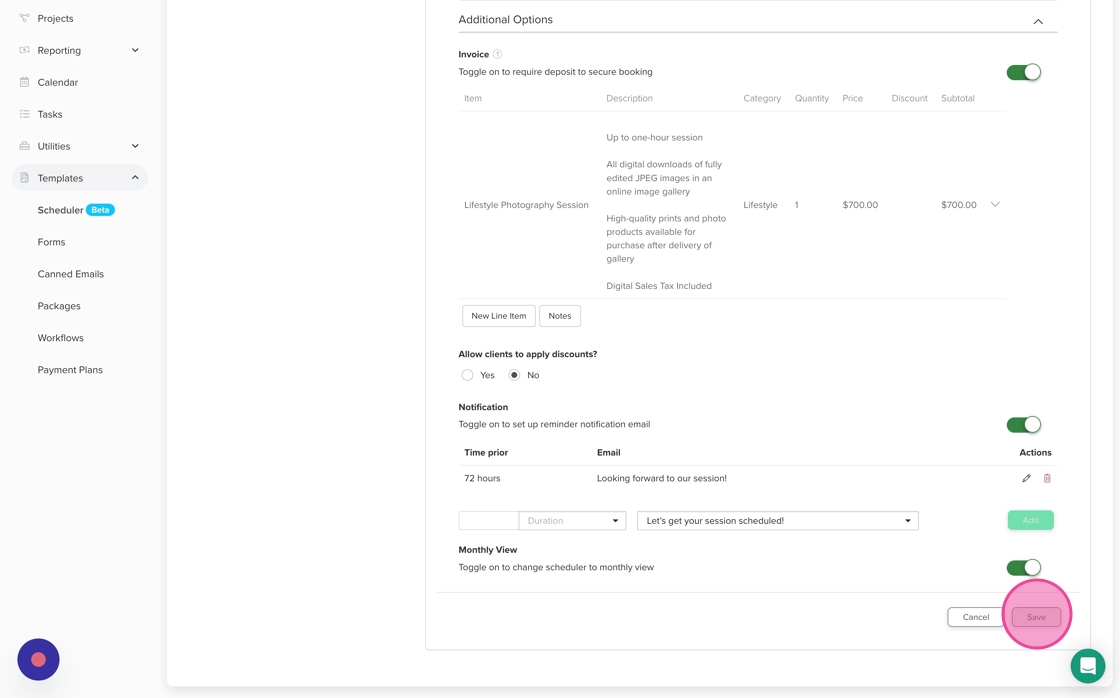
11. Make sure you see an alert in the top right: "Appointment Template successfully saved"

Alert: Alert! You're NOT done yet!
12. Click "Basic"

13. Click this name field & update the title to the new price. If you don't have the price in the title, I recommend adding it so that your clients are always clear what they are getting into when they start with the step 1 process of booking you!

14. Click "Save" at the bottom of the scheduler overall and look for the green confirmation alert in the top right of your screen.
