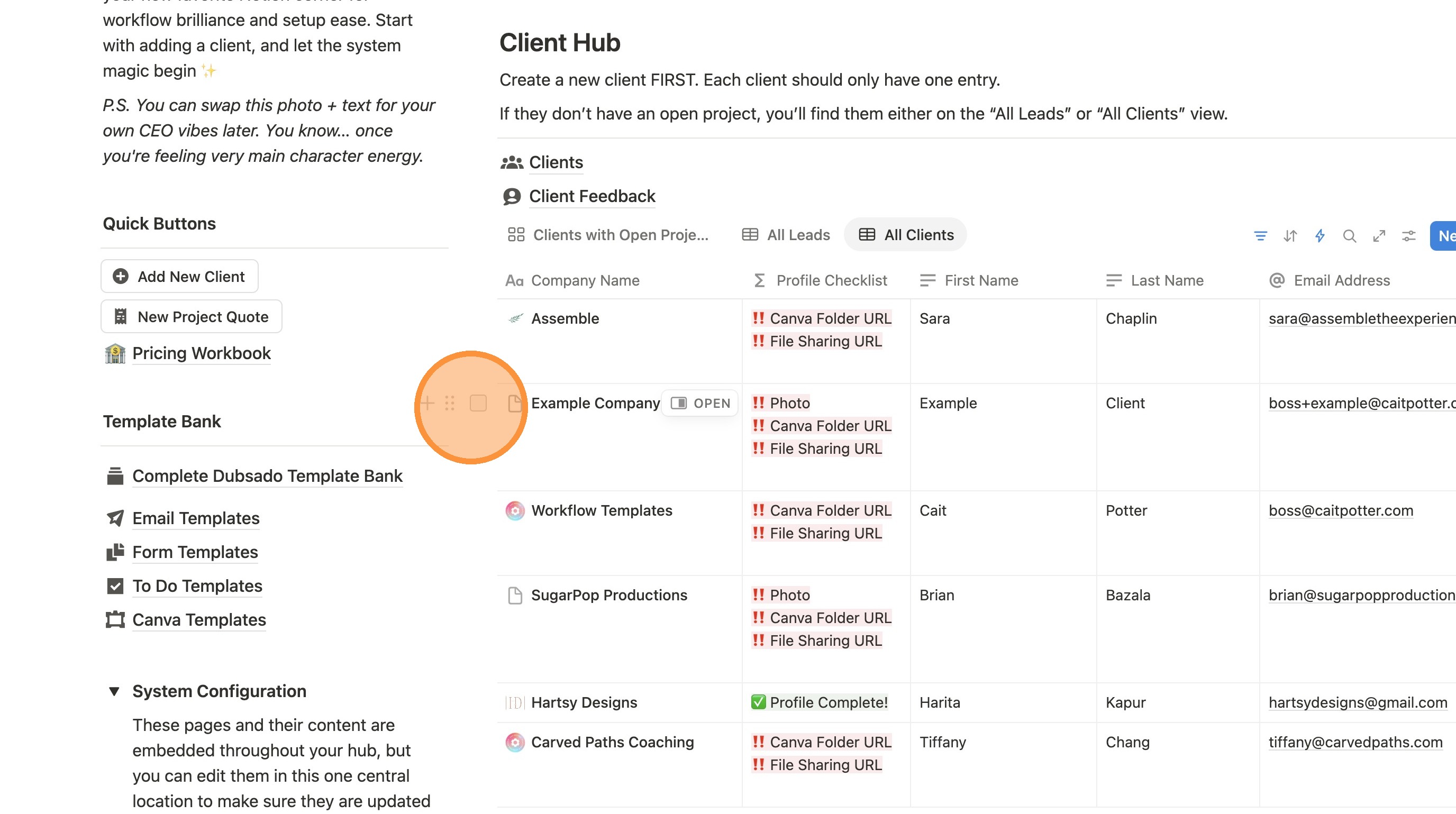
Add New Client and Project Quote in Notion
1. Navigate to https://www.notion.so/The-Setup-OS-by-Cait-Potter-206dd7308353808987bff97cb6ffafb3
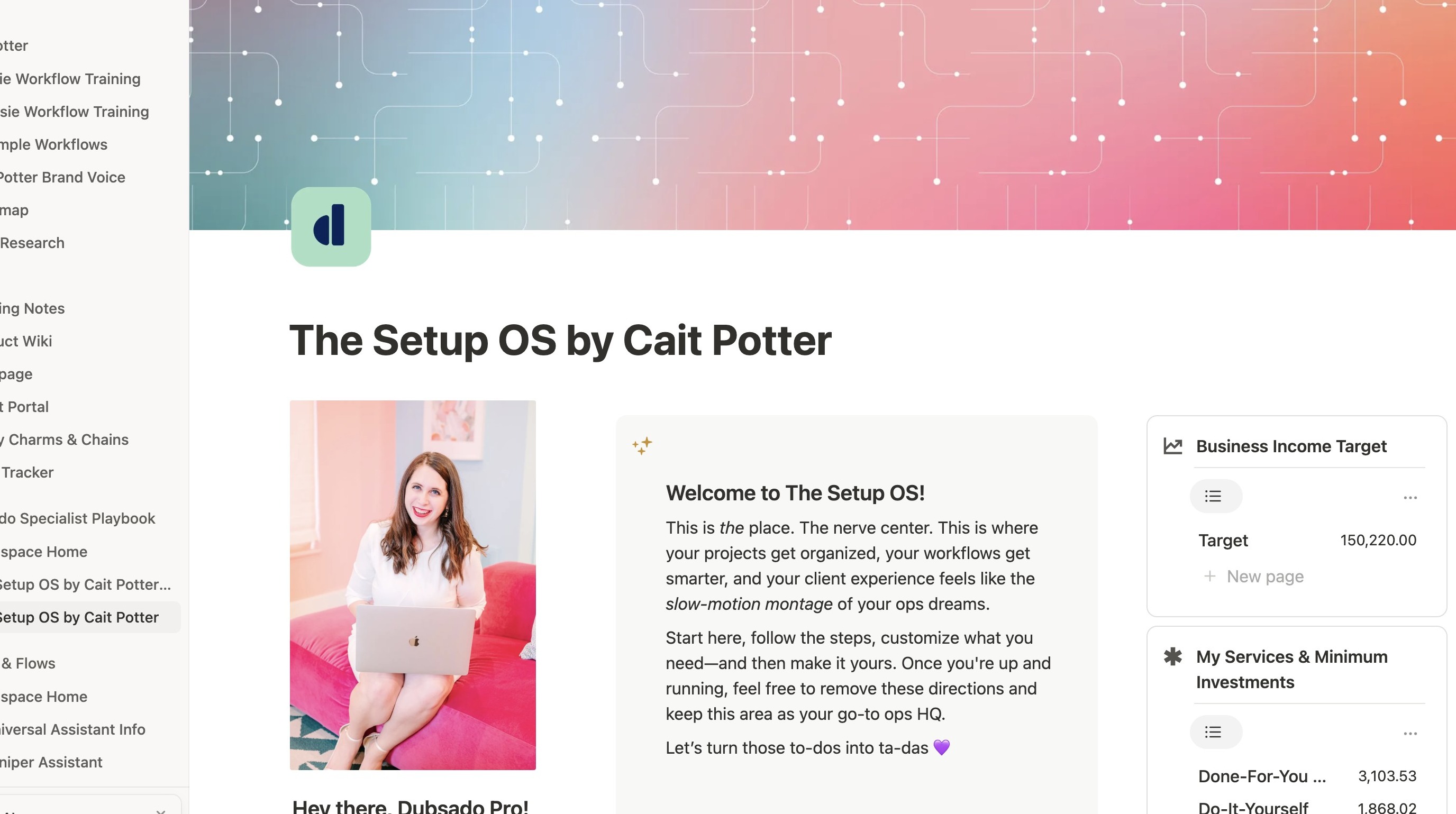
2. Click this icon to collapse overwhelming side bar menu.
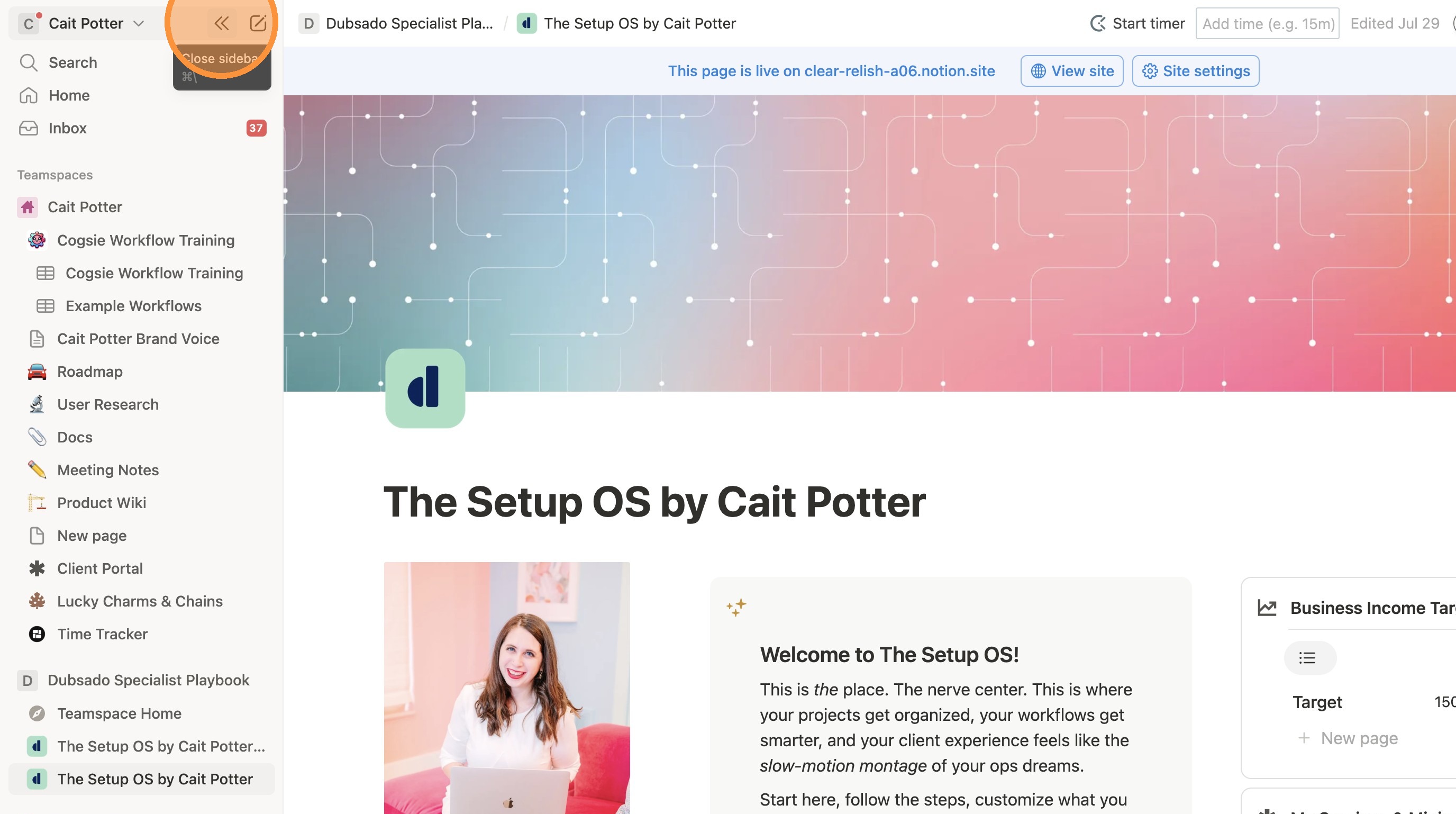
Add New Client as Lead
3. Click "Add New Client"
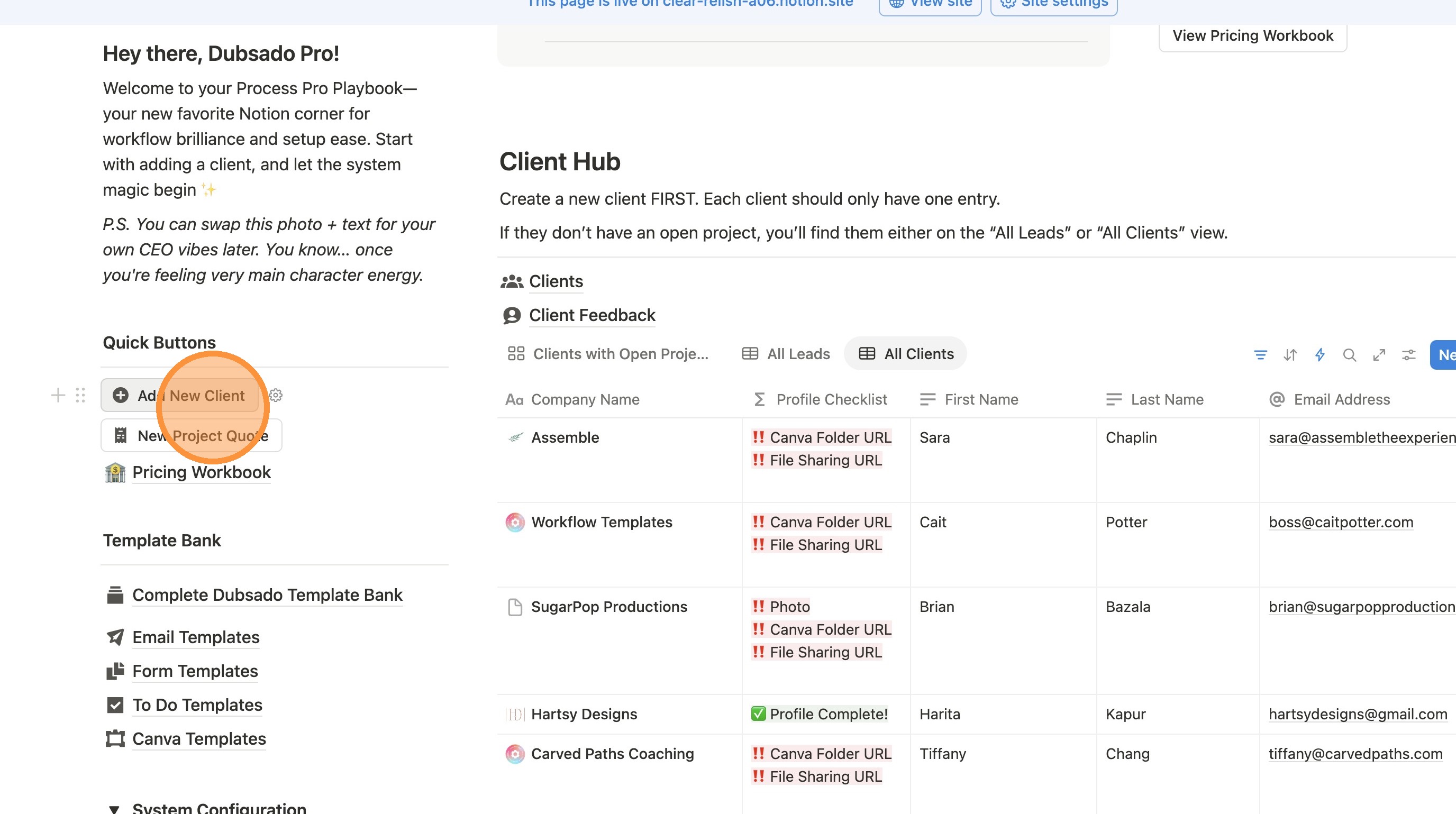
4. Enter the client's information into the form.
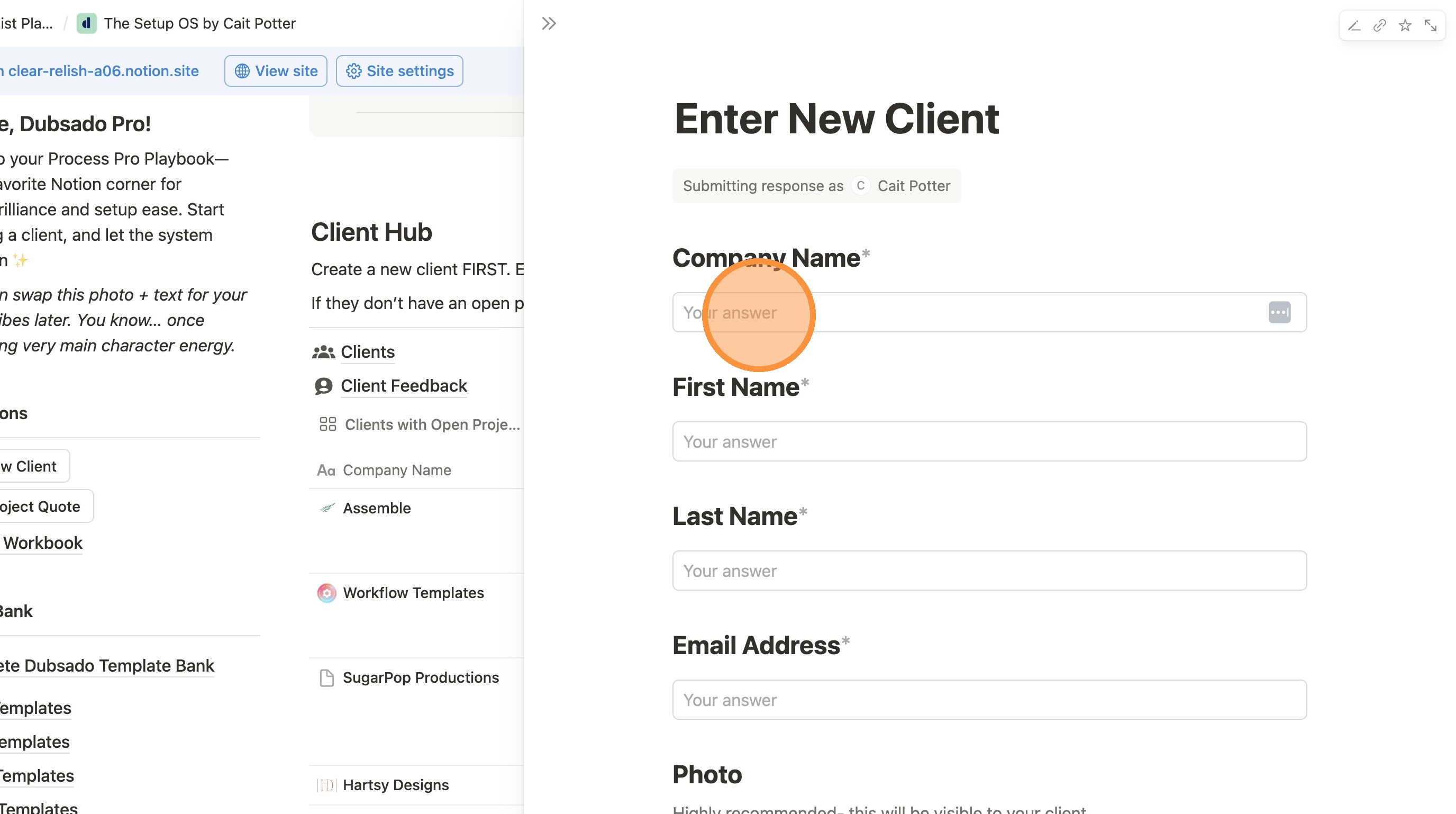
5. Click "Submit"
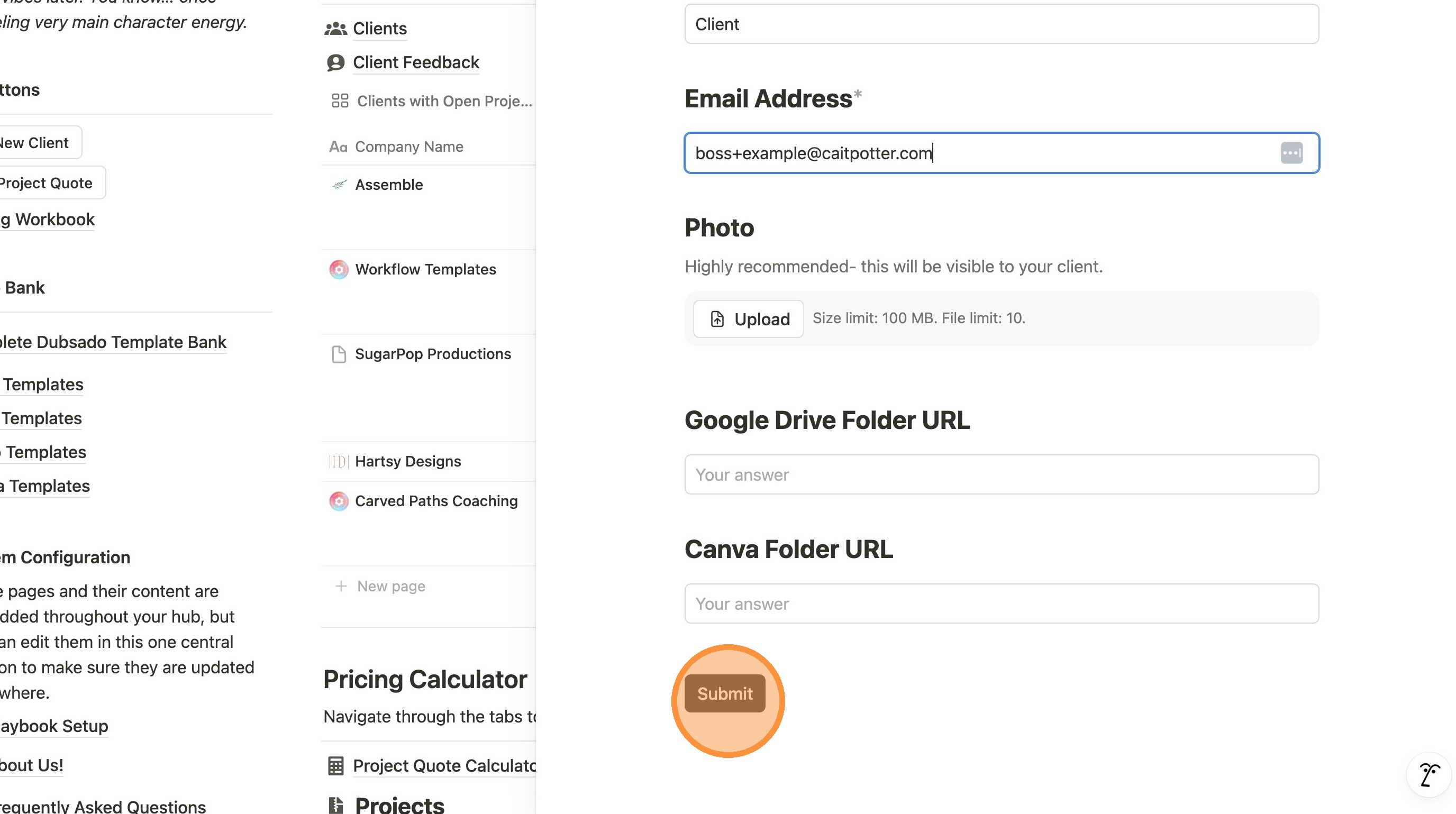
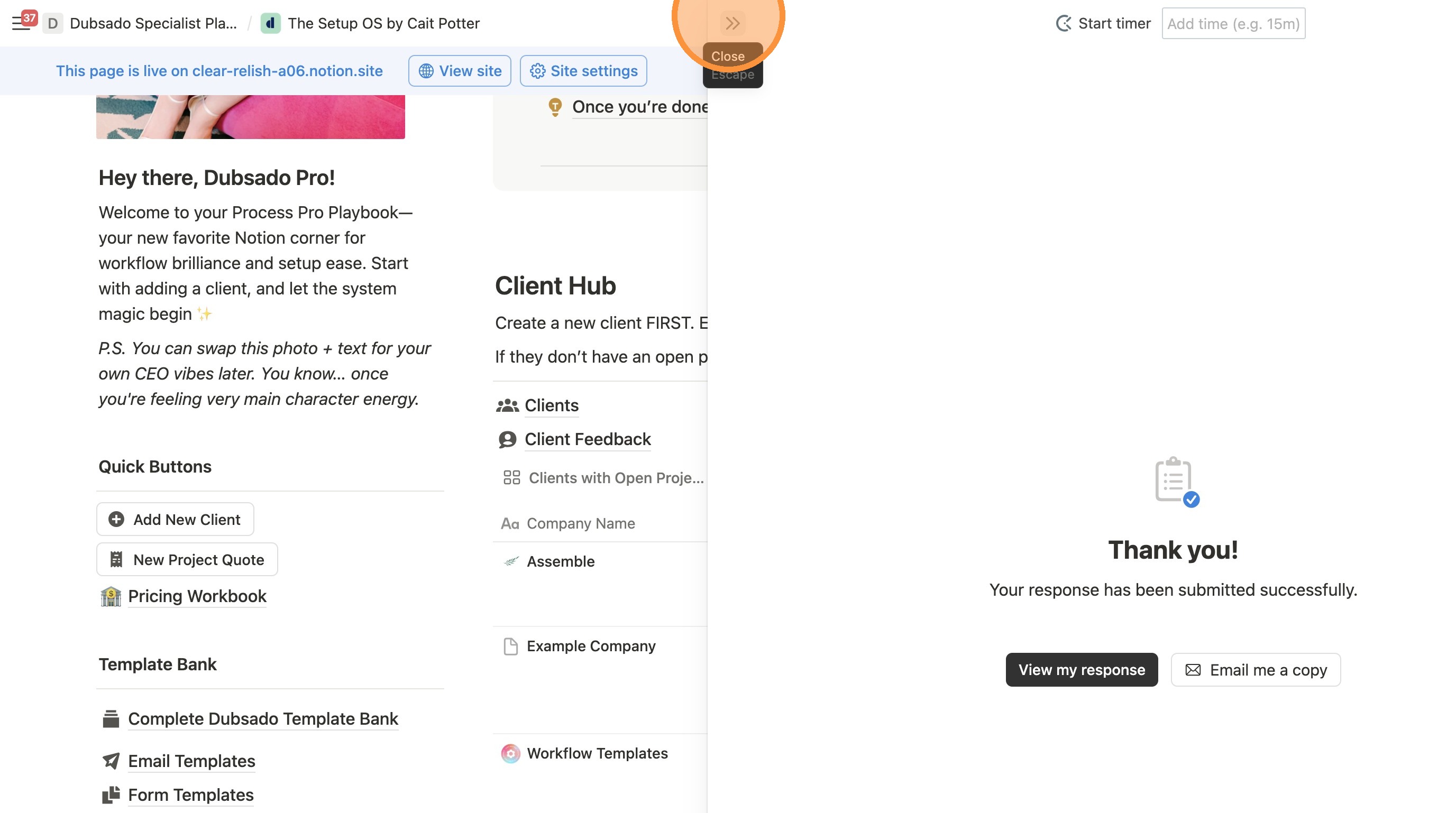
6. Close the window
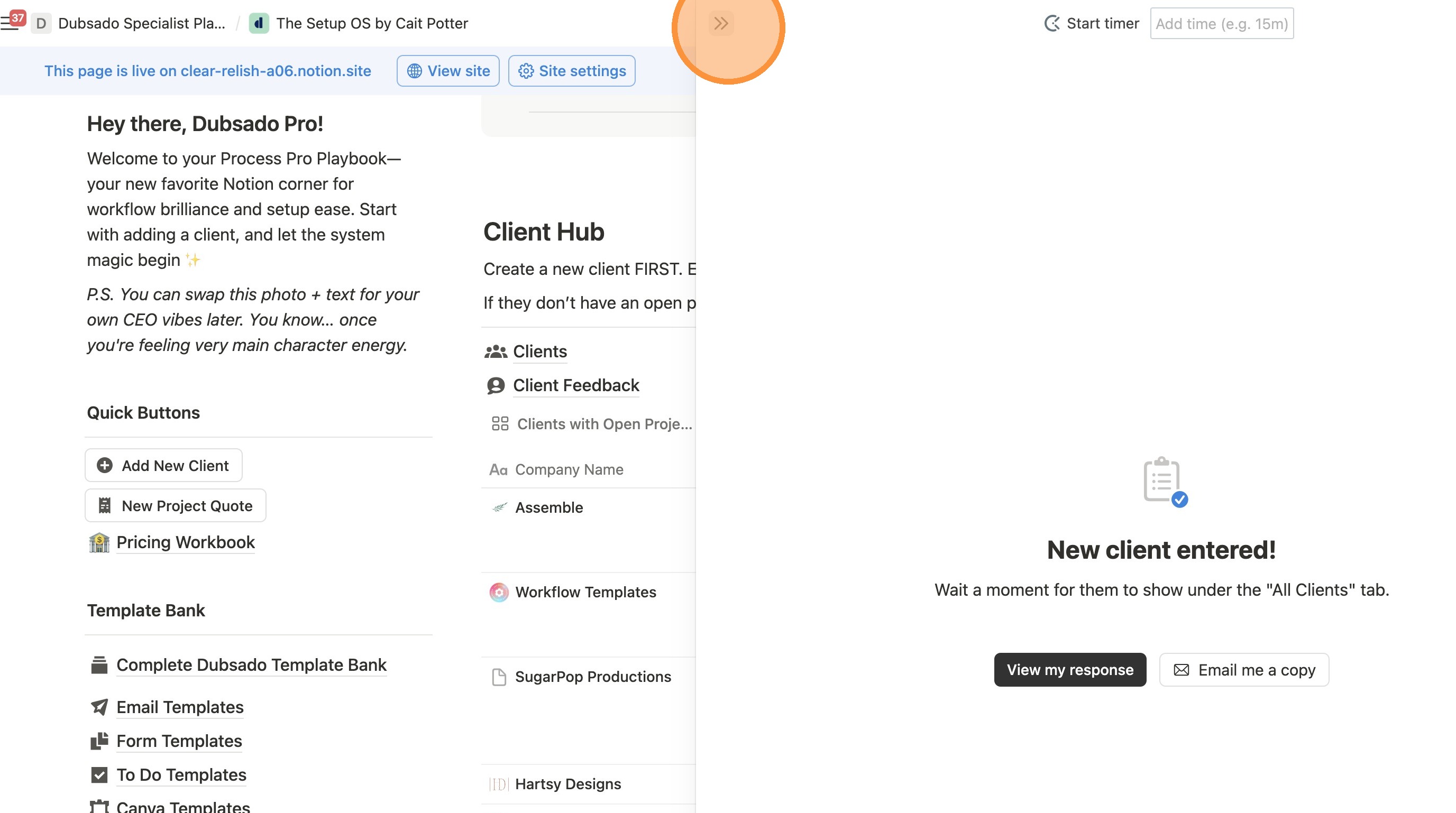
Add Project Quote
7. Click "New Project Quote"
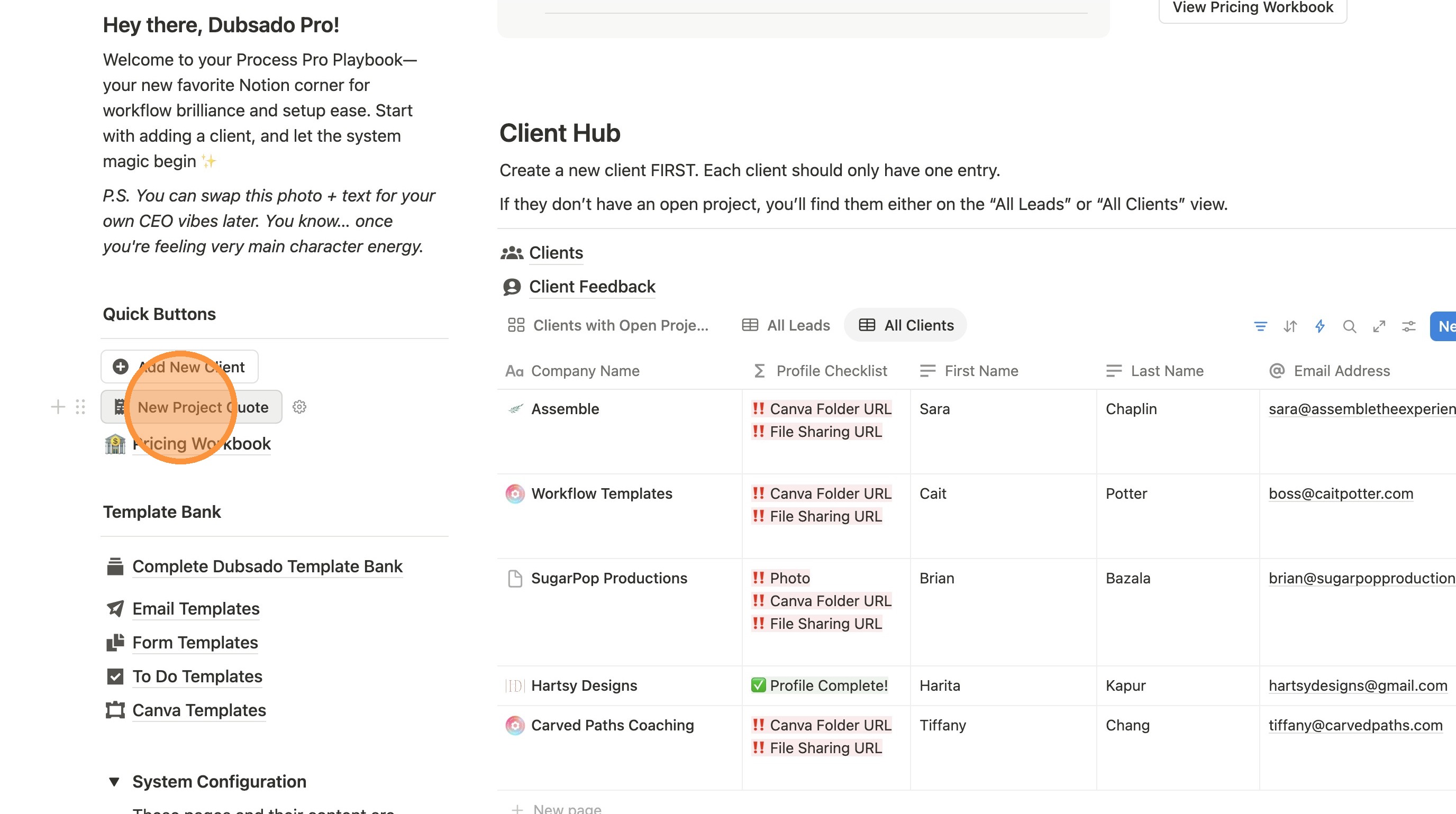
8. Fill out the form.
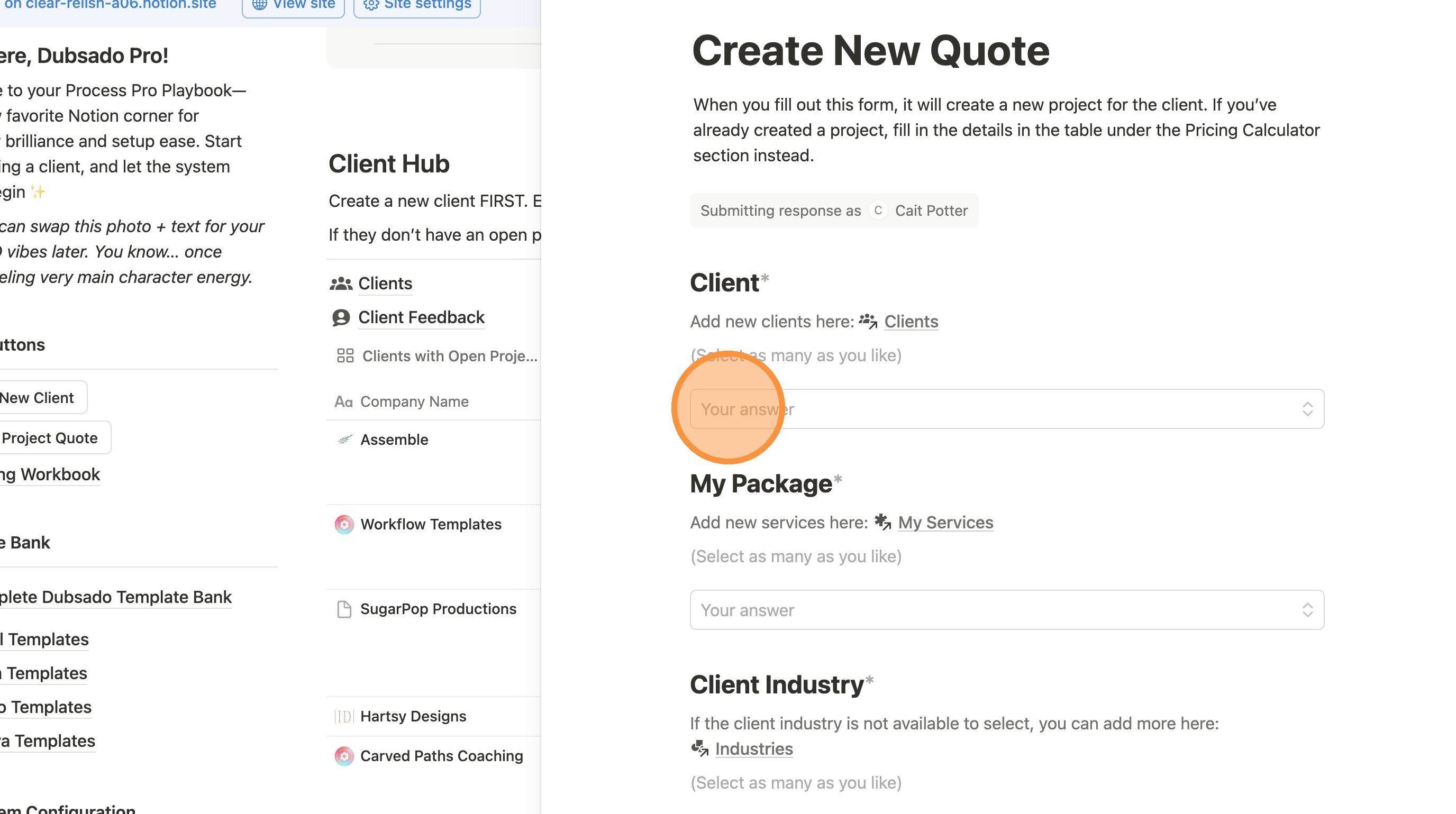
9. Fill out the form. Note that you may need to wait a few seconds or refresh the page to see your new client here.
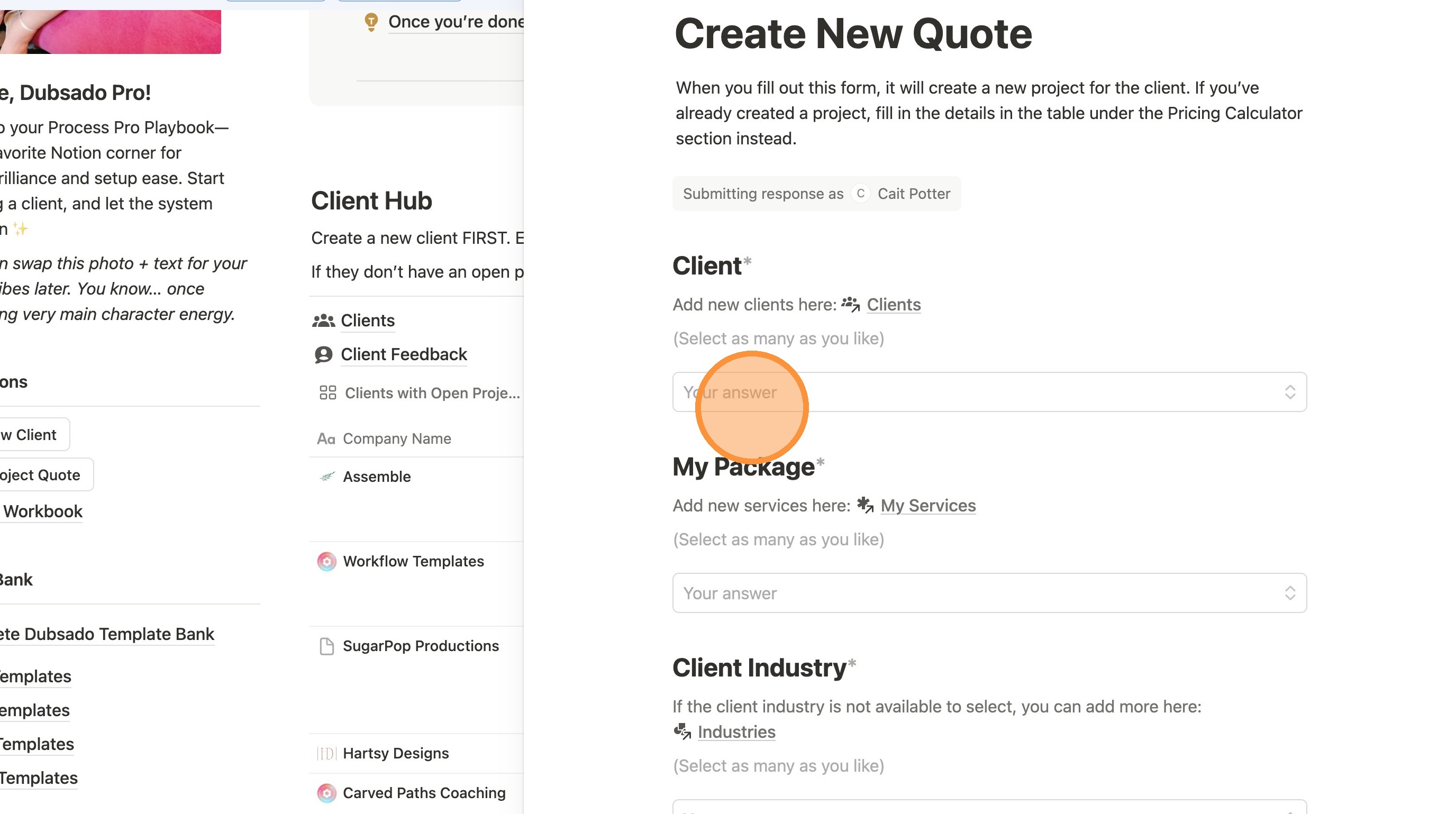
10. Select the package you are quoting or have booked. Note that selecting your package here will be the basis for the suggested quote.
The packages that appear here align with what you've filled in to the Pricing Workbook. If you don't see your package, go add it there.
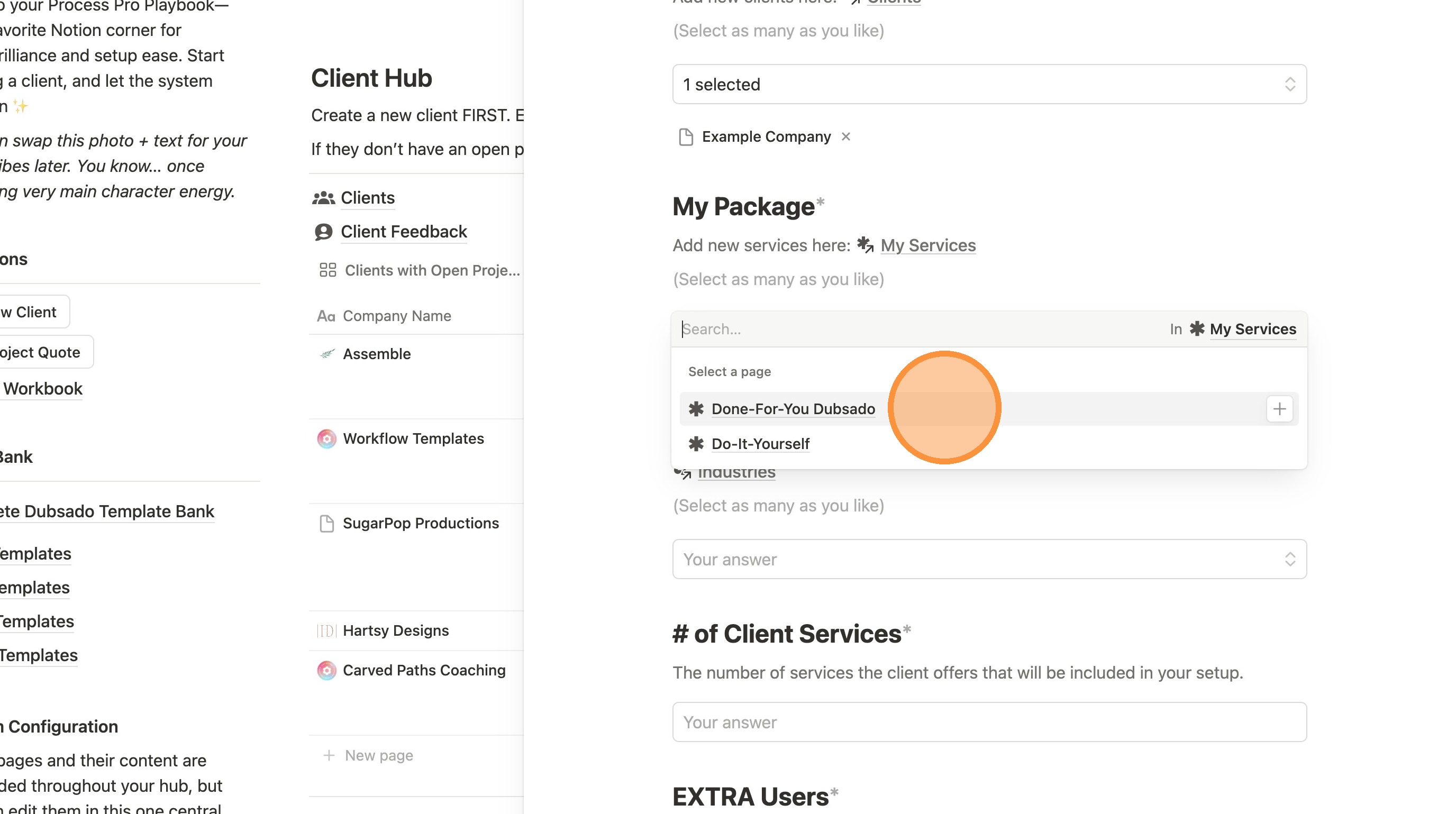
11. Click "Submit"
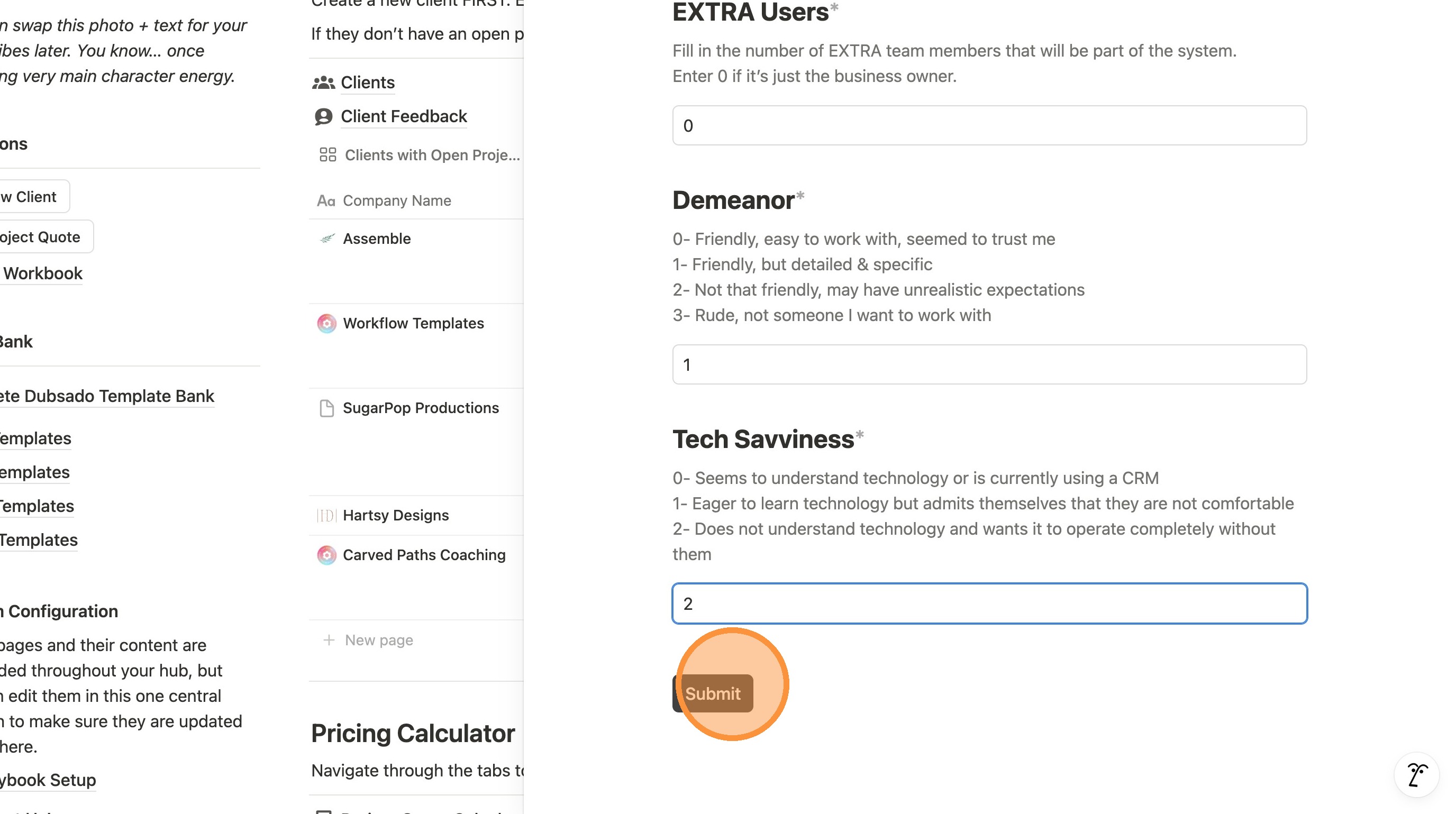
12. Click this icon to close the form.
Managing the Project to Quote
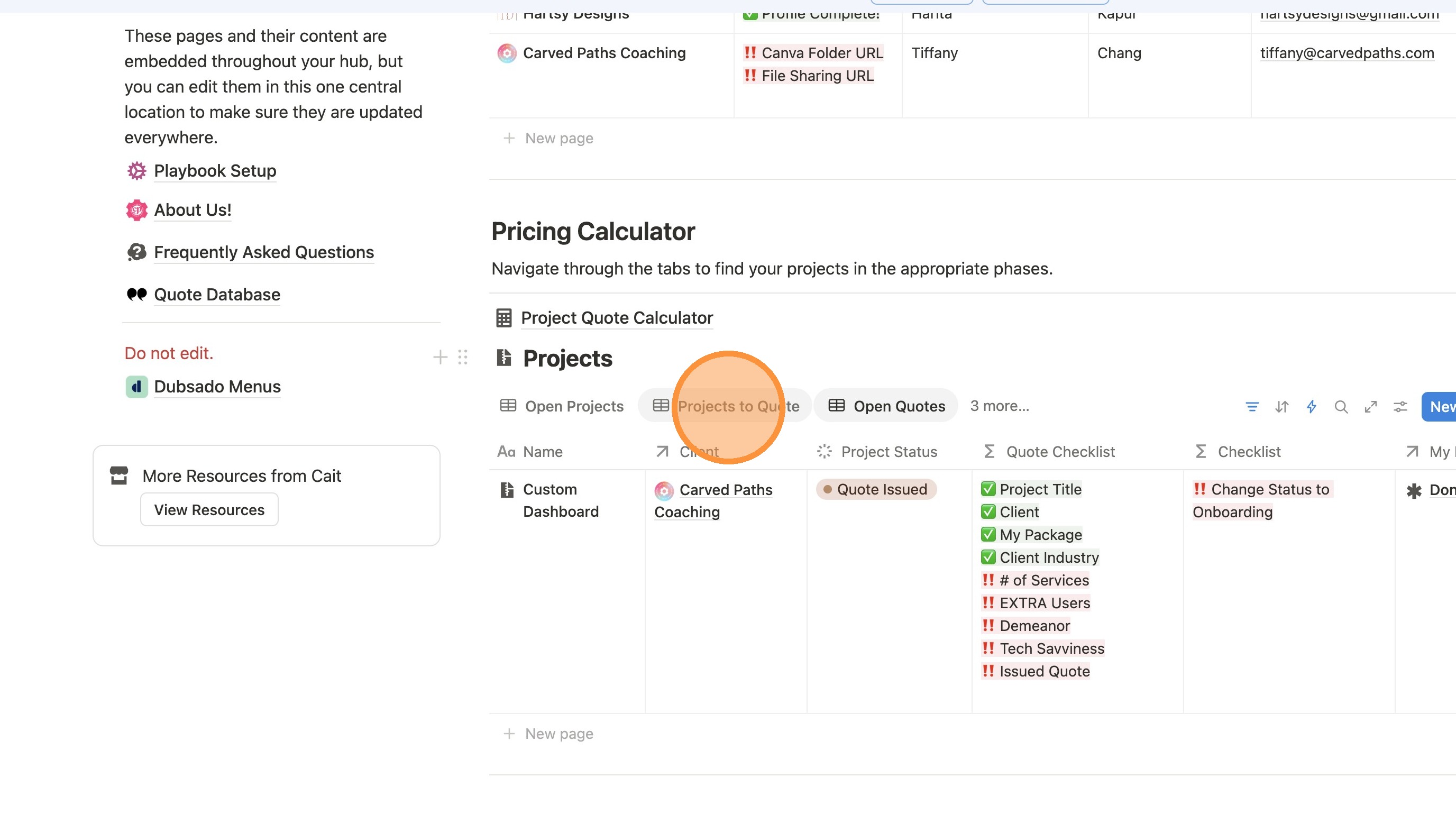
13. You can find your new entry under "Projects to Quote"
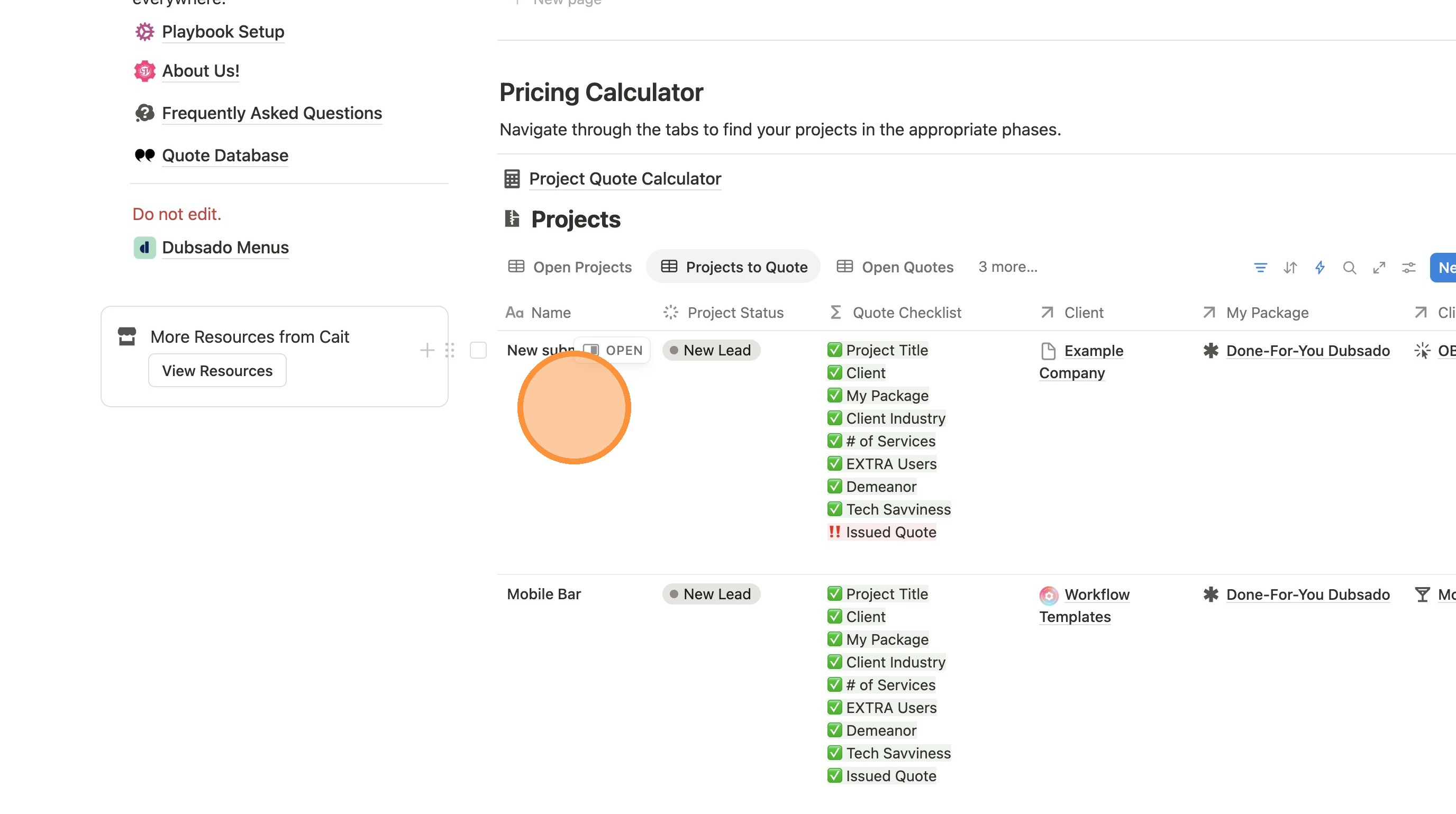
14. Your new submission may show up under the name "New Submission". You can edit it.
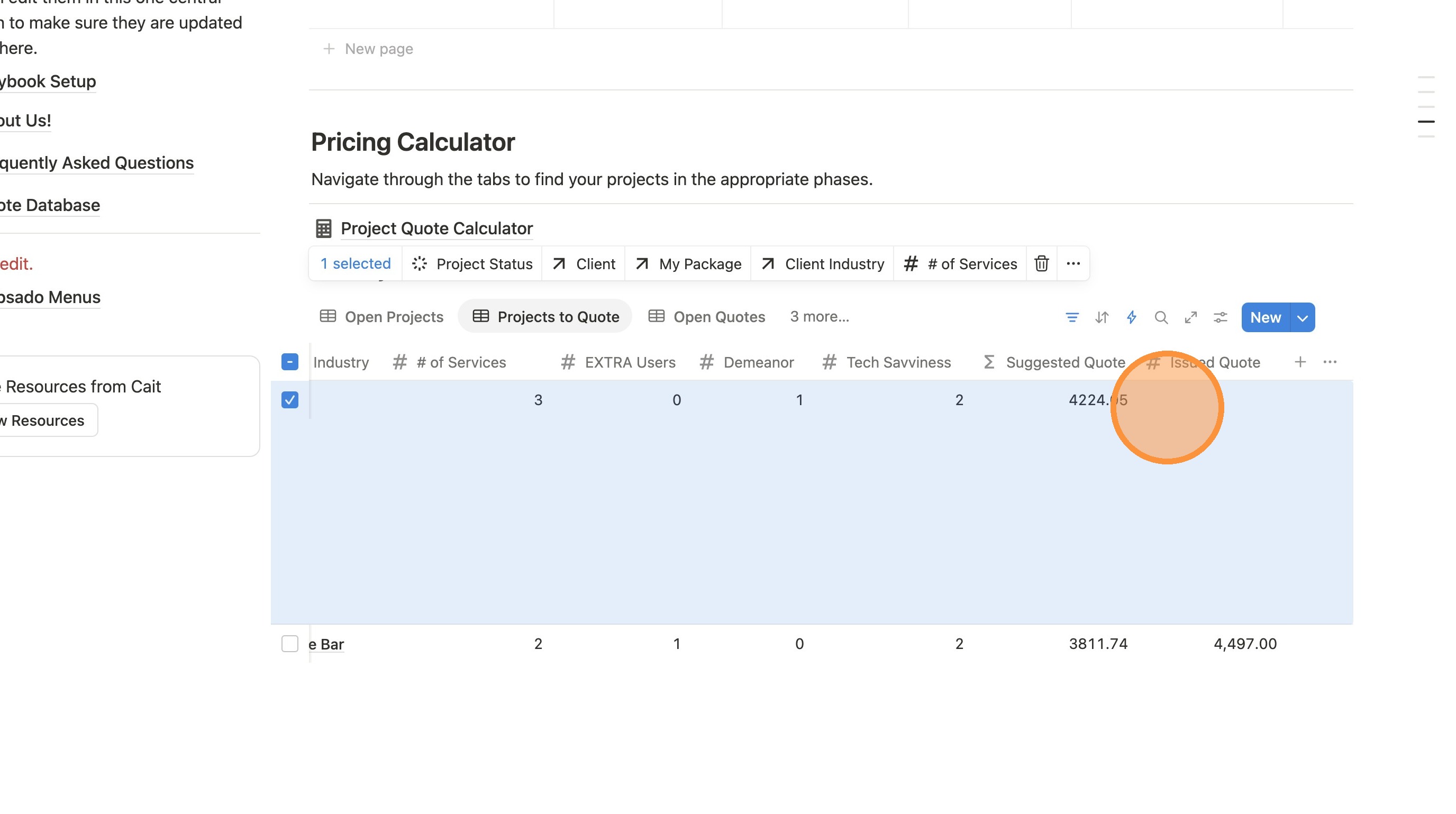
15. Scroll to the end of the row to see the suggested quote. You may fill in your issued quote as well.
16. Once you've issued the quote, update the Project Status to "Quote Issued".
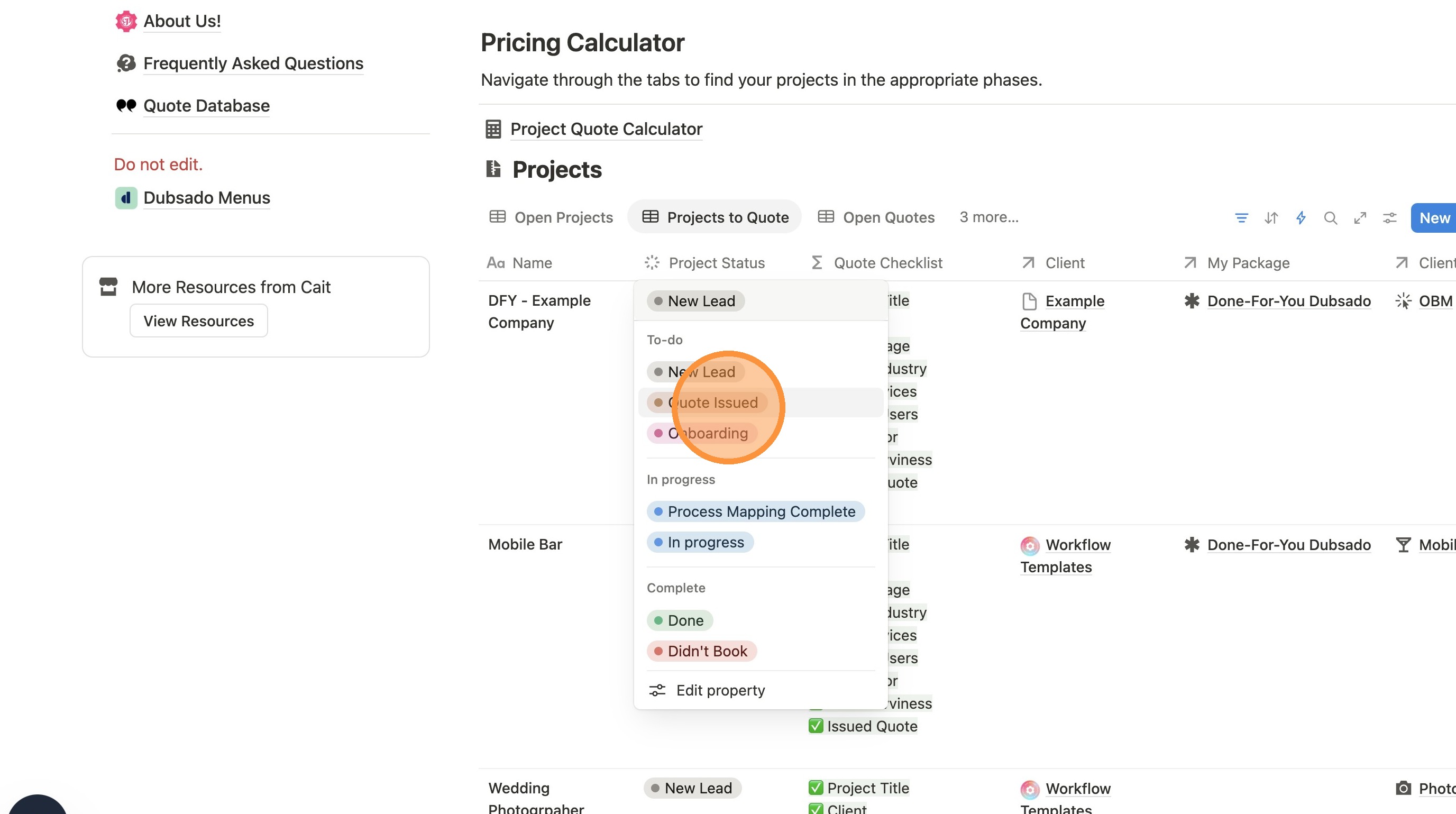
Tip: Tip! If you aren't using this for quoting, you'll still follow the same steps above, but simply update the project status to Onboarding instead of Quote Issued!
Updating Open Quotes to Booked Projects
17. Click "Open Quotes"
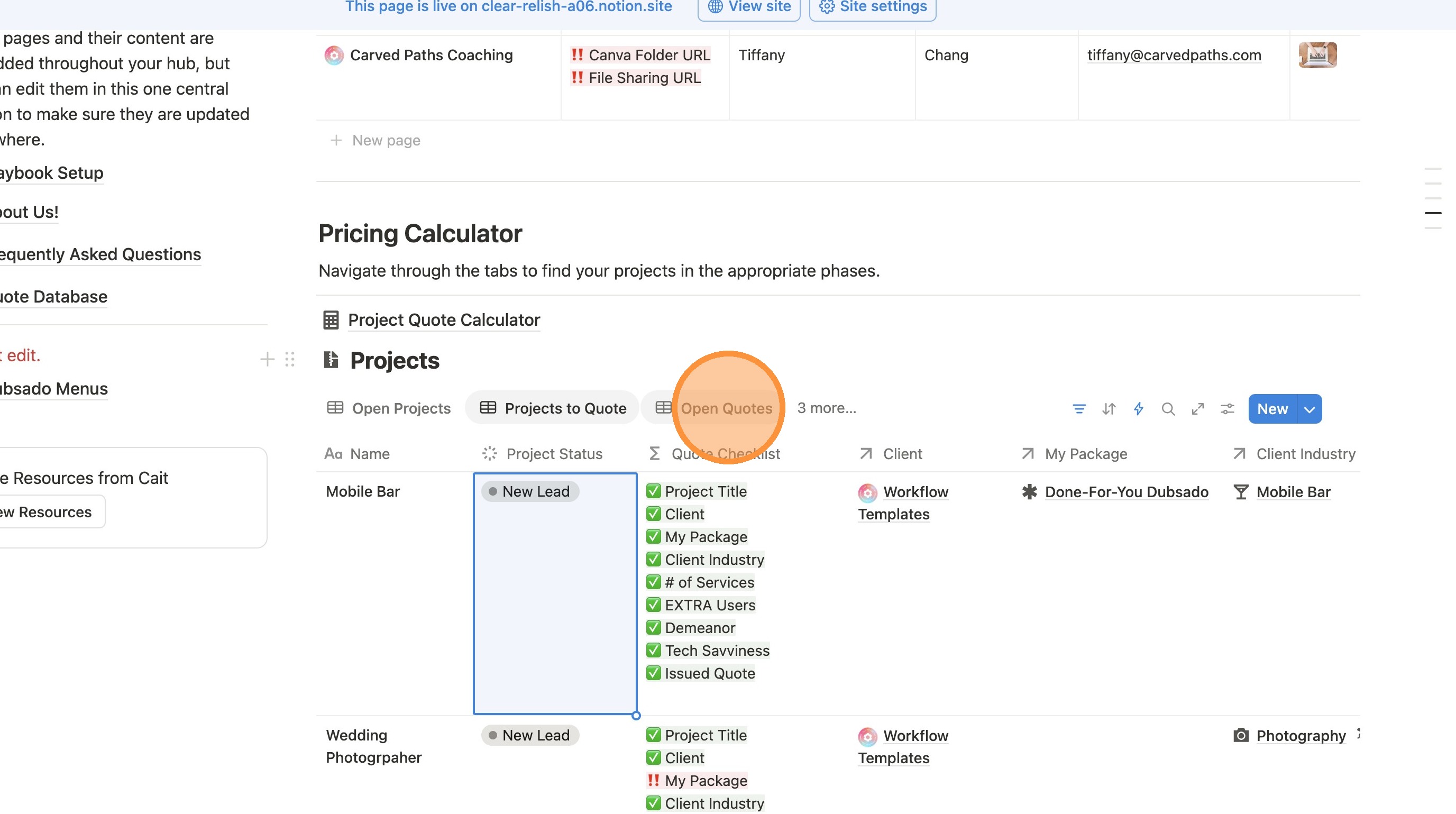
18. Locate the project and change the project status to "Onboarding"
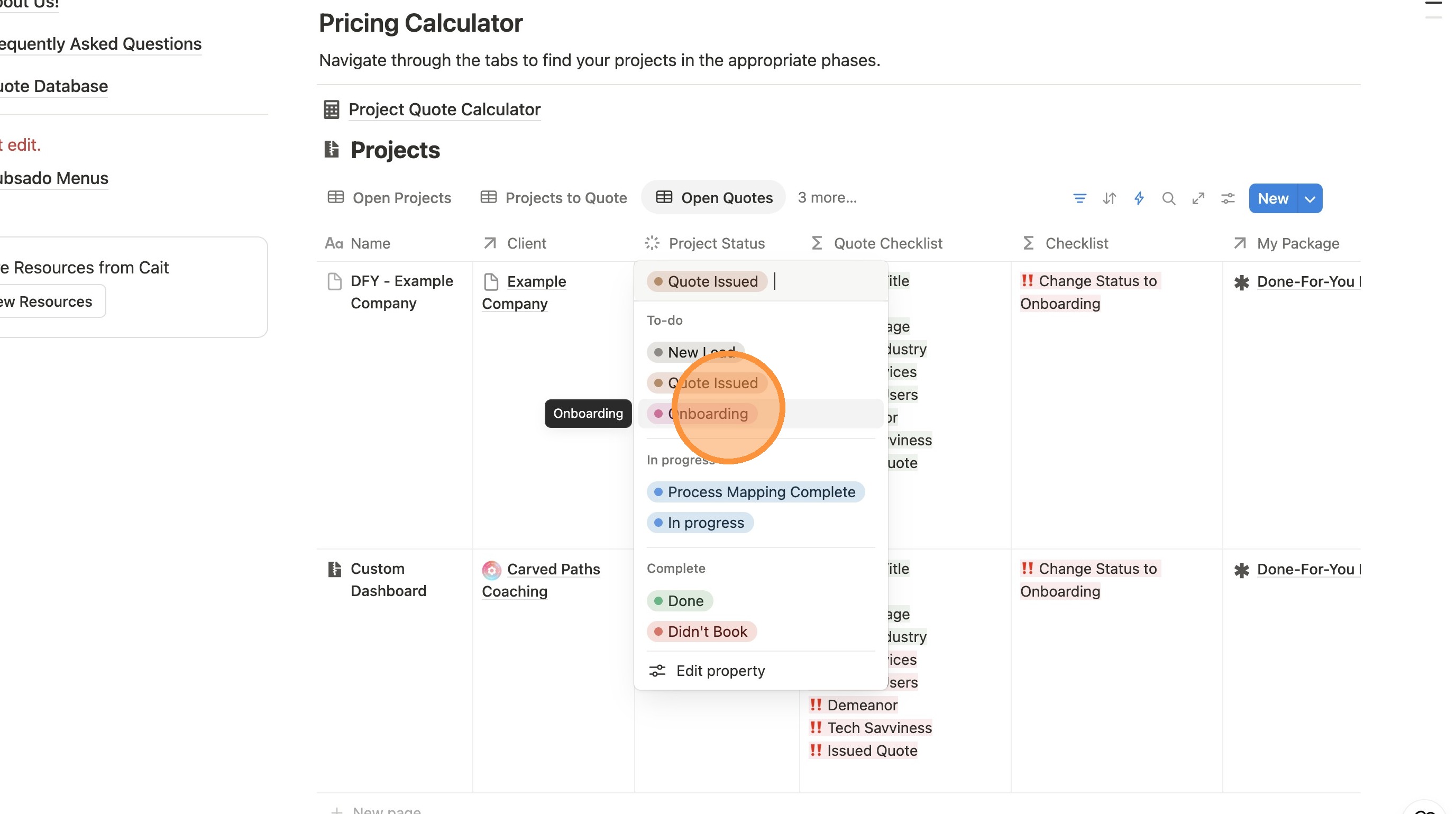
19. Now when you scroll up to the Client Hub area, you'll find the client listed under Clients with Open Projects.