Customize Done-For-You Next Steps Guide Content
1. Navigate to your Home Page
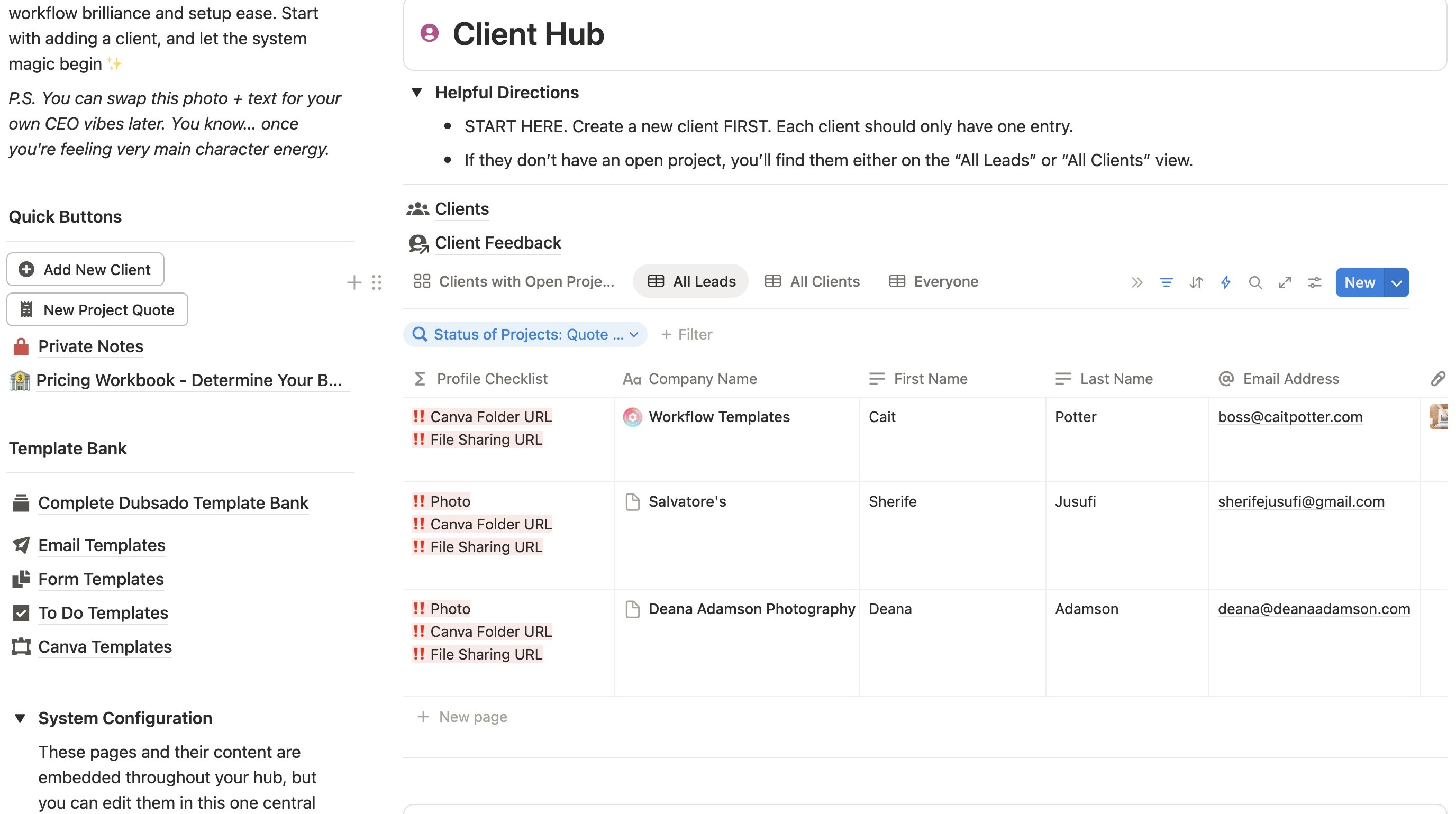
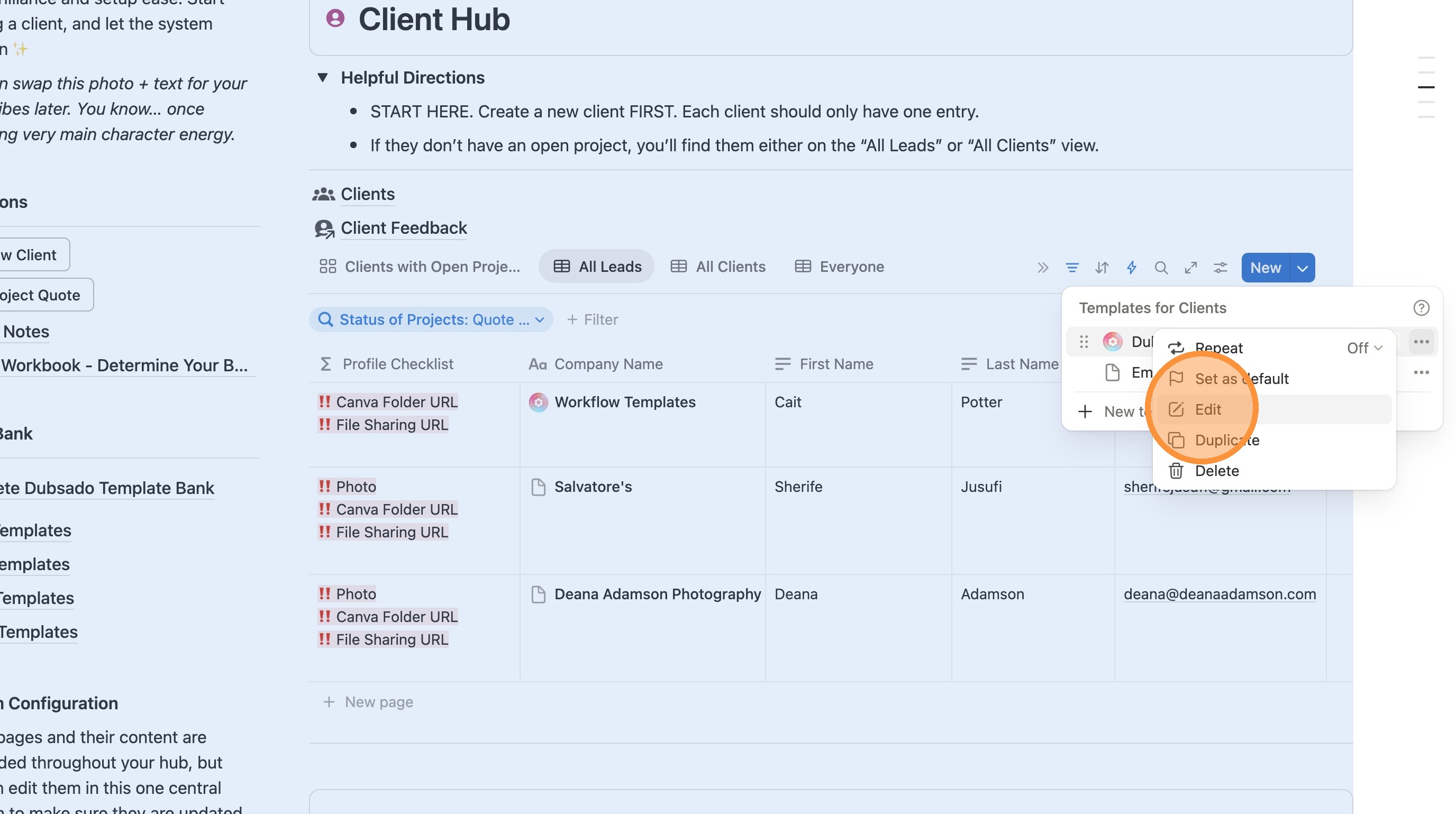
2. Under Client Hub, click the arrow next to "New"
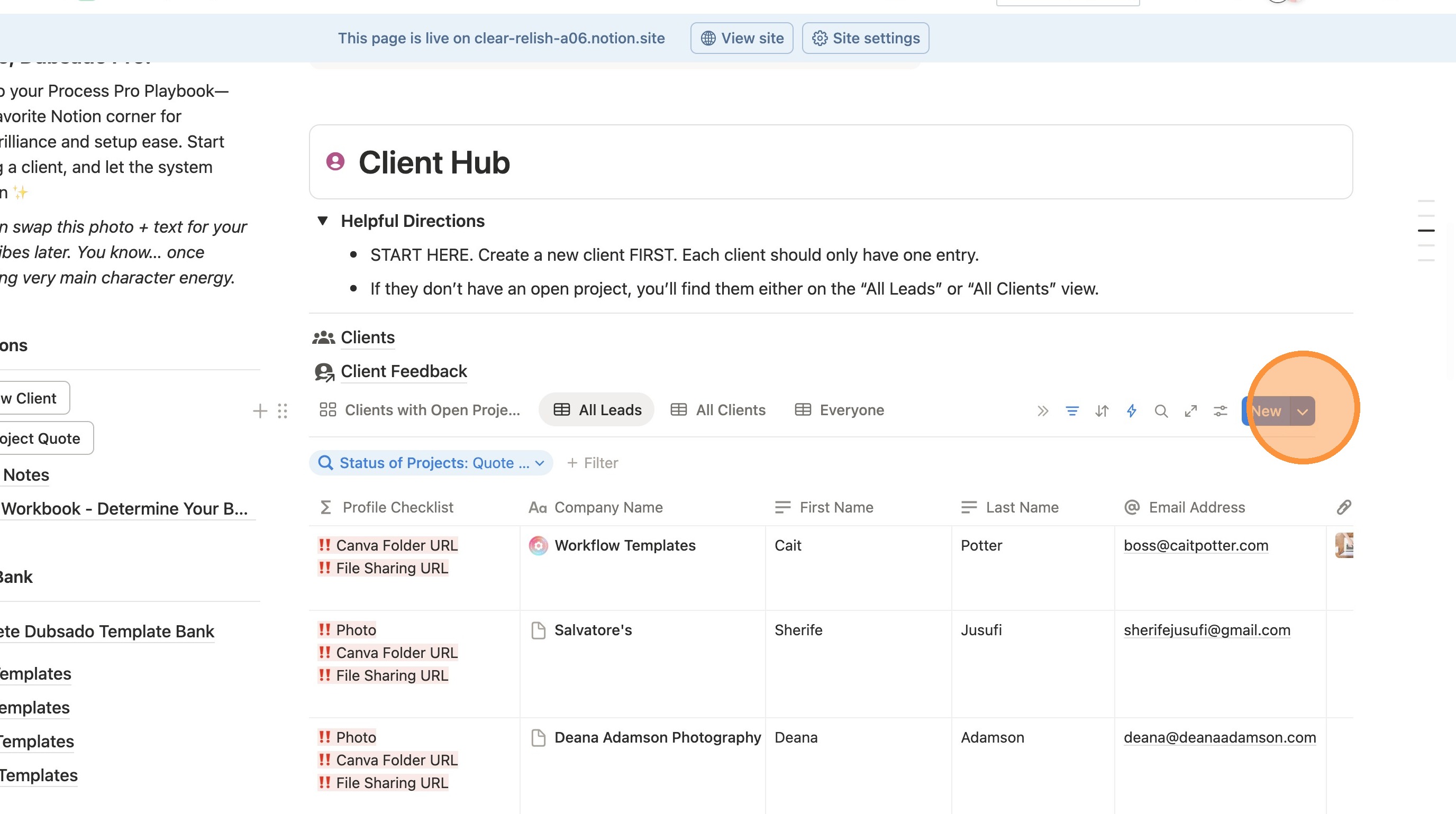
3. Click this icon.
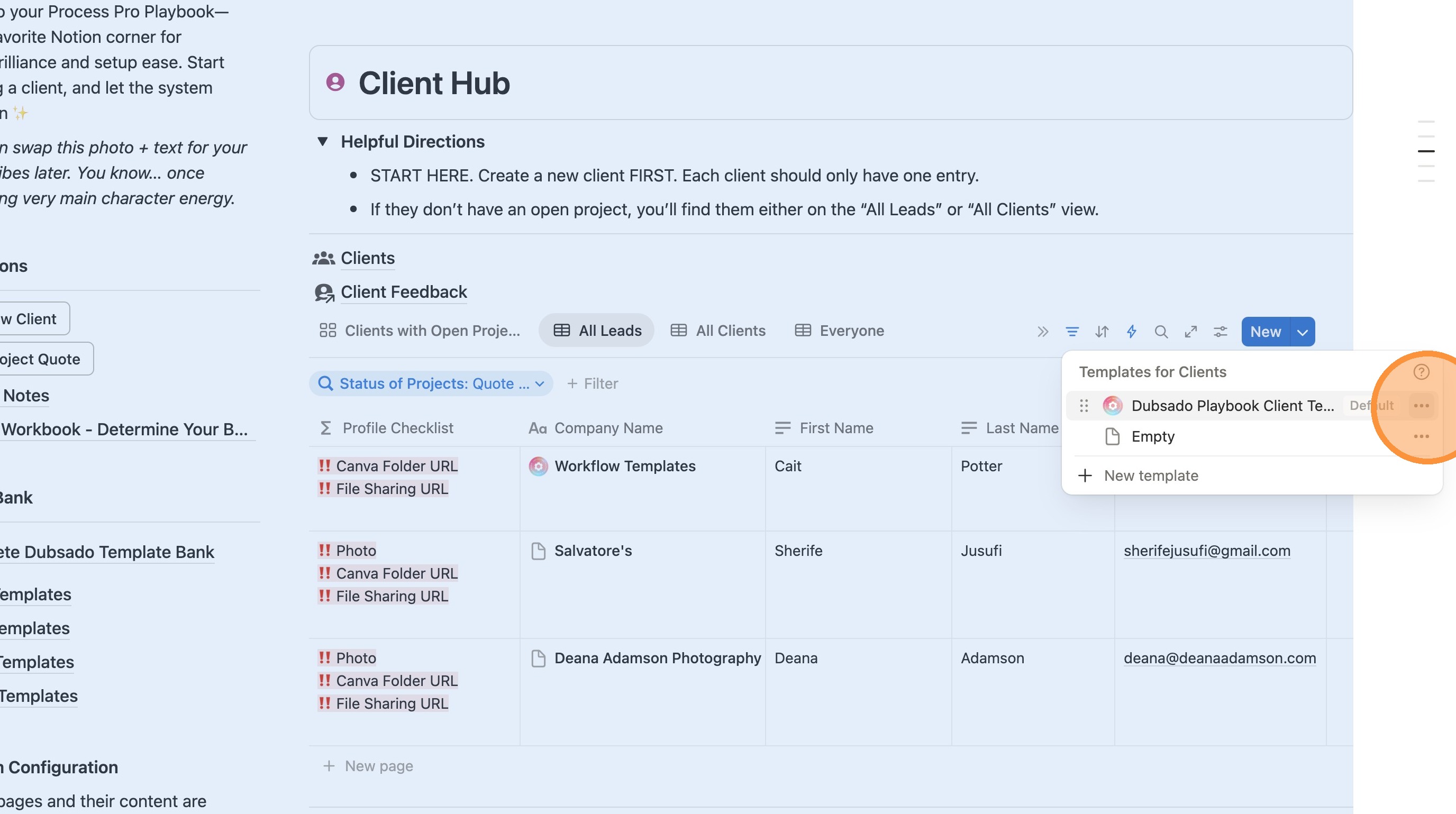
4. Click "Edit"
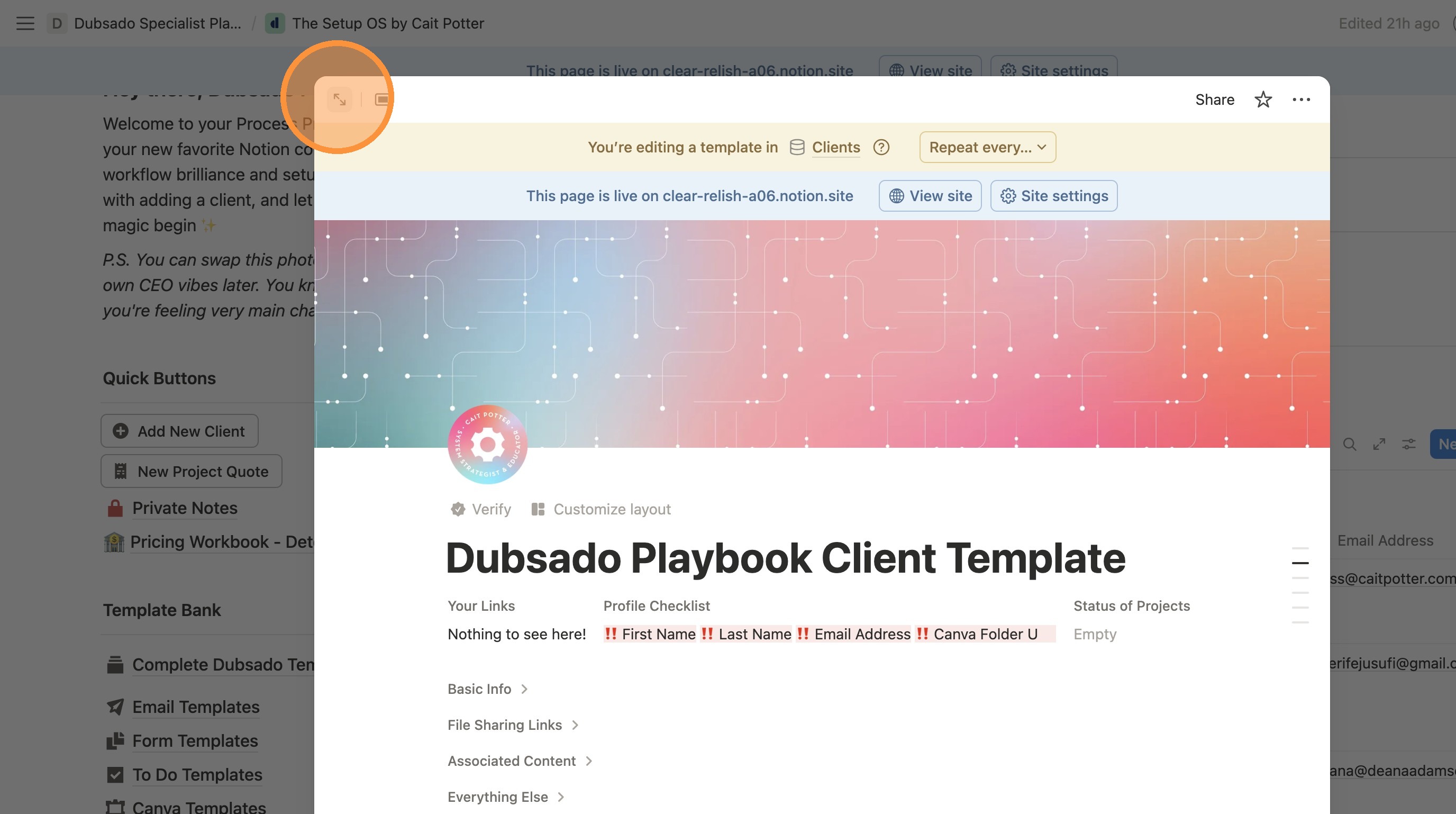
5. Click here to make the page full screen.
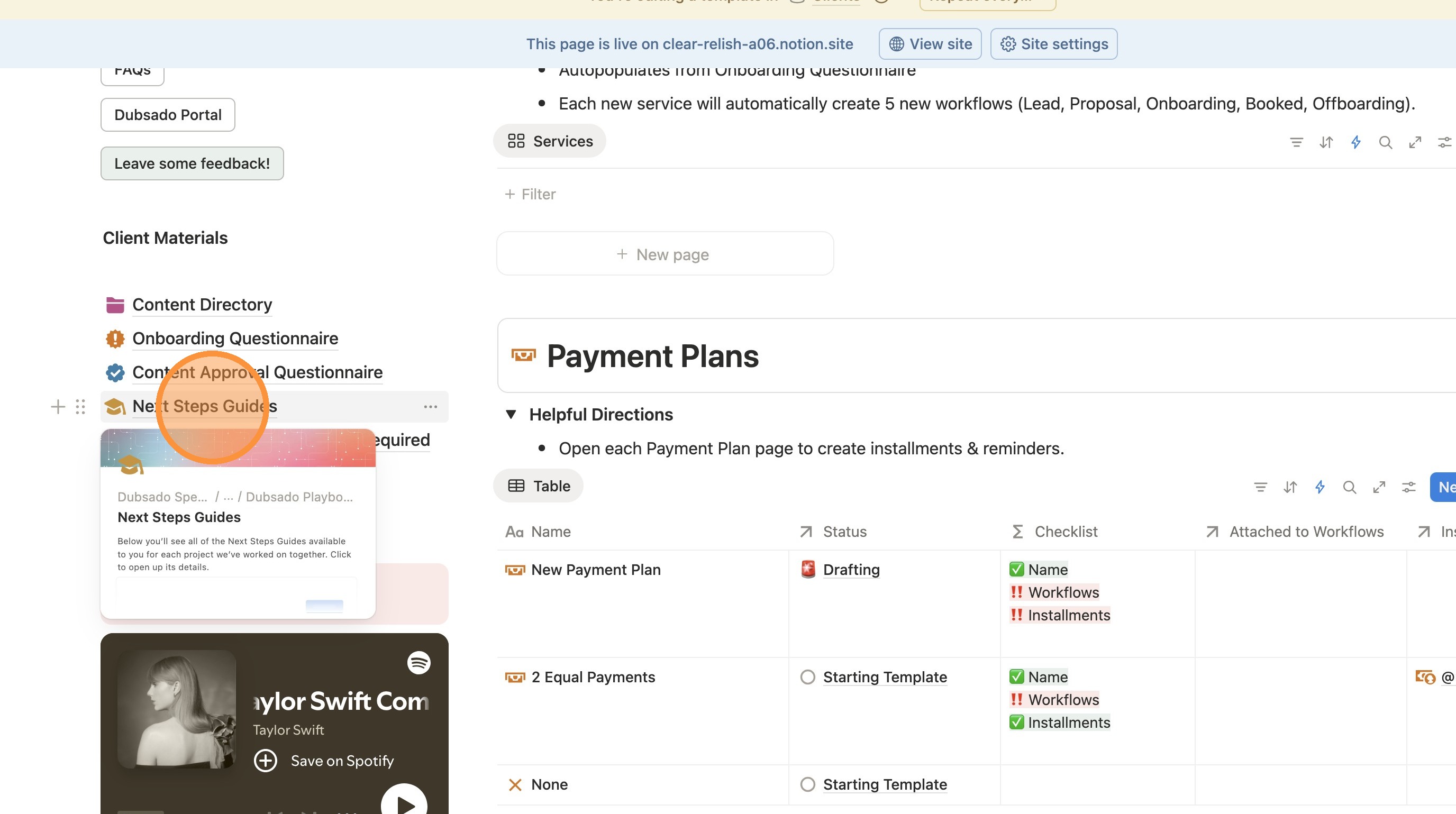
6. Click "Next Steps Guides"
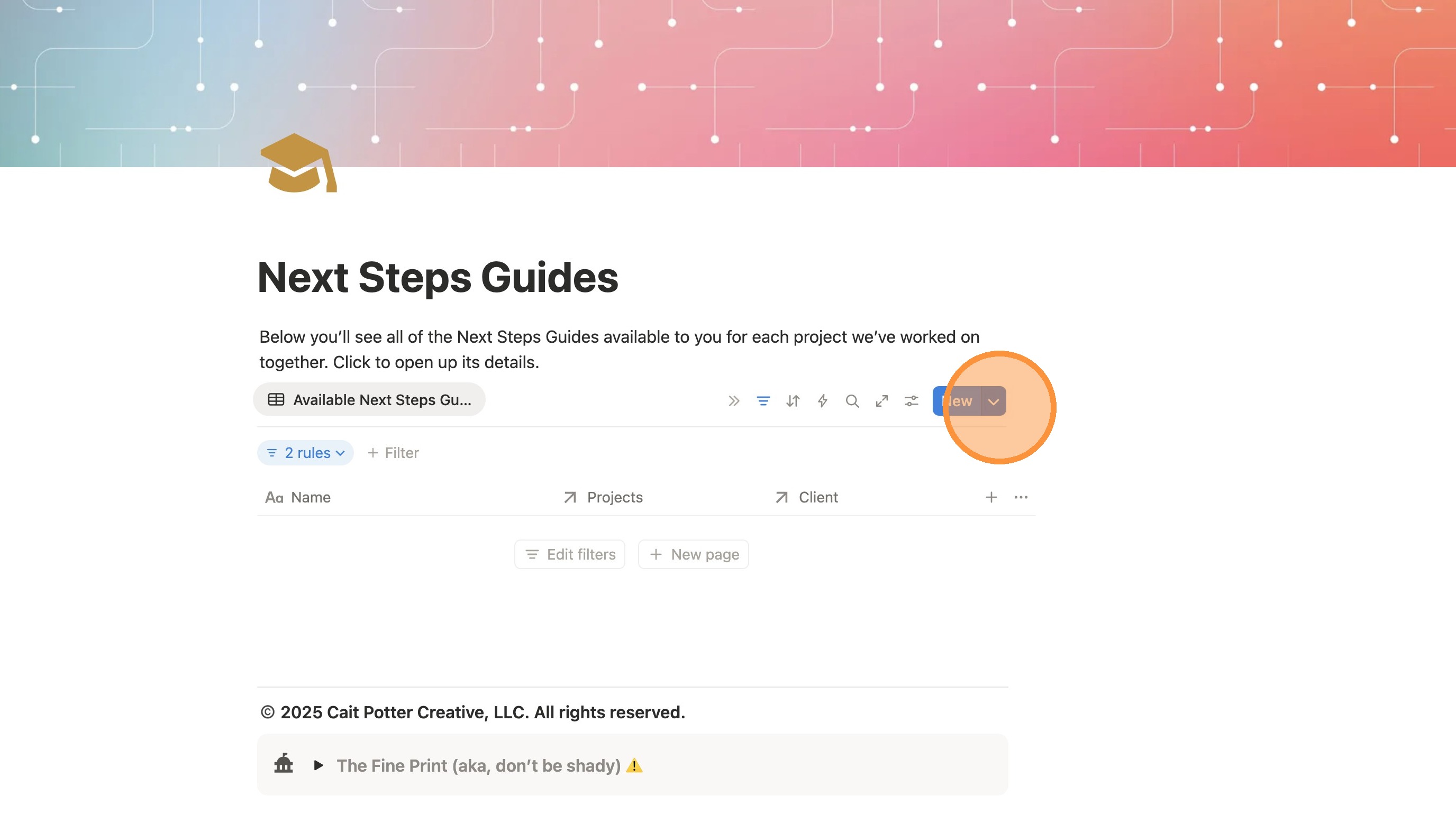
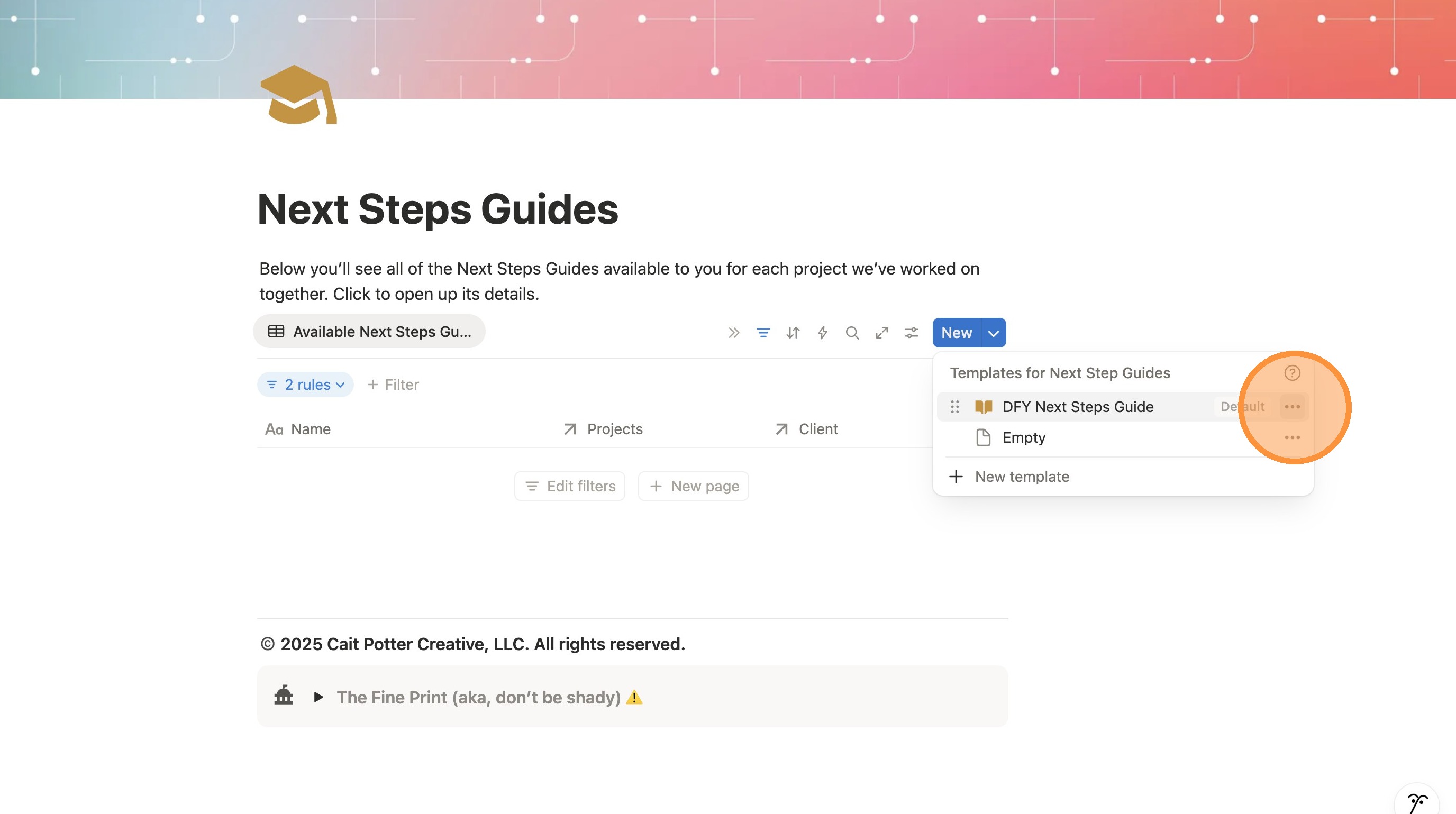
7. Click the arrow next to "New"
8. Click the three dots next to the DFY Next Steps Guide template.
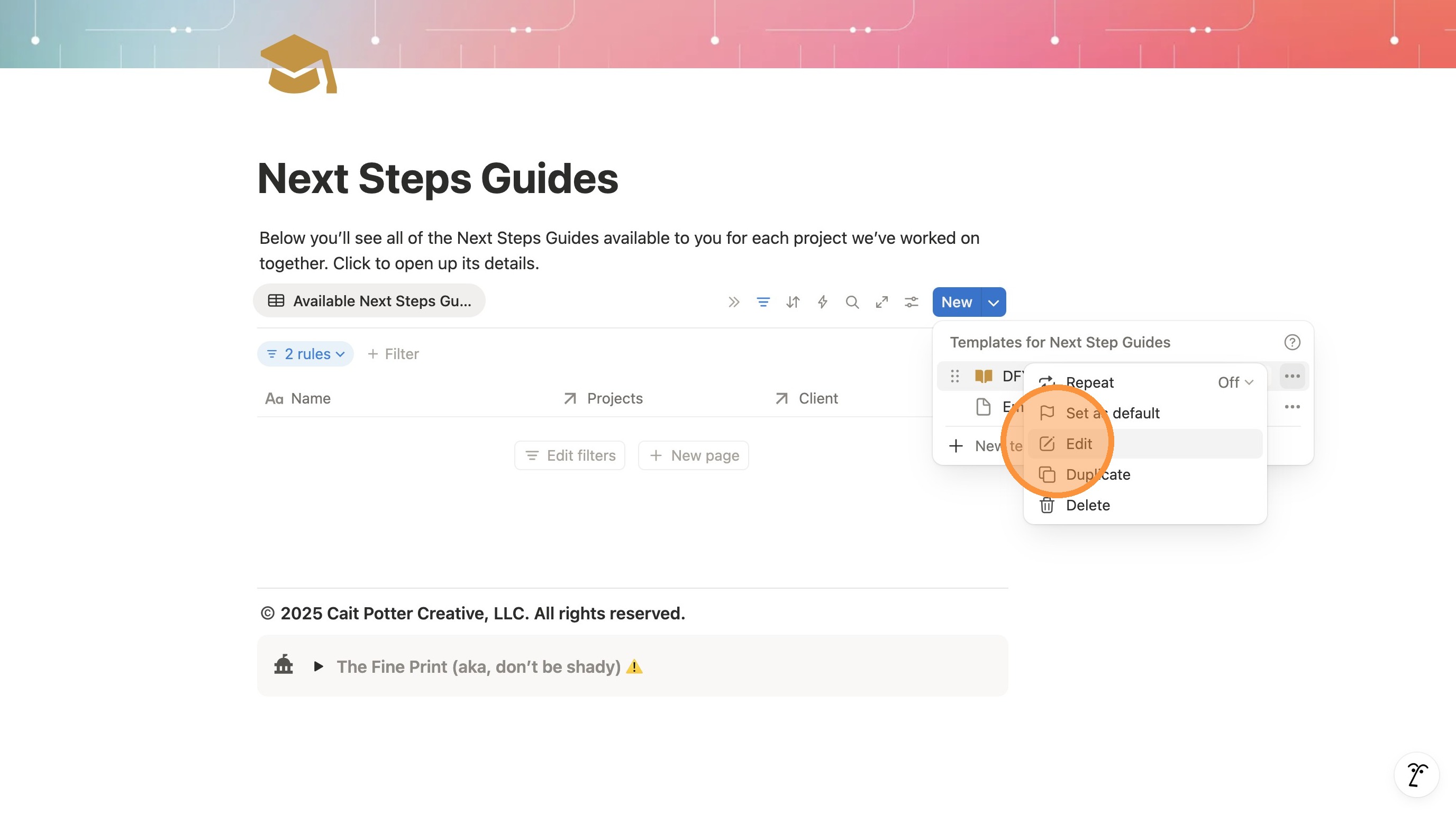
9. Click "Edit"
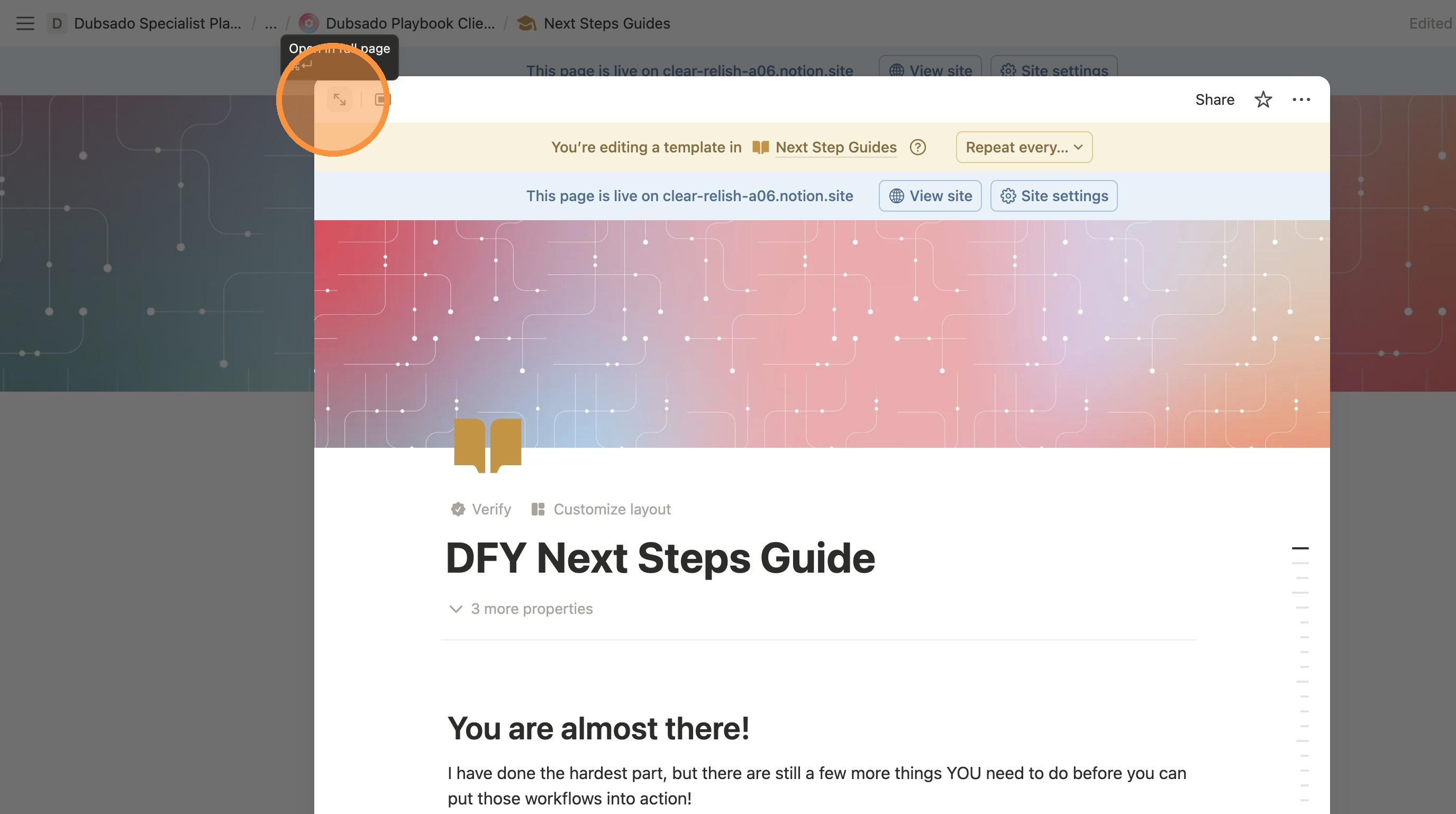
10. Click this icon to make the page full screen.
11. Make changes to the text as you'd like. Remember that this is updating your TEMPLATE, so this is what will apply to every DFY client moving forward. You can always customize for specific clients, but we want this to be a starting point of a universal template.
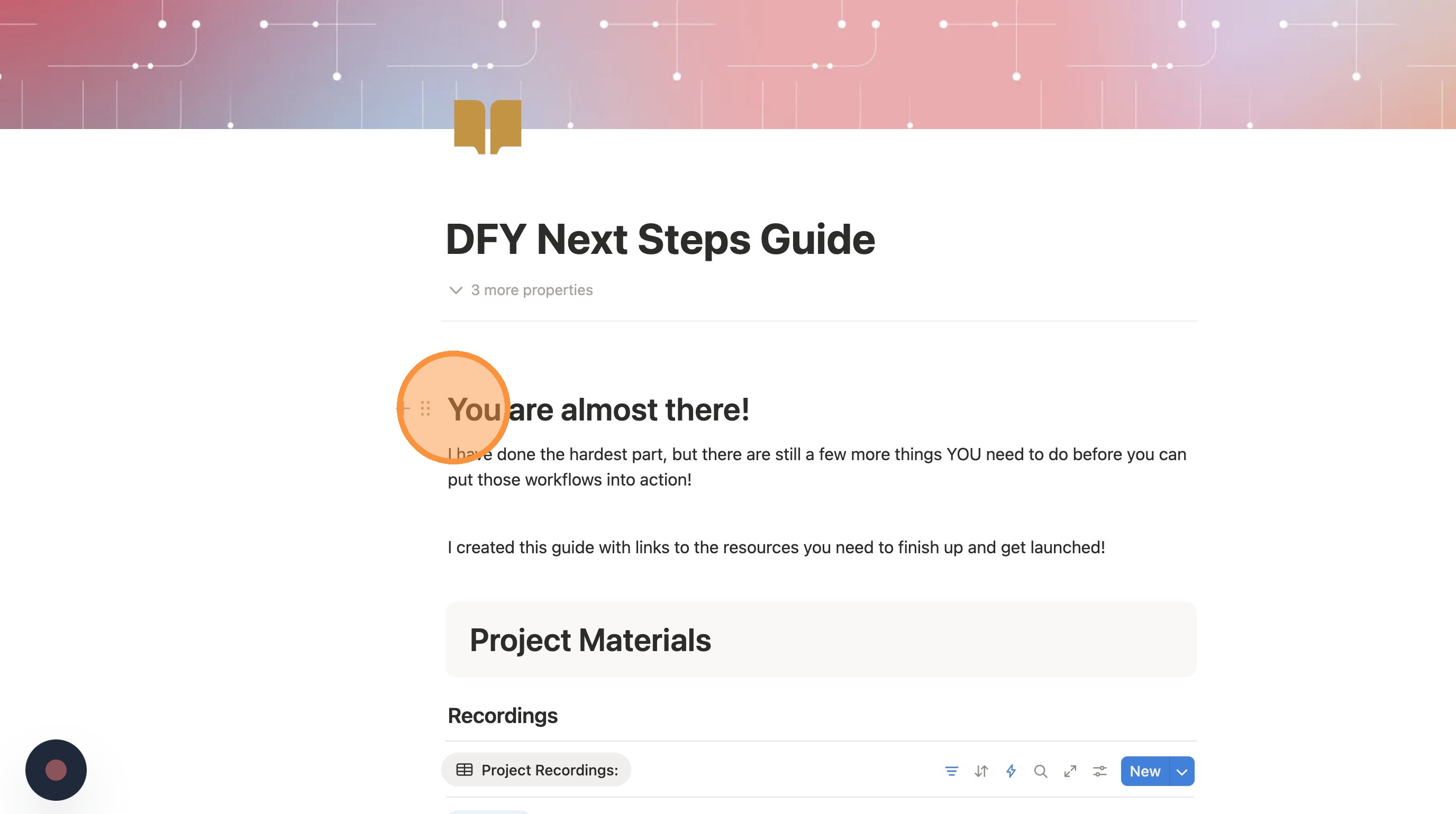
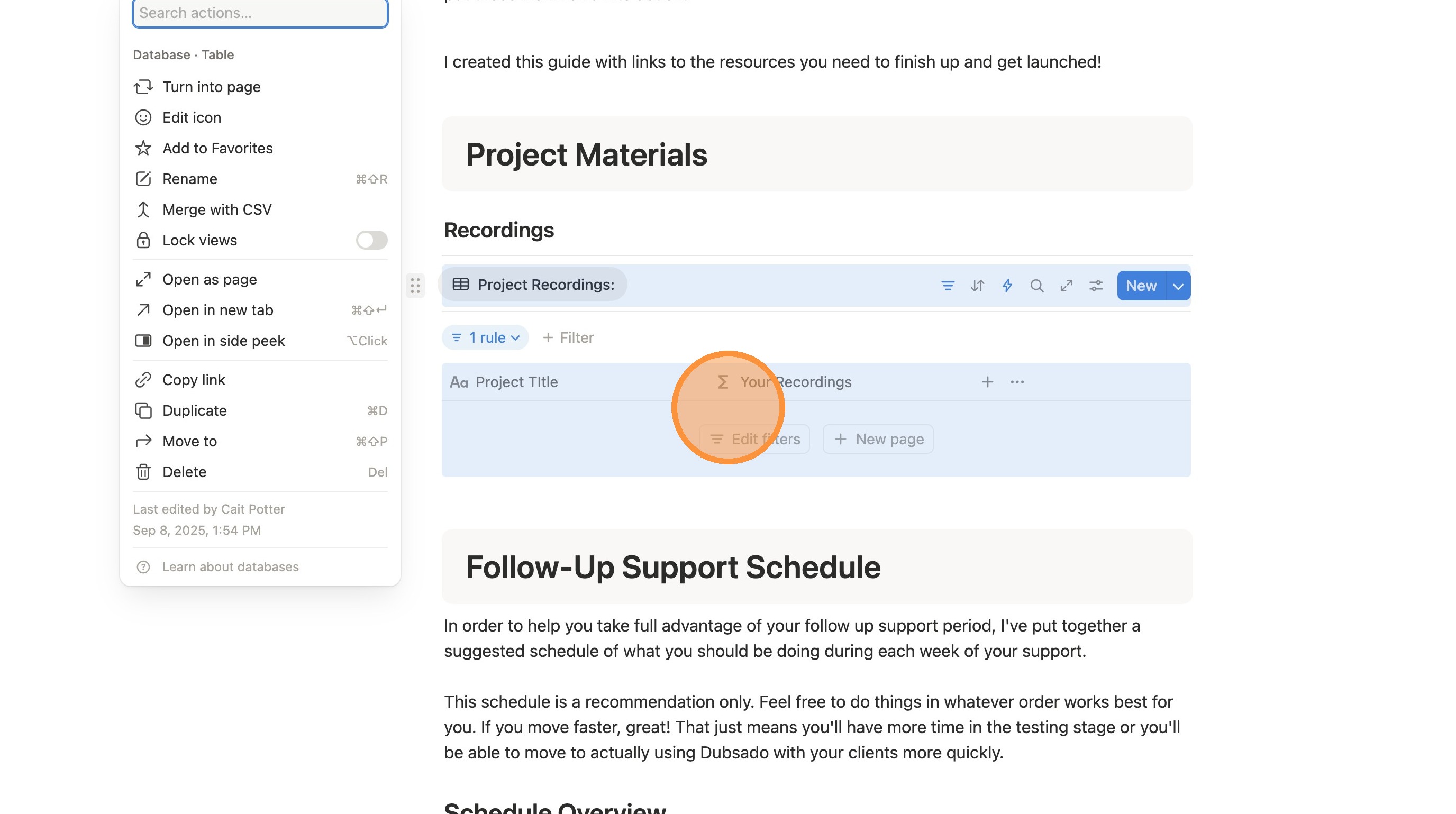
12. DO NOT EDIT any of the tables. They will look blank from this view. That is correct. There are multiple. DO NOT EDIT THEM.
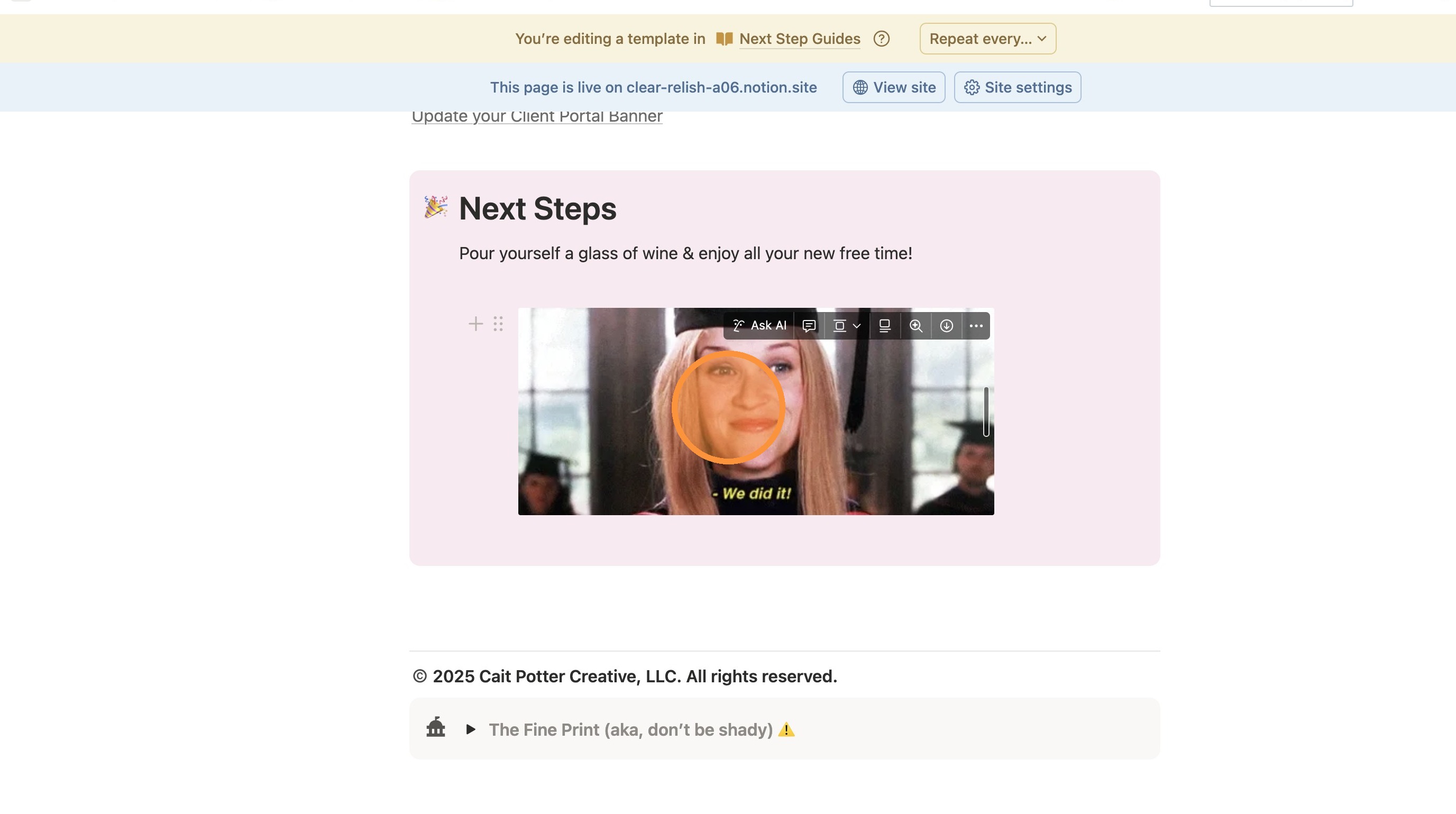
13. Make all of your edits through to the bottom of the page.
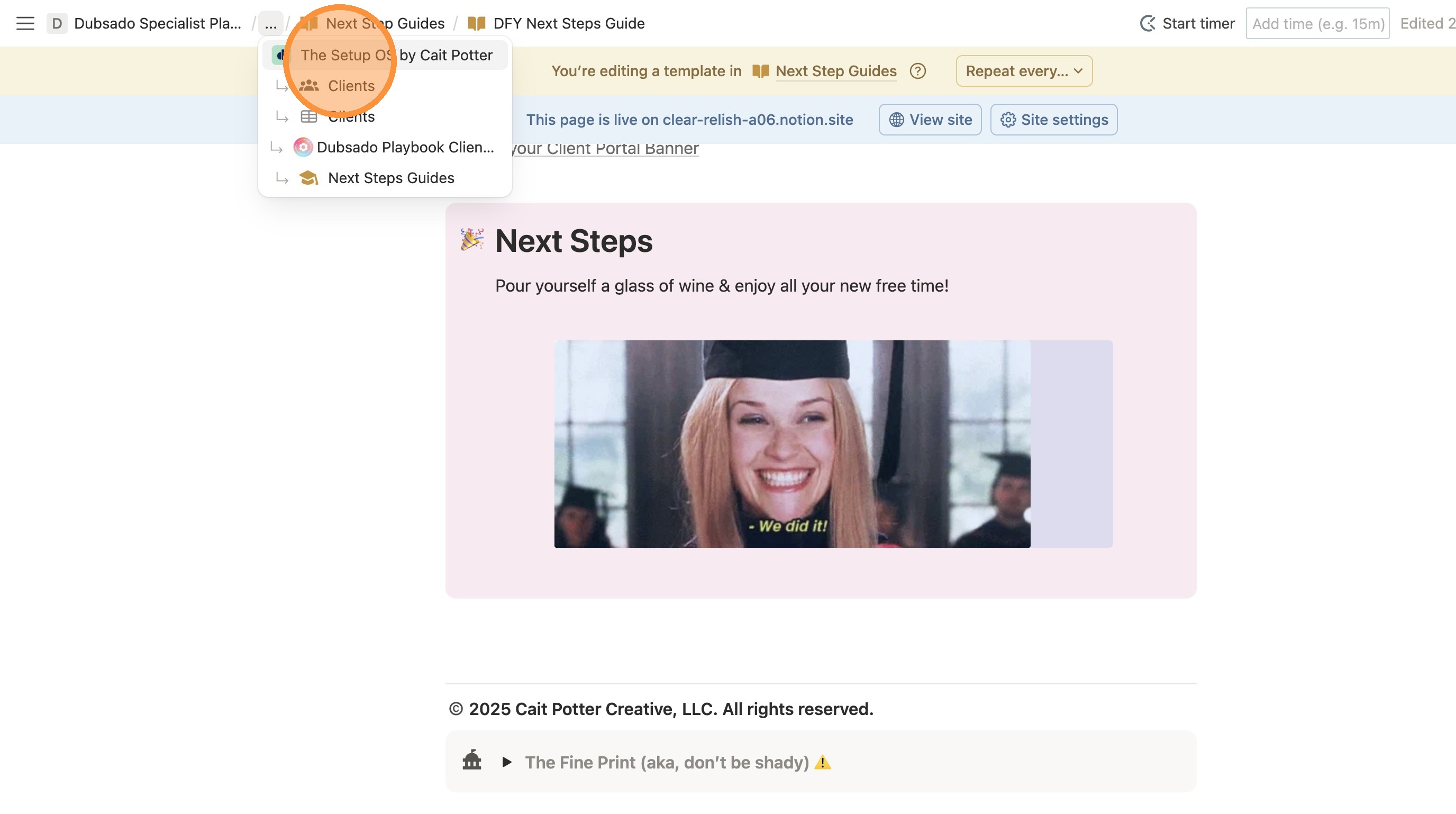
14. Exit the template. Click "..." in the breadcrumbs"
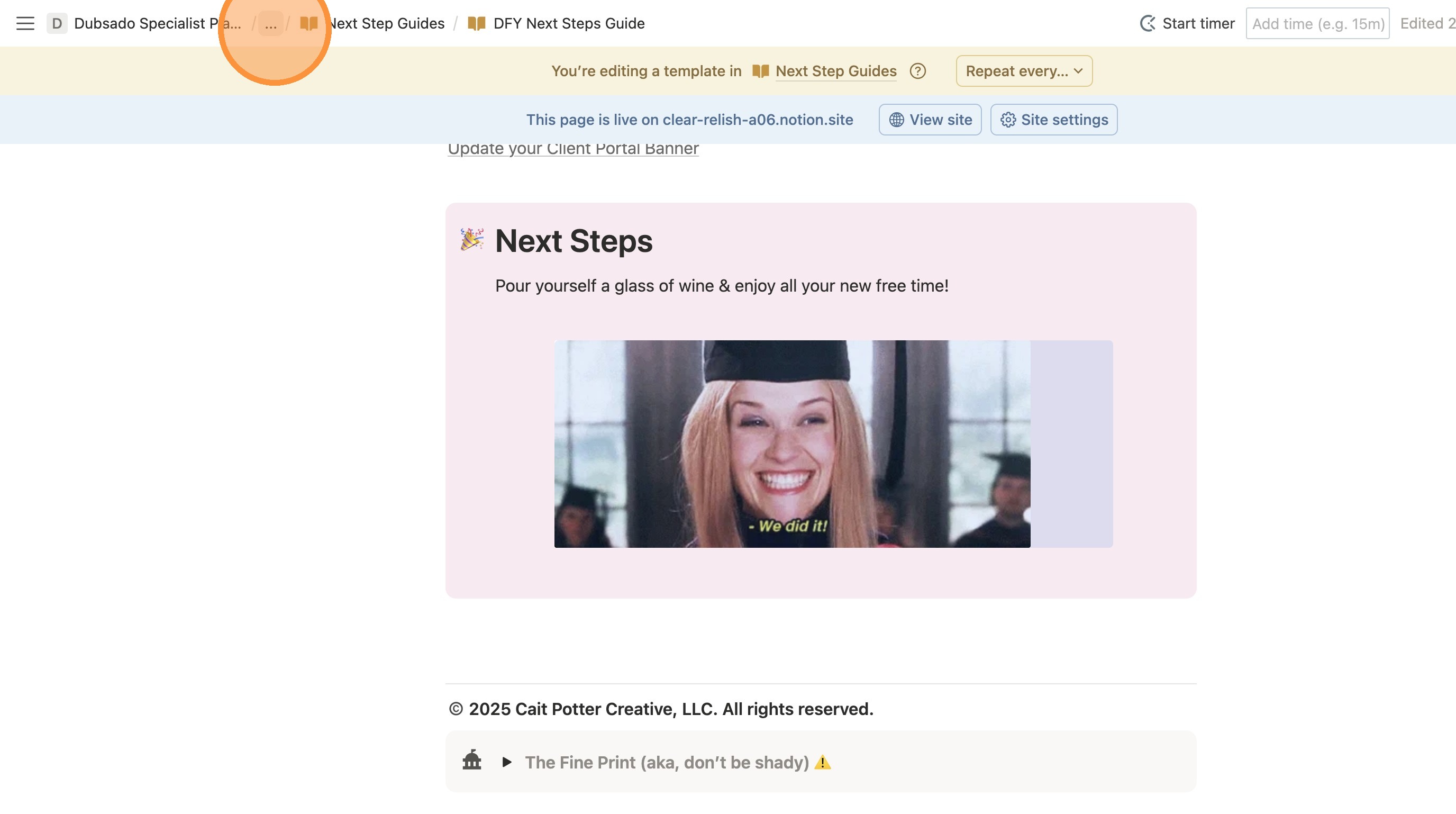
15. And return to your home page.