📌 Create New Biz Template Type
There is a default list of template types already created for you, but you may need to customize this list to your business. Here's a tutorial on how to do that specifically!
Create New Template TYPE
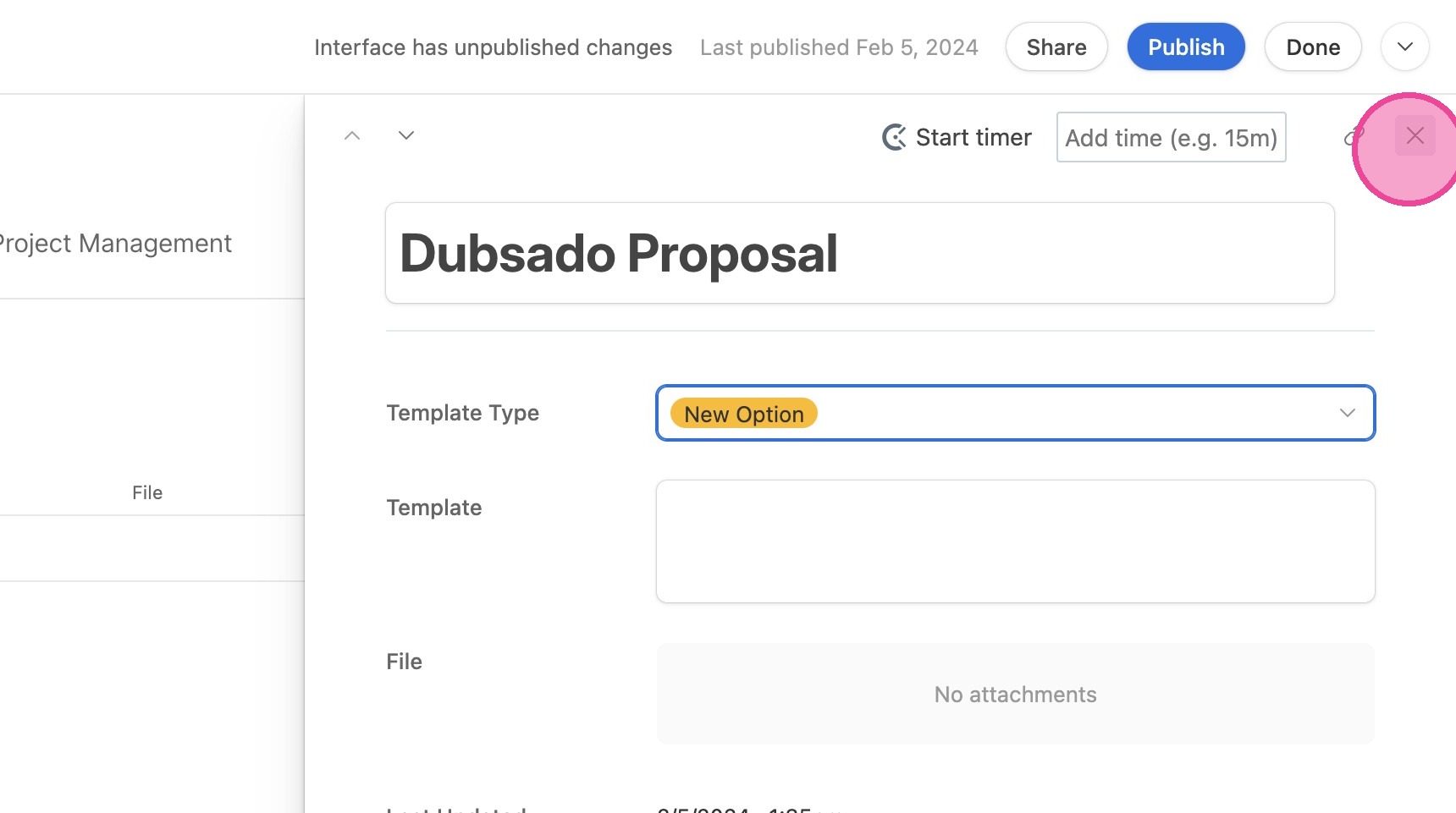
1. Add the template to your library under a different (probably the wrong template type.) We need it in the list in order to update it.
2. Once it's created, click "Open"
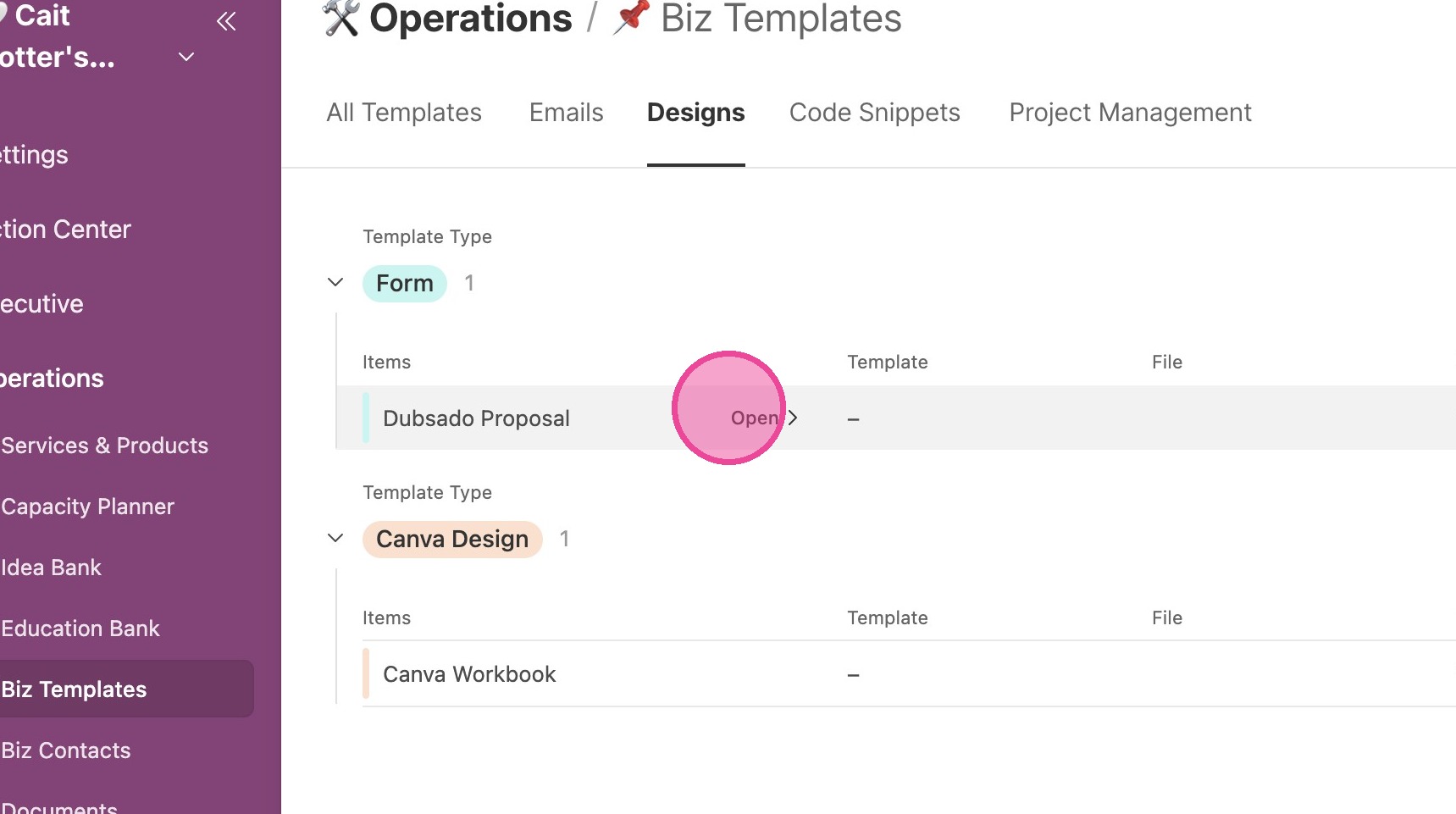
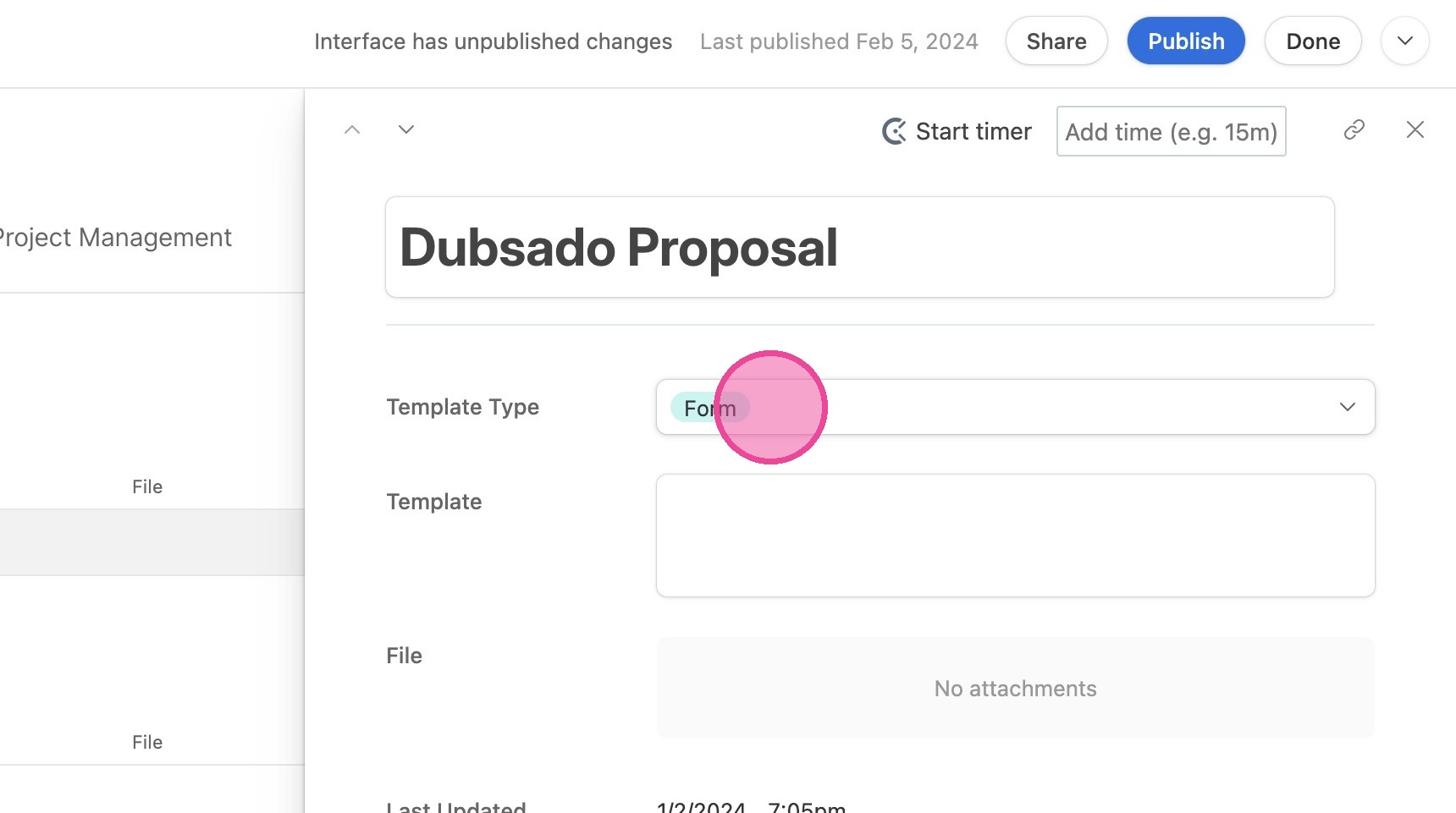
3. In the sidebar popup, click the "Template Type" dropdown.
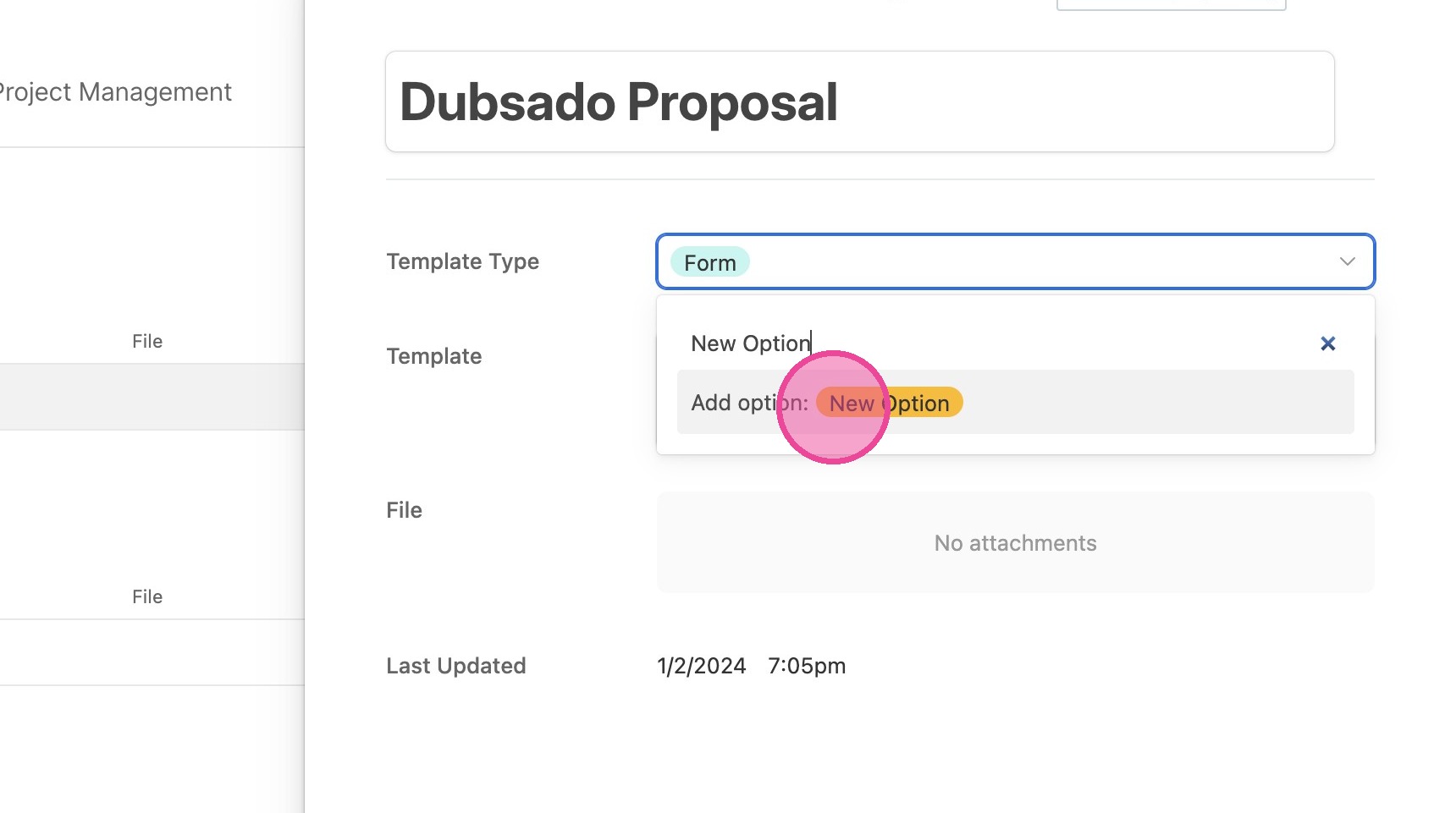
4. Simply BEGIN TYPING whatever the name of your new option is. Type it out in its entirety.
5. As you type, you'll see that a new colored option is created. When you're done typing, click "Add Option"
6. Now your template has your new template type.
Create a New Tab for New Option
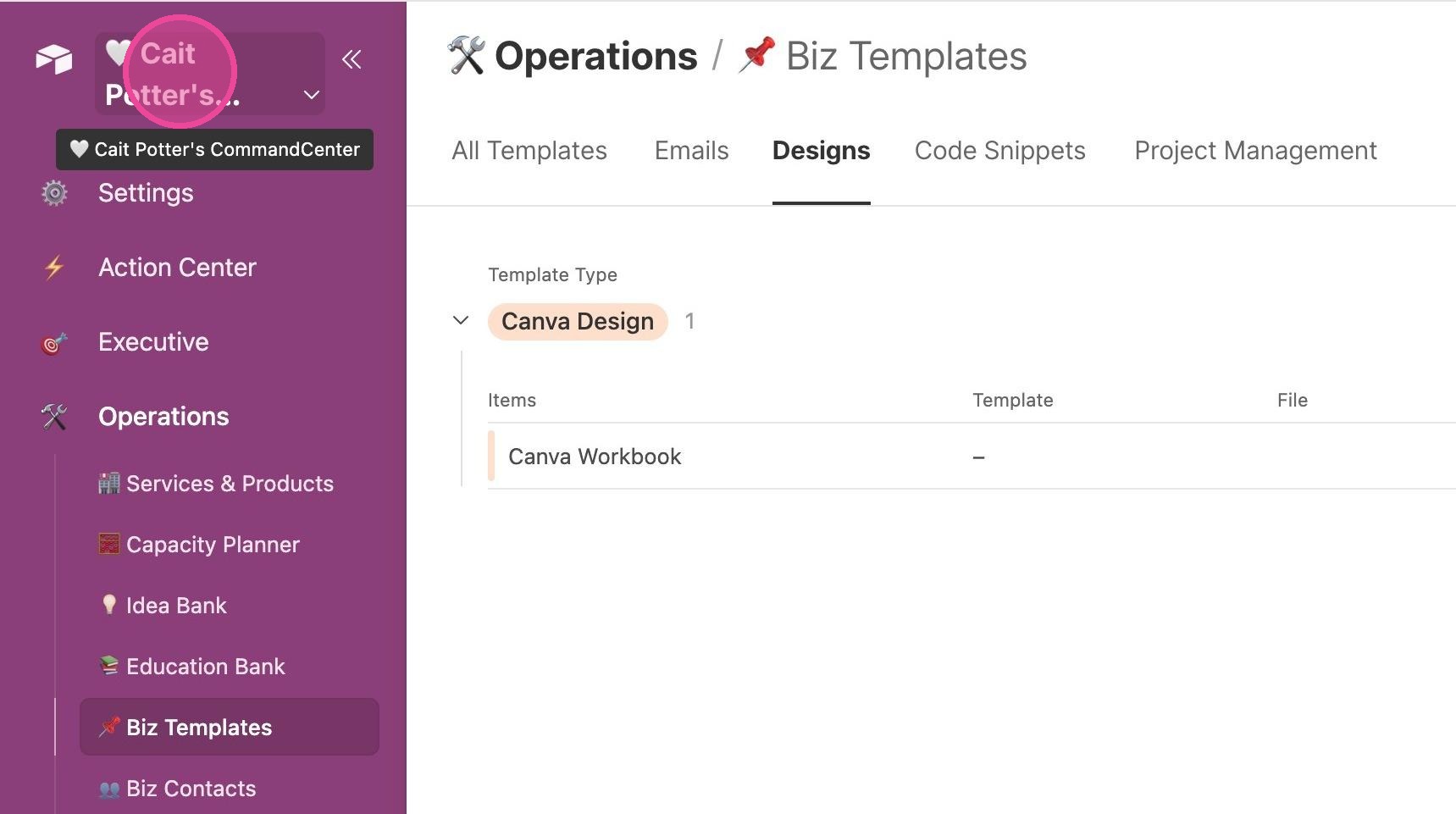
7. Click the title of your CommandCenter in your lefthand menu.
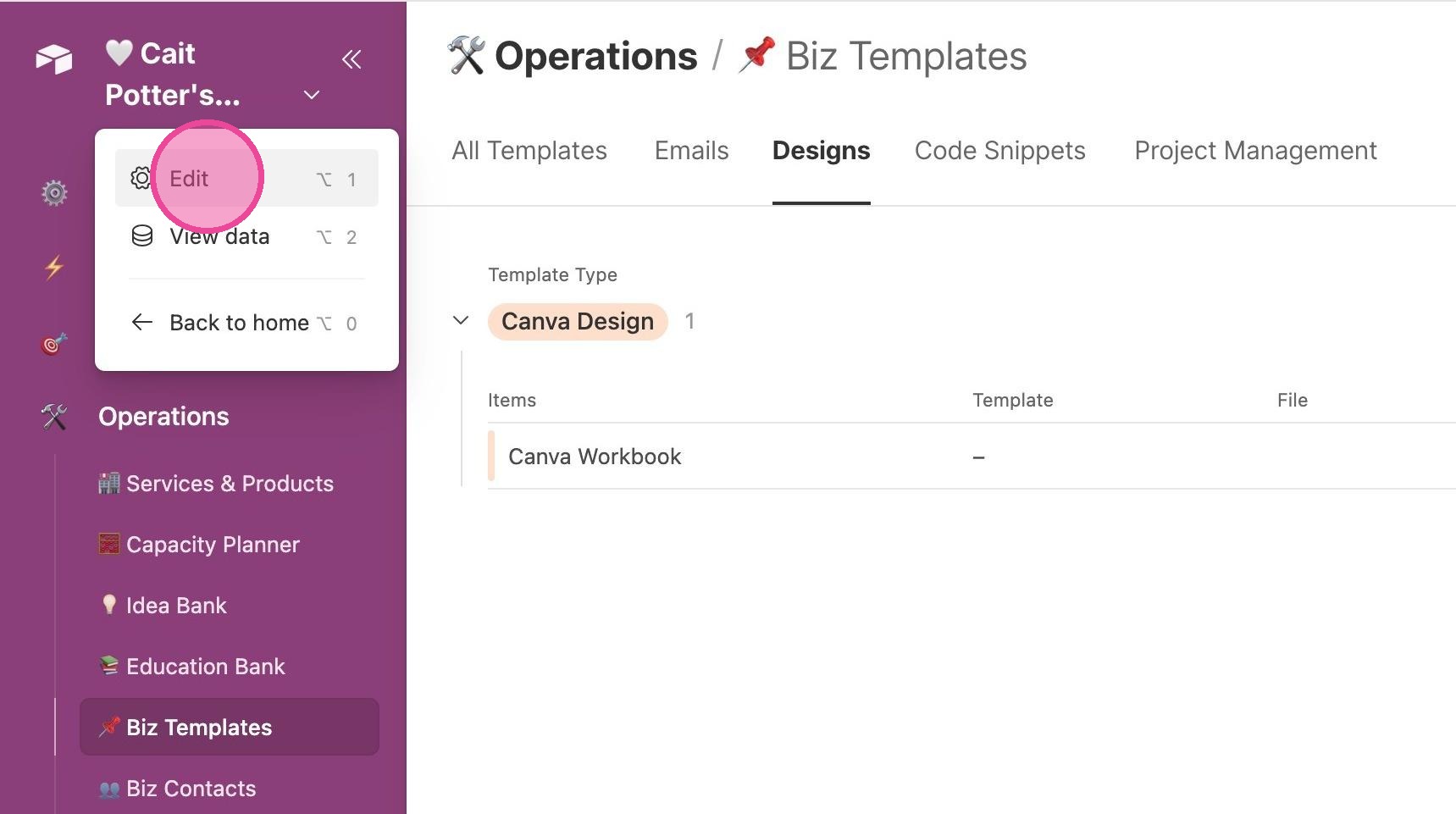
8. Click "Edit"
9. Once you are in edit mode, click the TOP of the tab area as shown in this screenshot. You're not clicking ON anything, we're just getting the right part of the page selected.
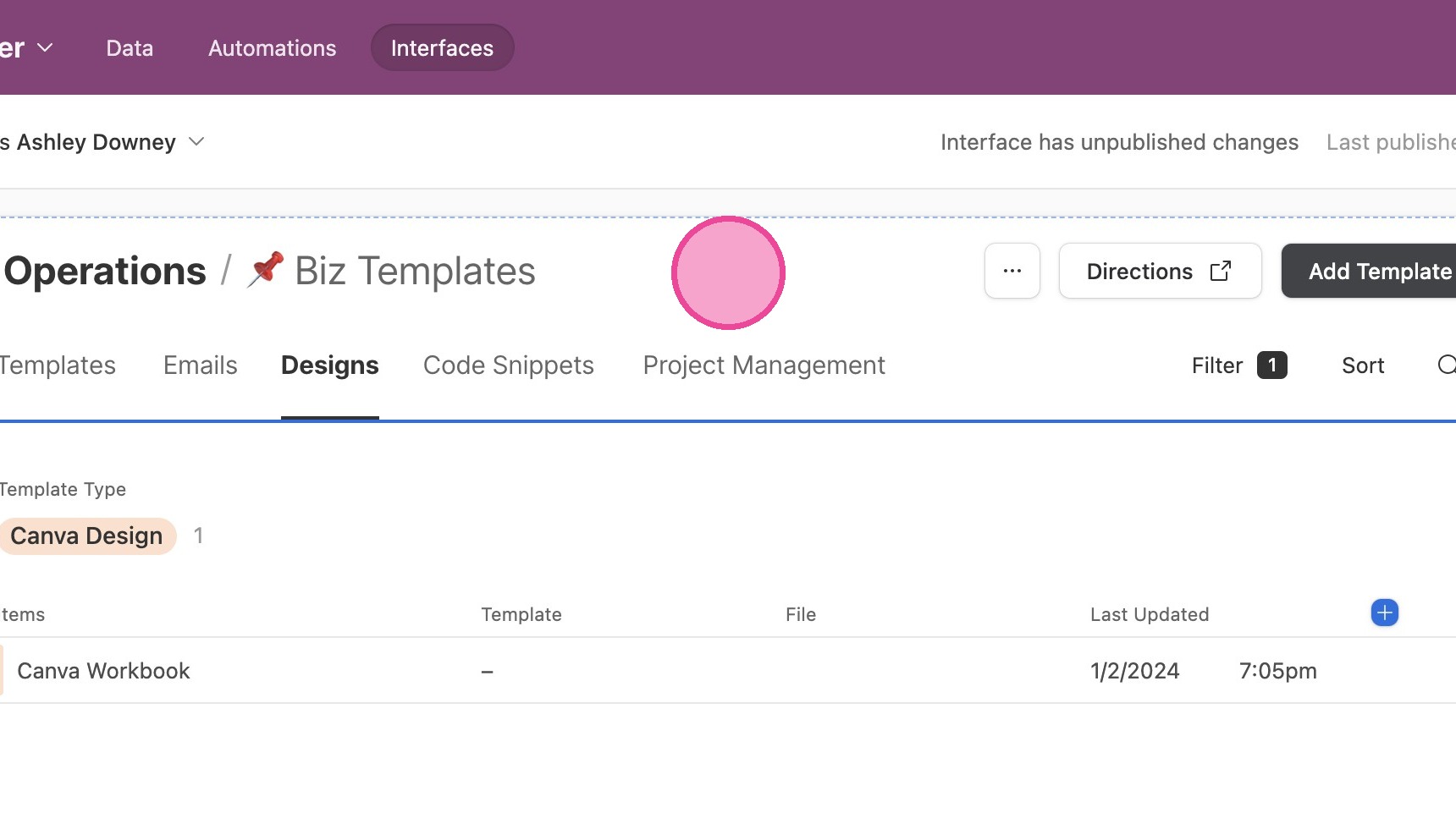
10. Then you'll see this blue plus mark. Click it.
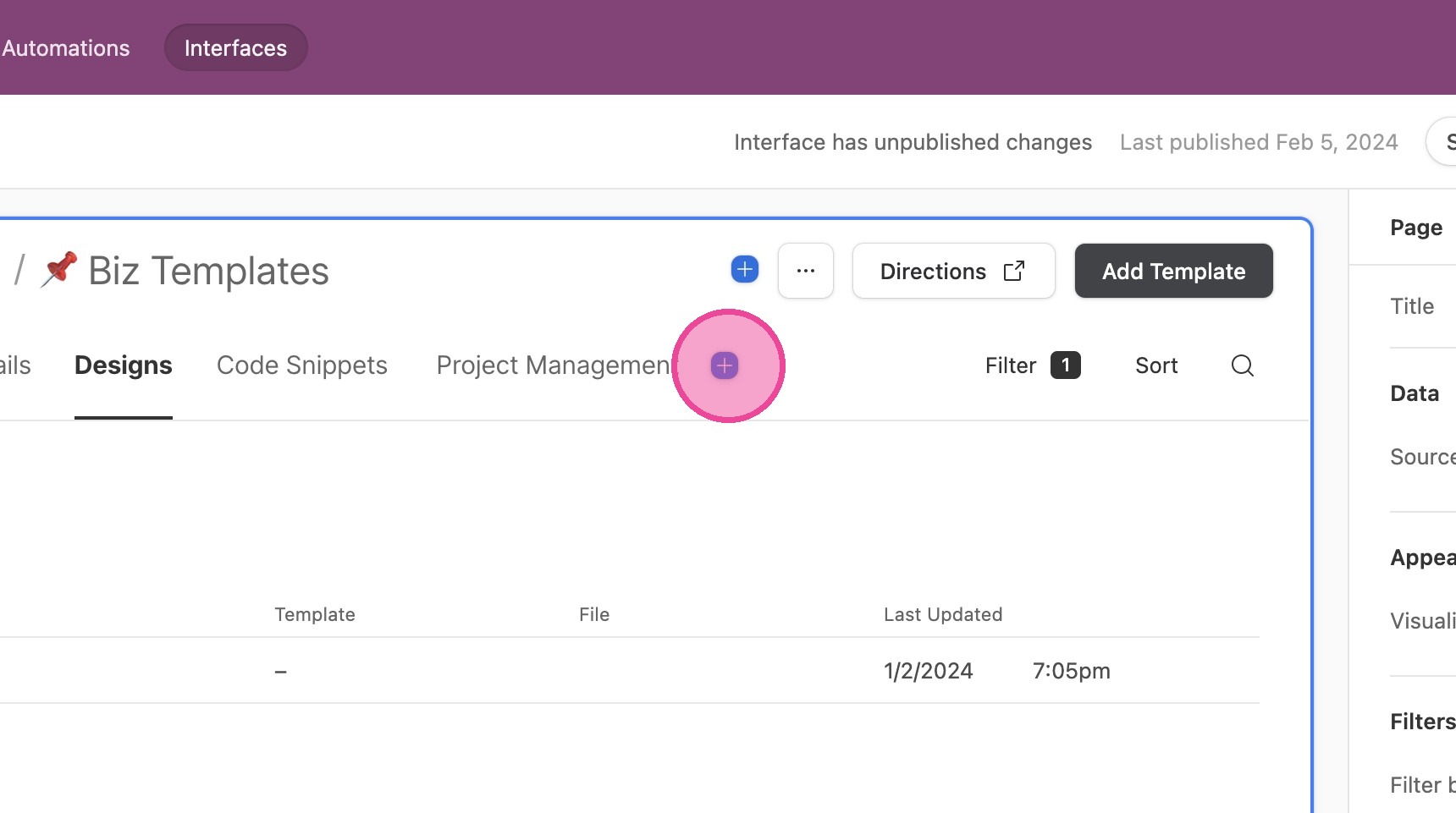
11. On the right side, rename your new tab.
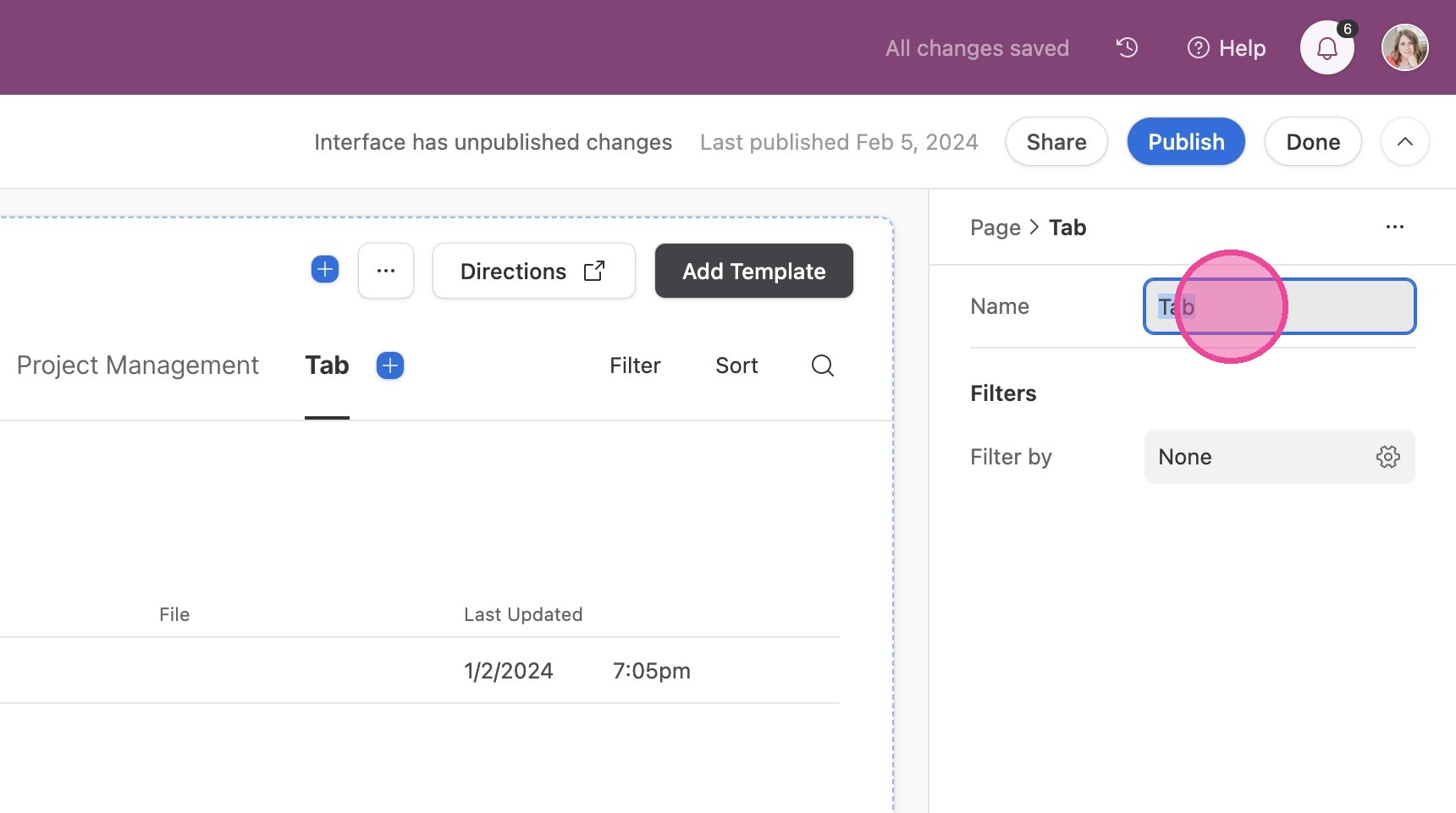
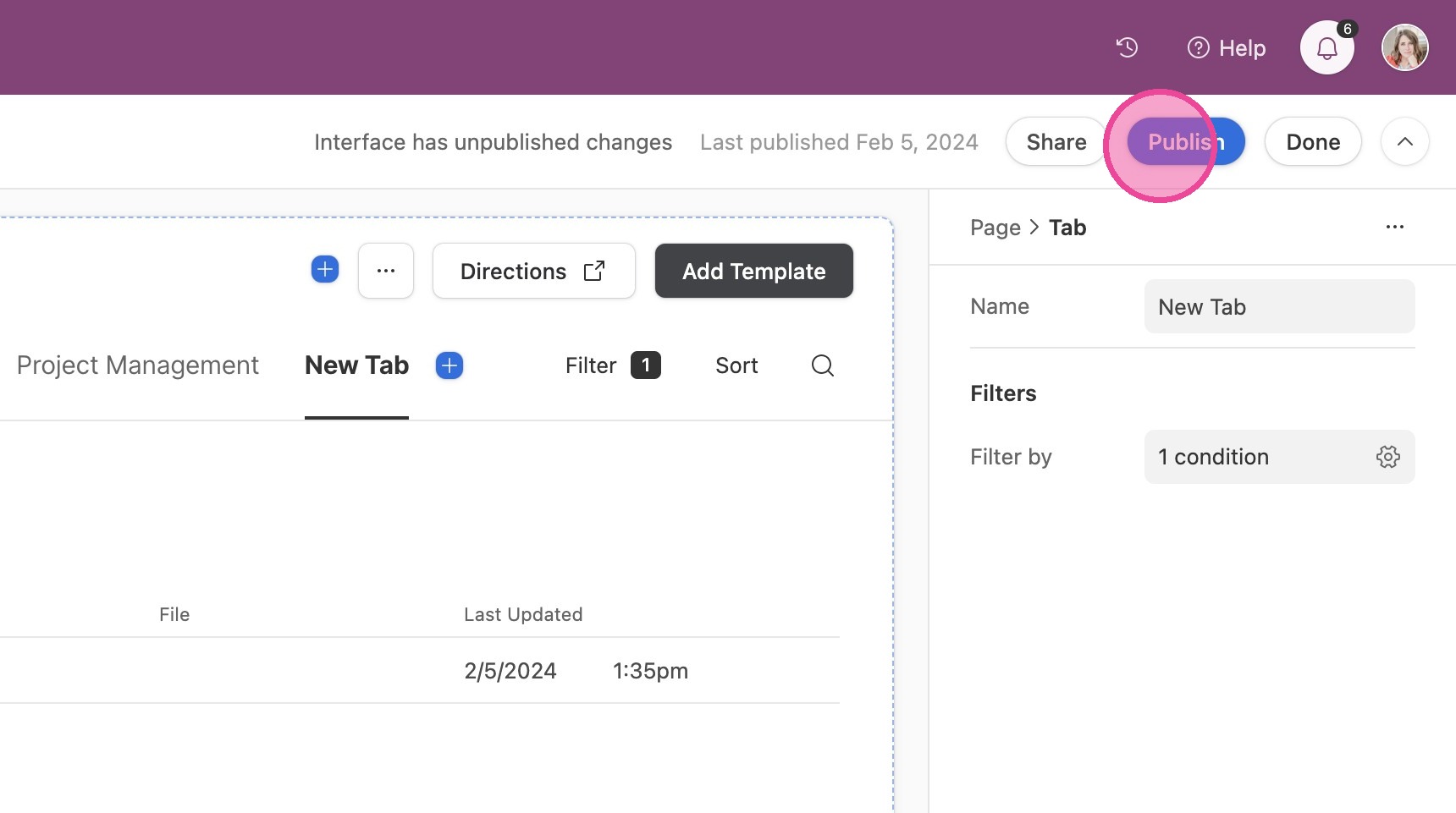
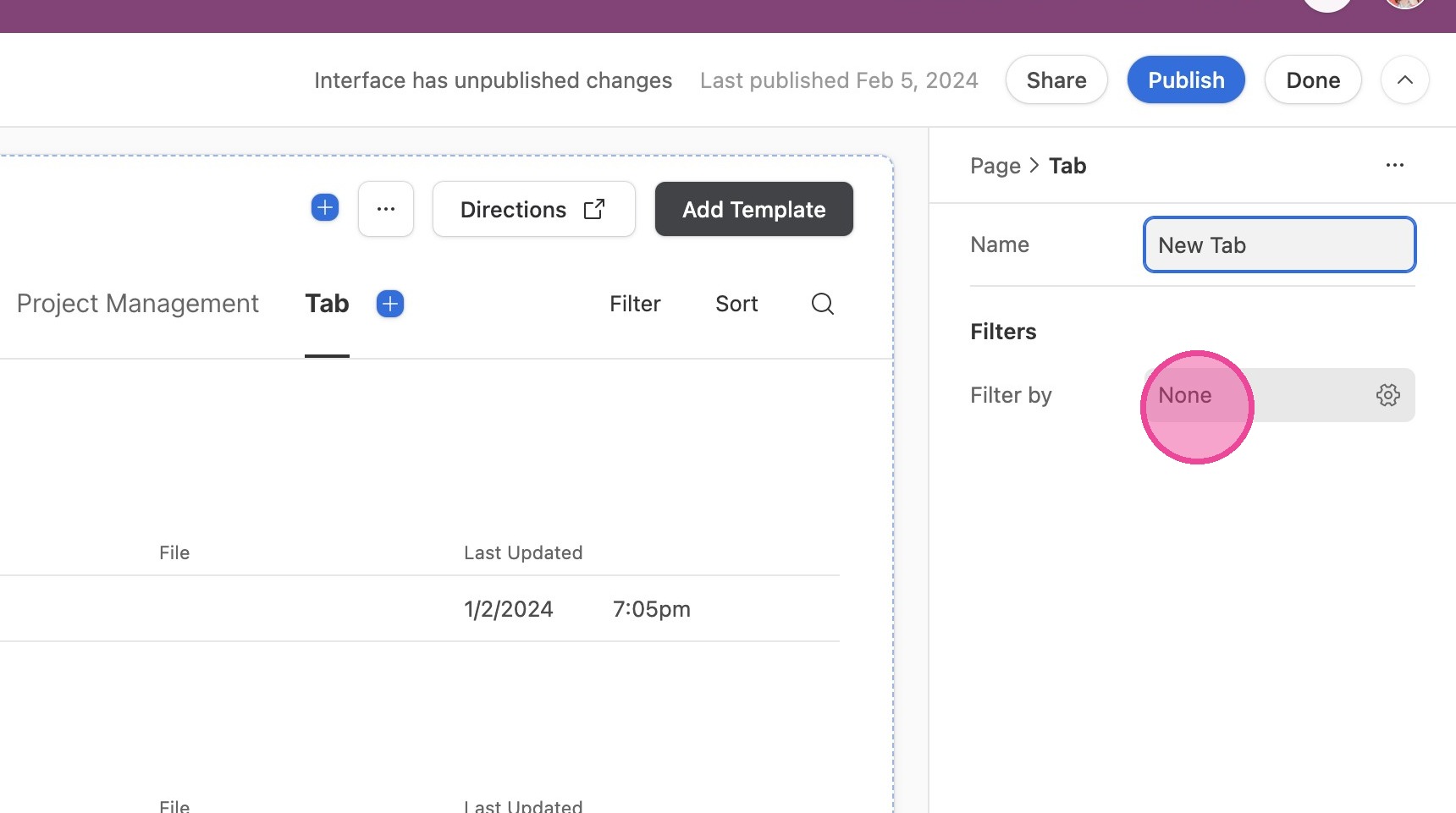
12. Now, we need to set up a filter. Click in the "Filter by" fields.
13. Click the first field and select "Template Type" from the dropdown menu.
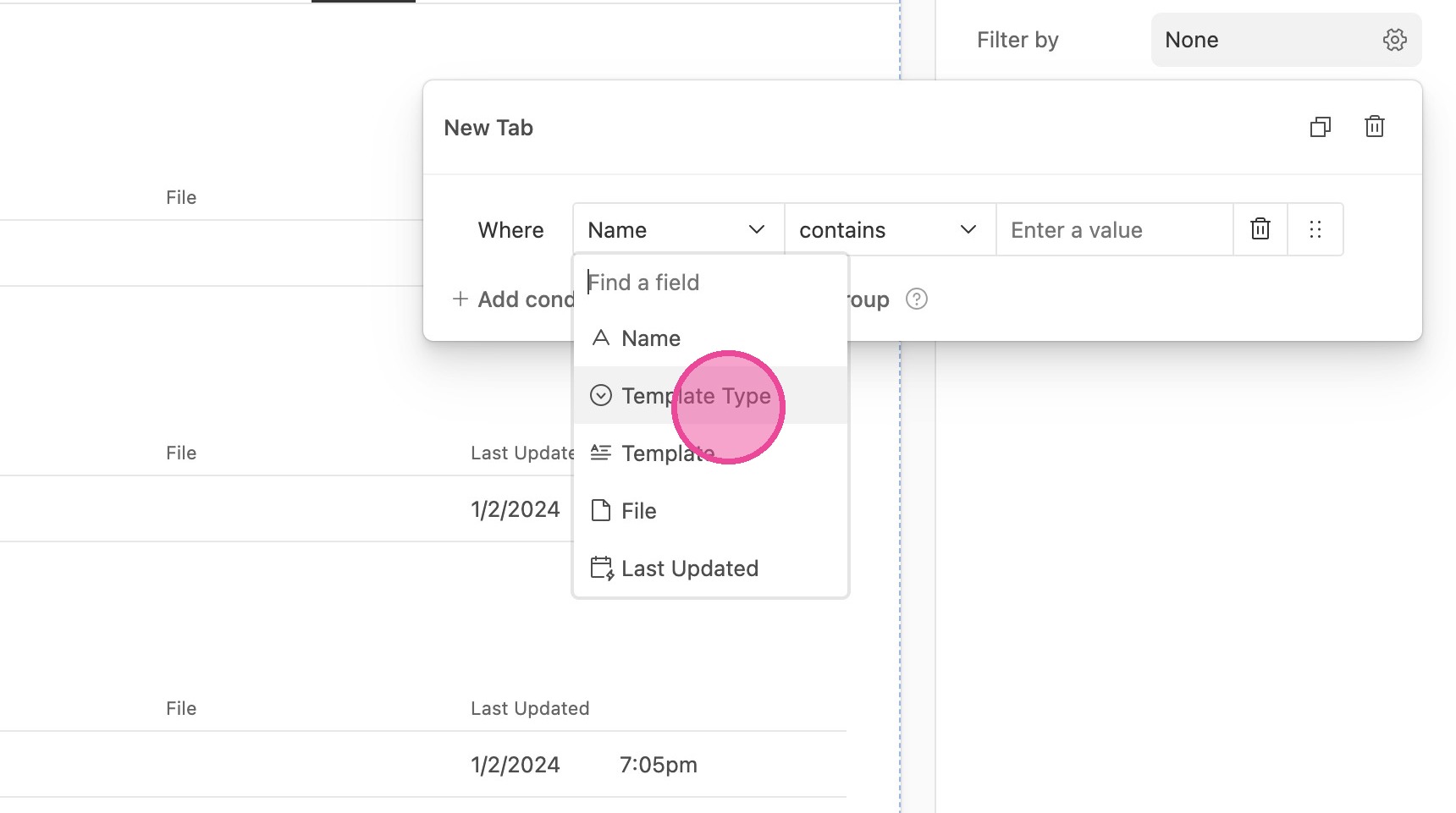
14. Click in the third column and select the new option you just created from the dropdown.
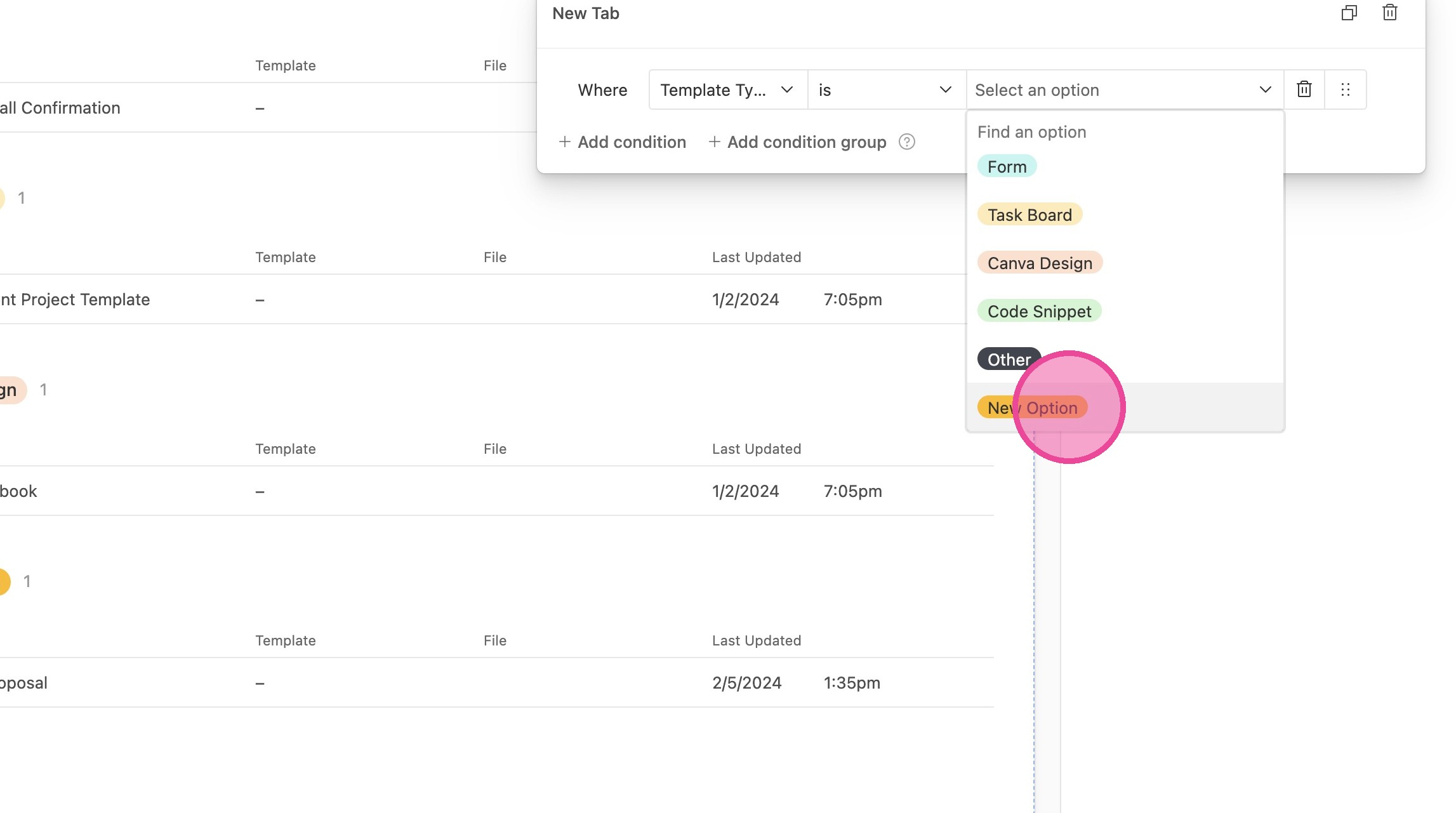
15. Once you've made all your new tabs/changes, click "Publish" so that your new layout is live.