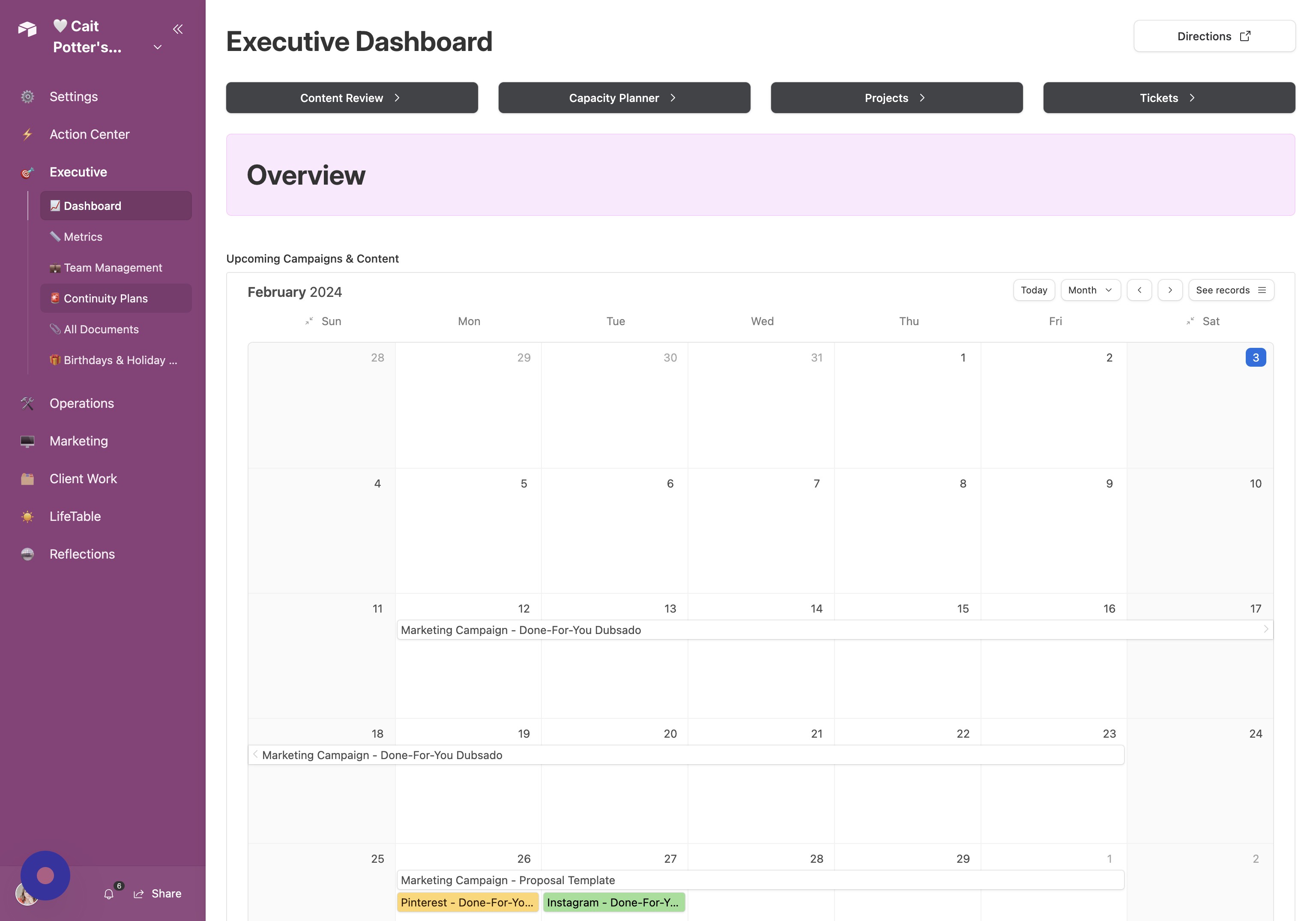
Select Existing Plan Review the list of current Continuity Plans and select to edit an existing one.
Or Create New Plan OR you may create a new Continuity Plan by clicking here.
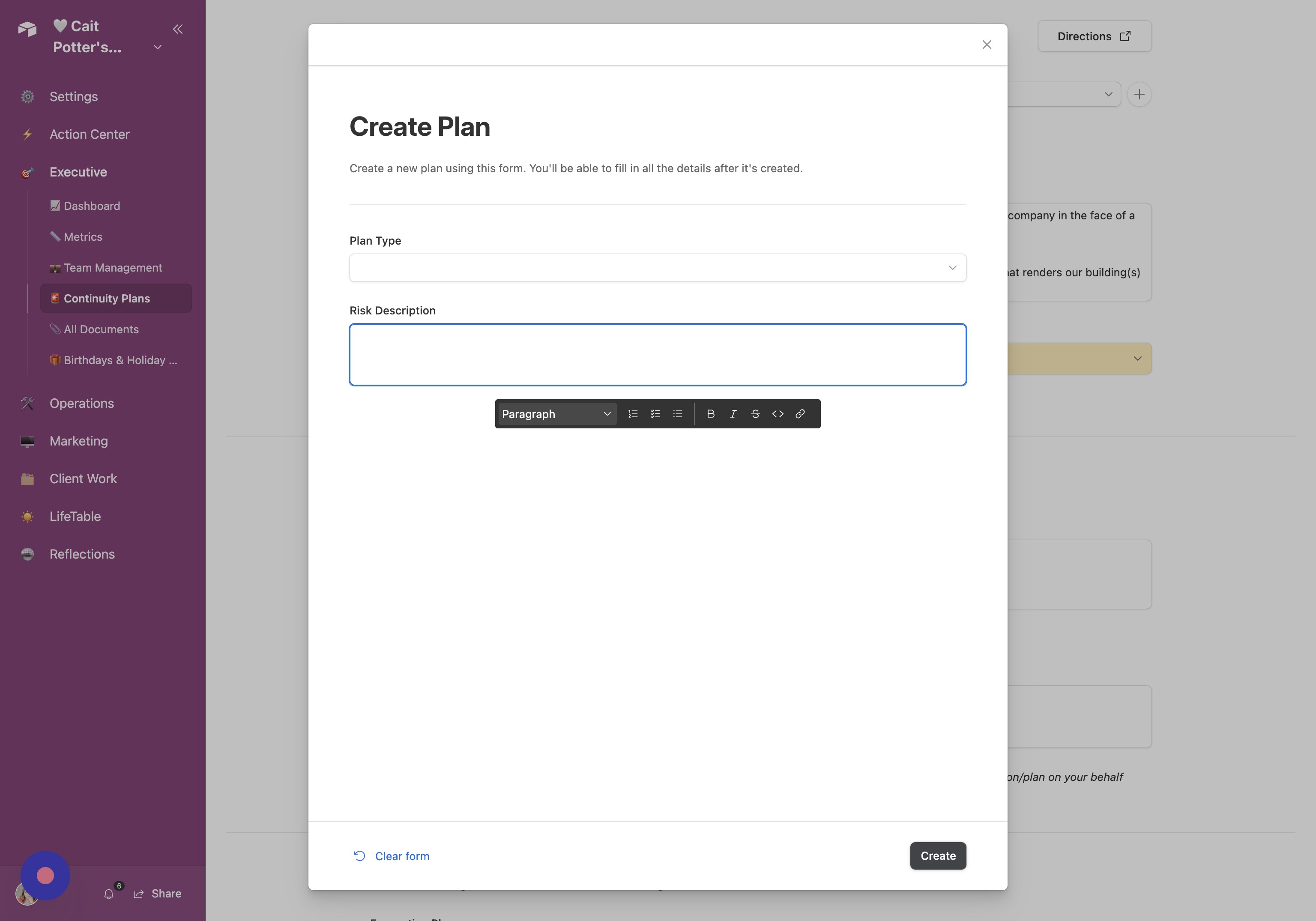
Fill Out Plan Fill out the form and click "Create".
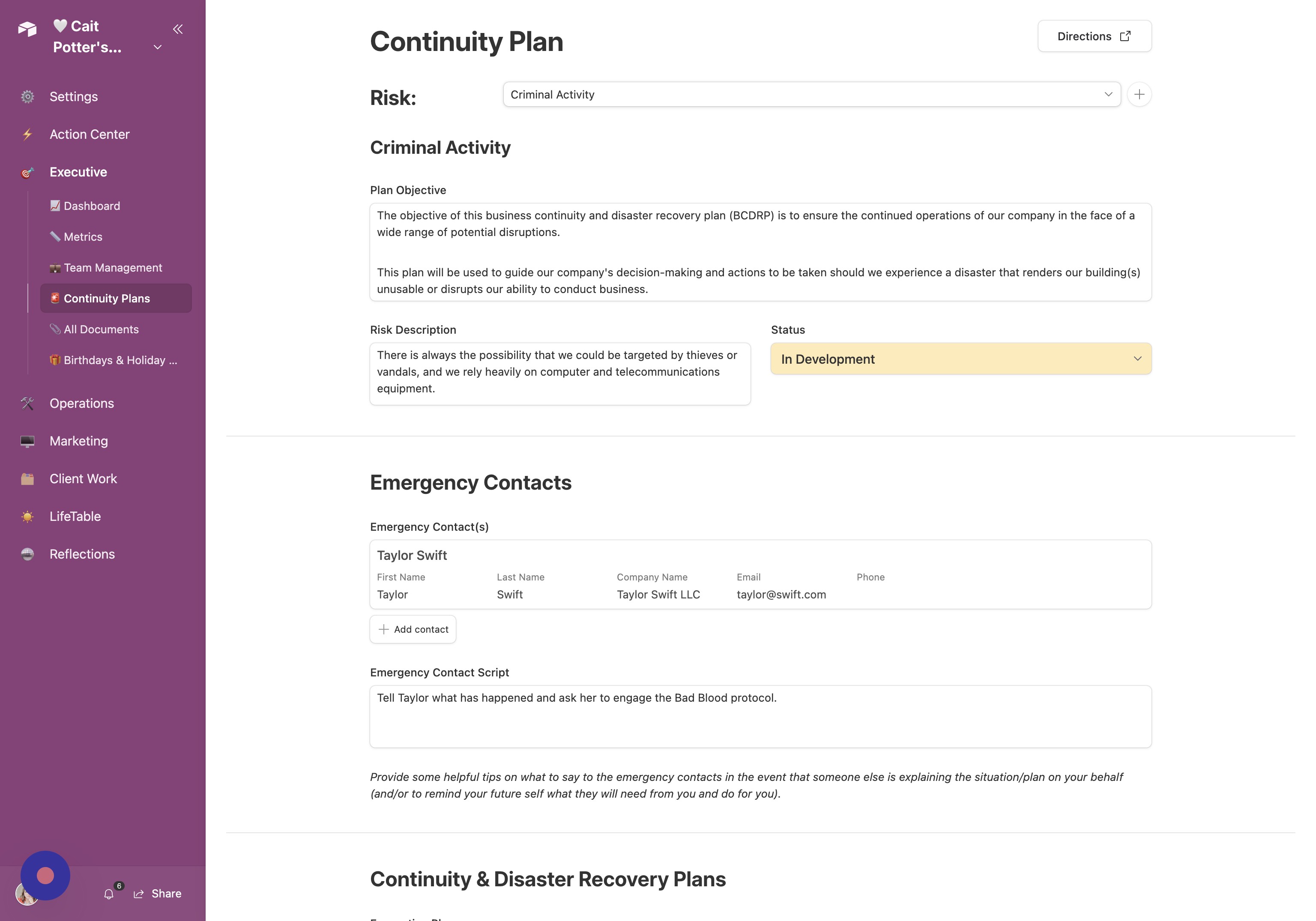
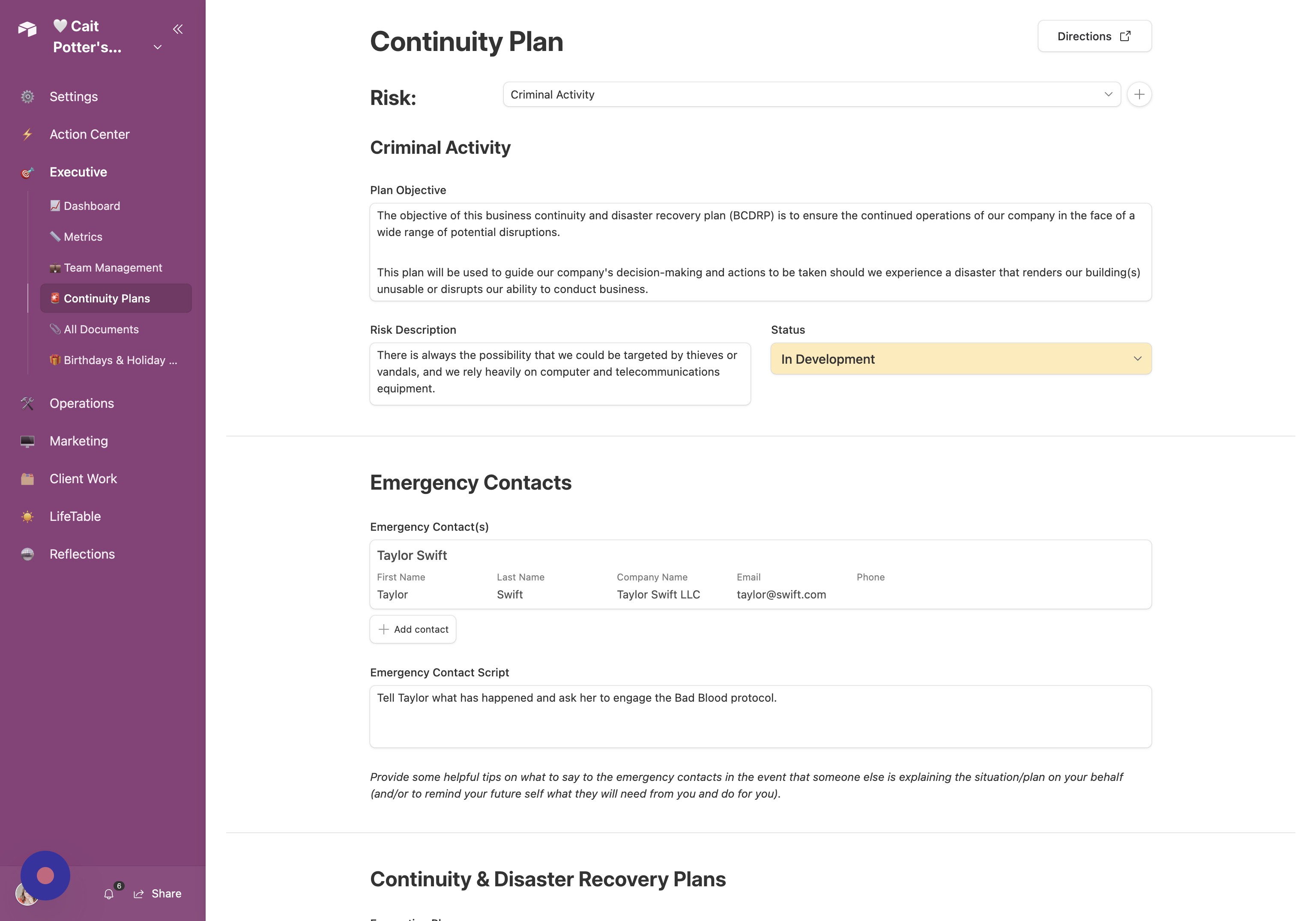
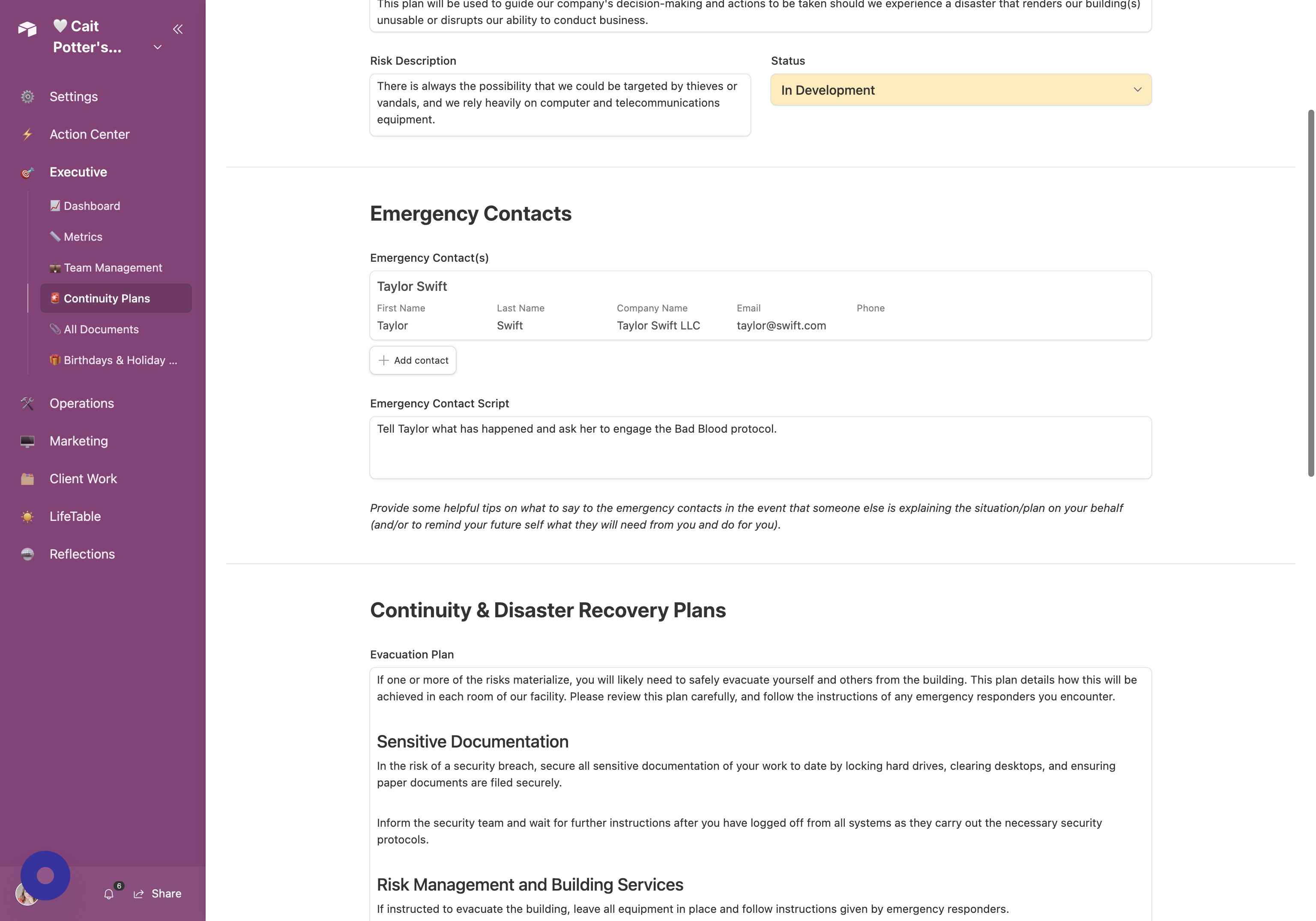
Add Contacts
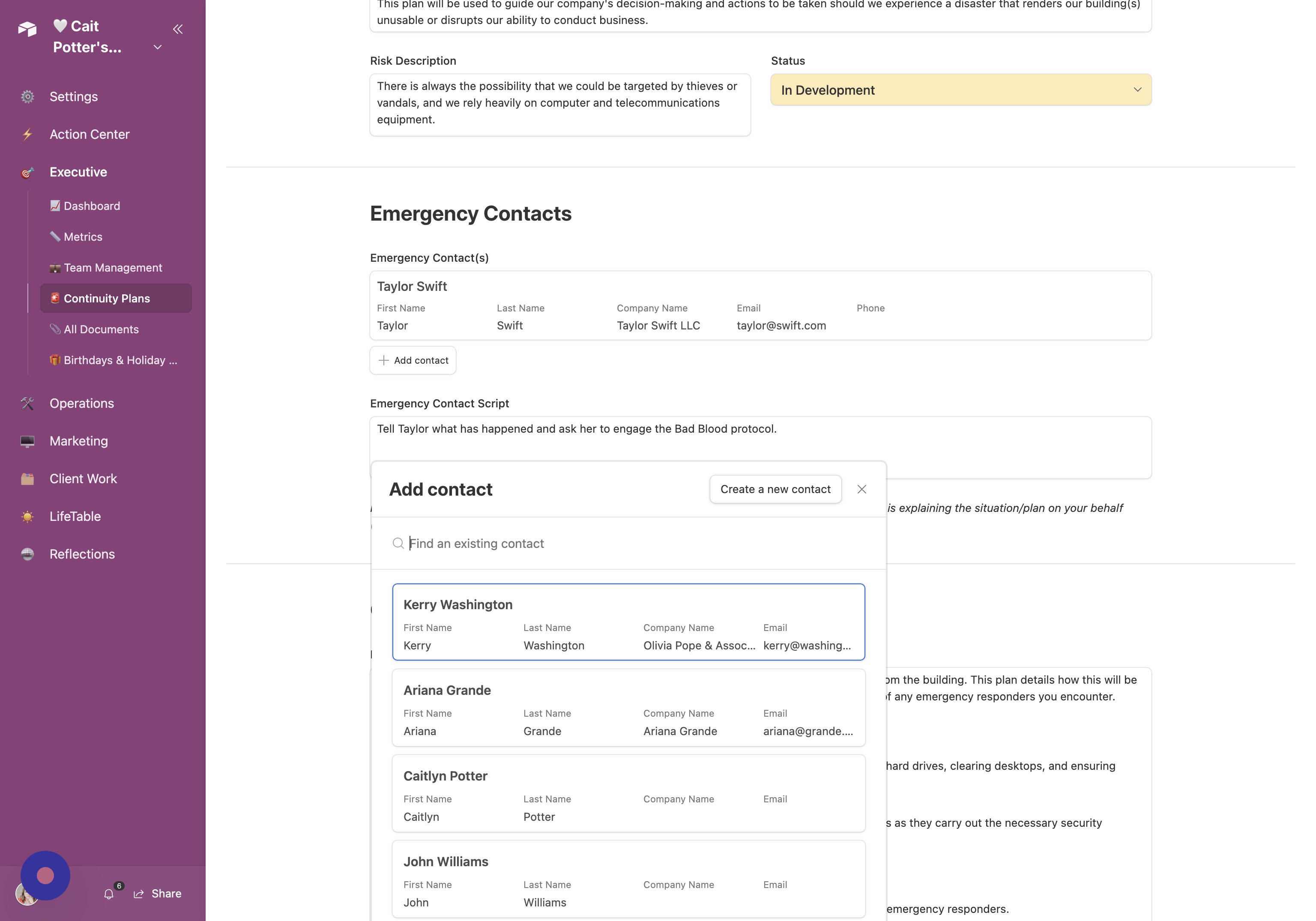
Add Existing Contact You may add Emergency Contacts to each plan. Click "Add contact" to add an existing one.
Create New Contact You can also create a new contact by clicking "Create a new contact"
Complete Plan Details
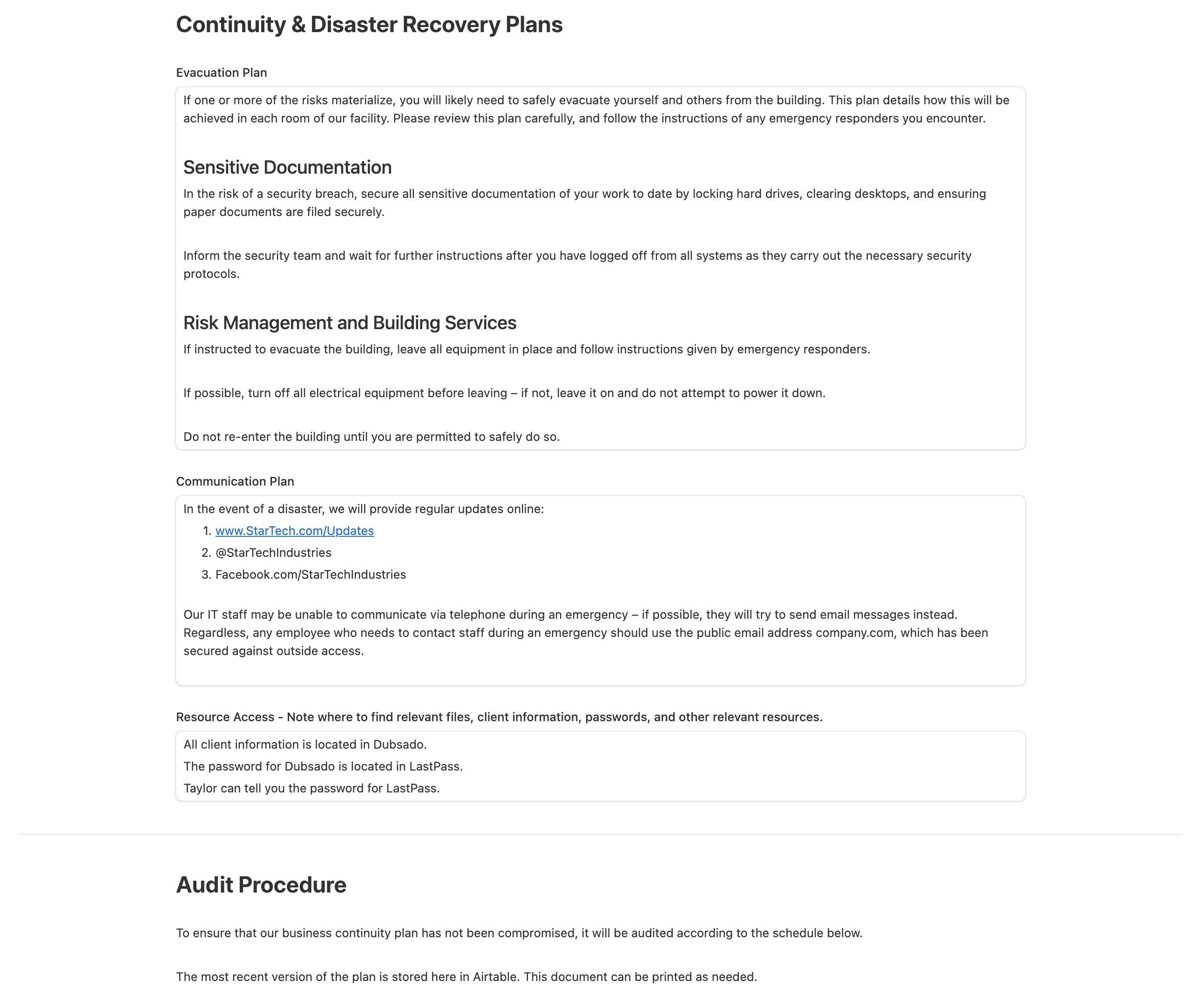
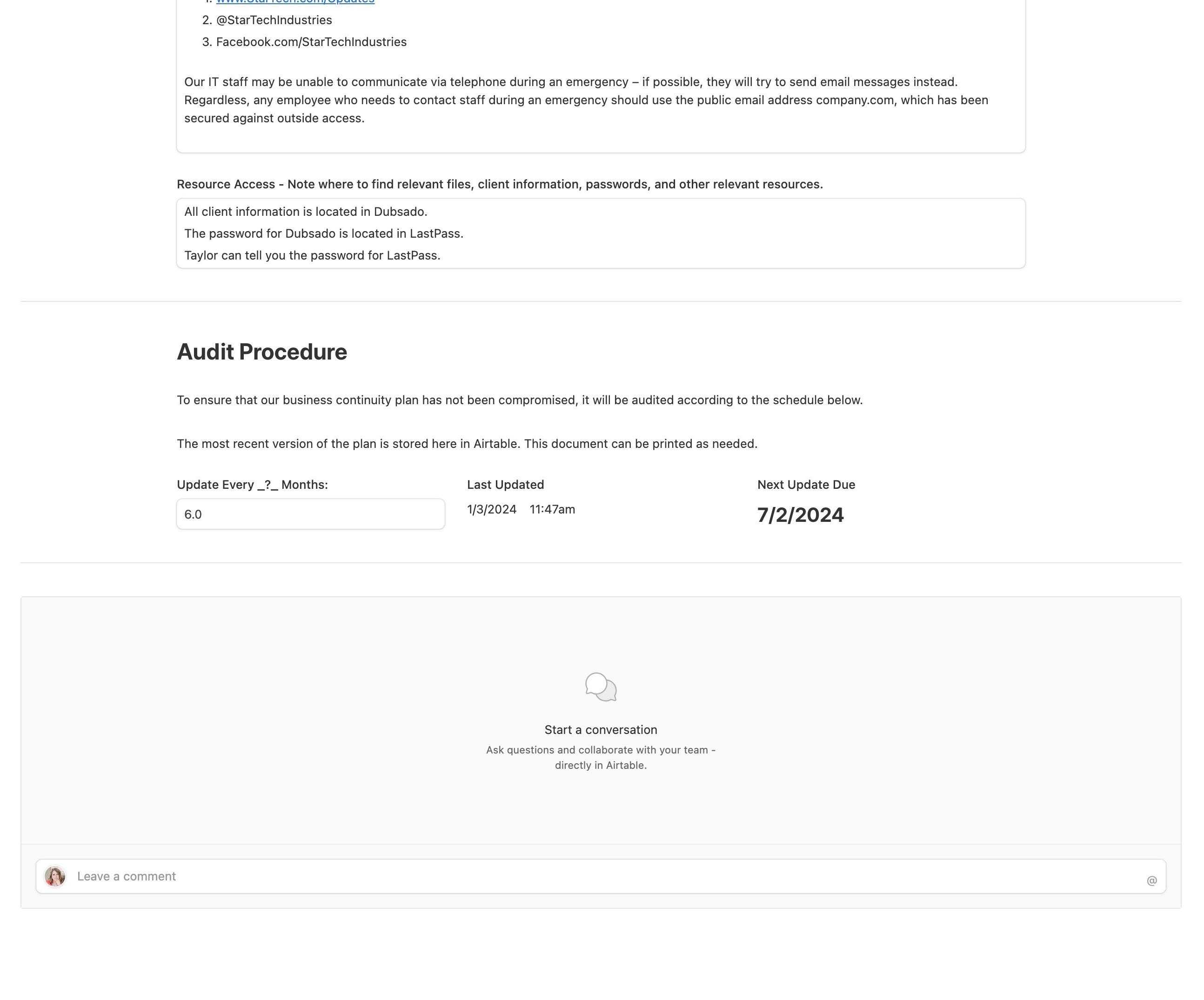
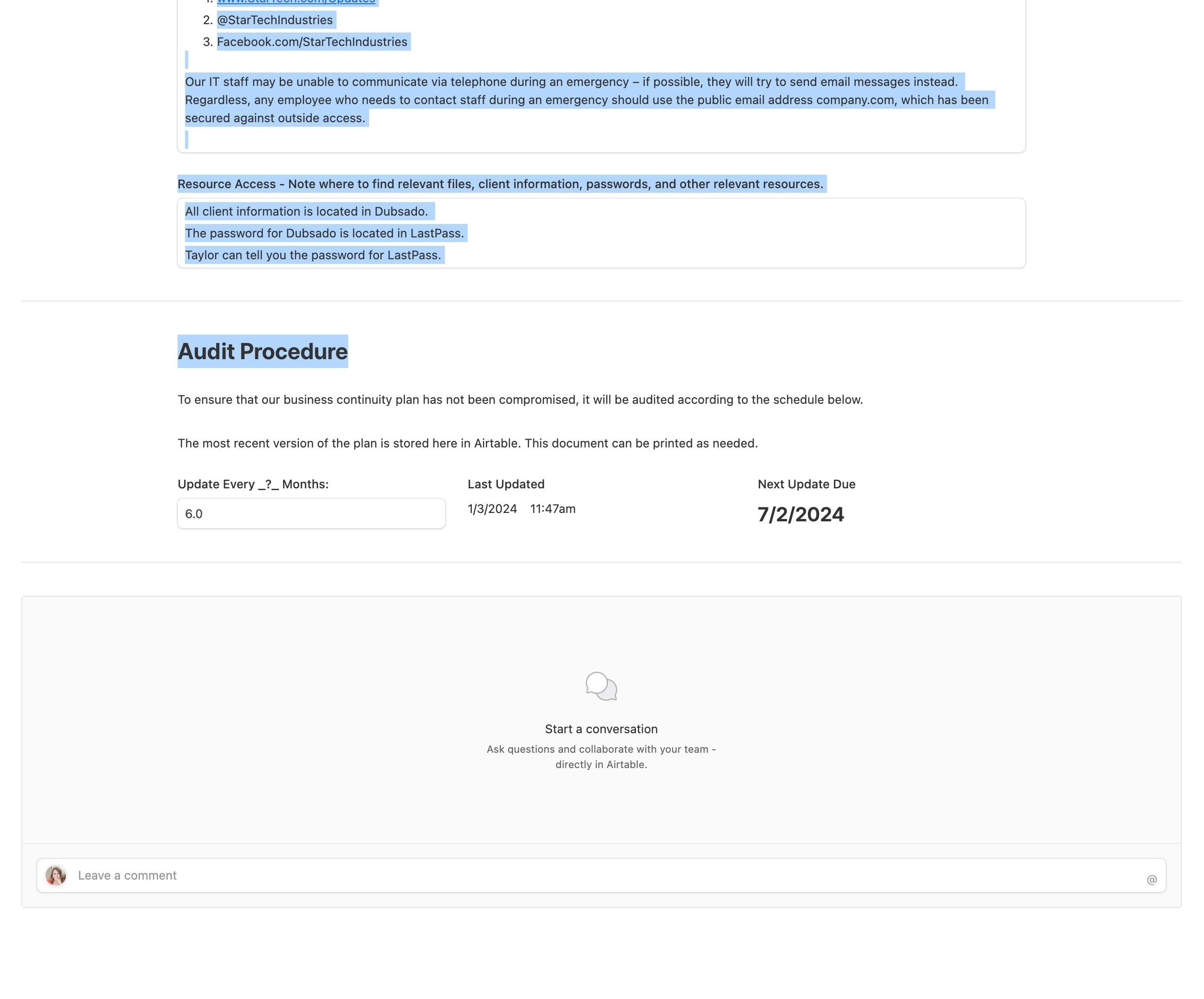
Fill Plan Details Fill in all information in the "Continuity & Disaster Recovery Plans" section
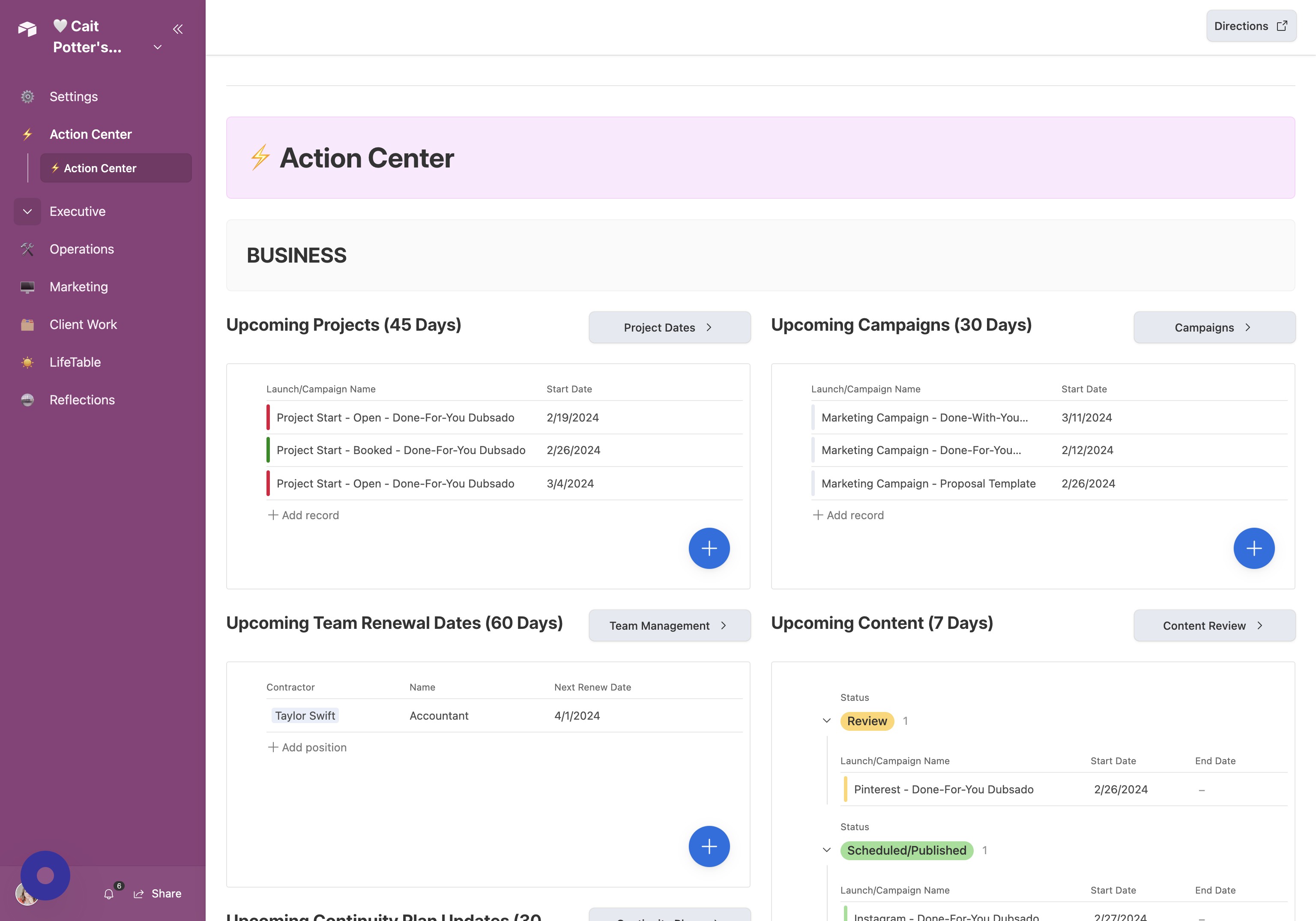
Set Audit Procedure Make sure to fill in the Audit Procedure! This is what will ensure your ⚡️ Action Center displays plans that are due for review/update soon!
Collaboration
Leave Comments You may leave comments on the plan to collaborate with your team or leave additional notes for yourself.
Did this answer your question?Thanks for the feedbackThere was a problem submitting your feedback. Please try again later.