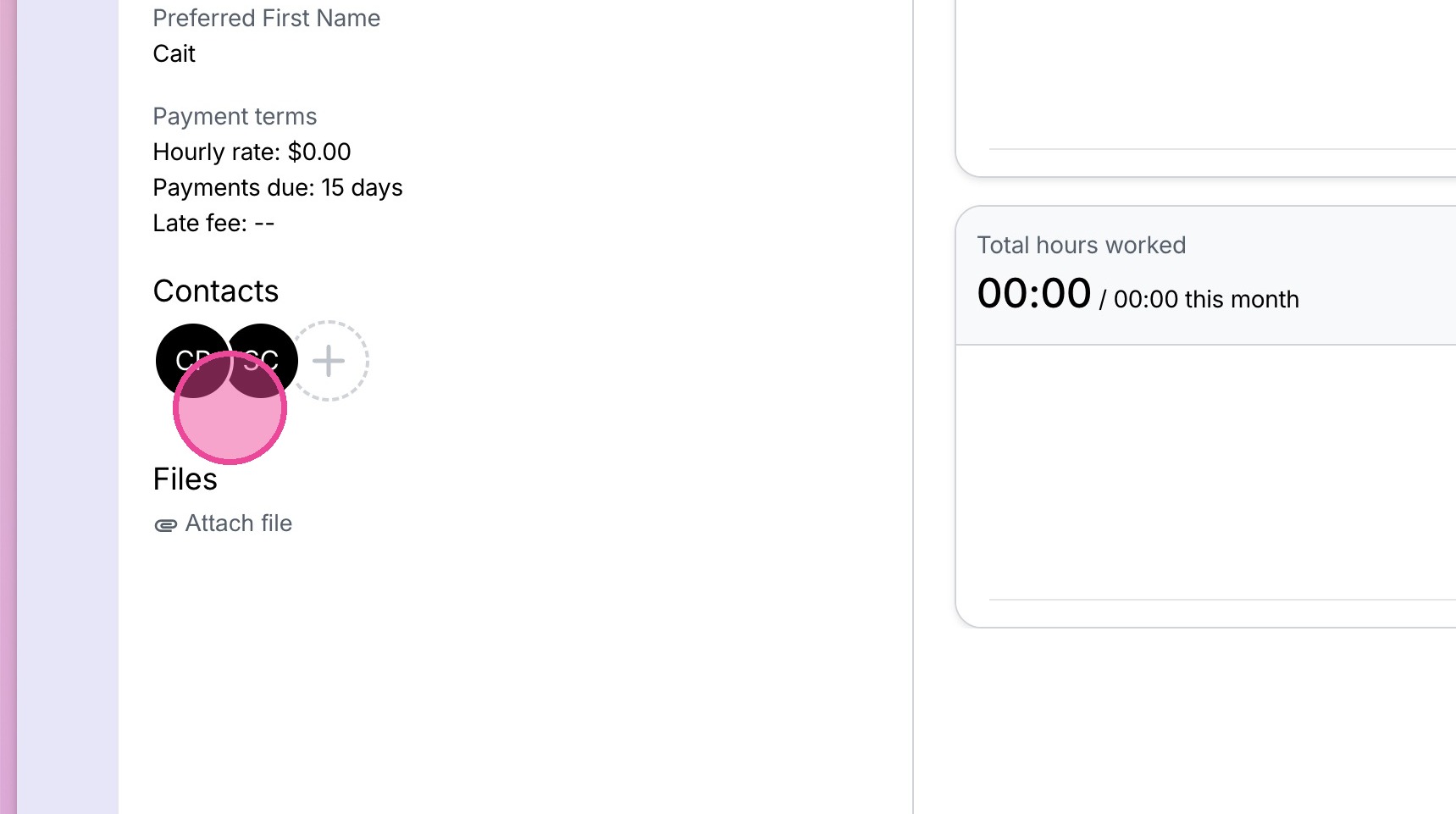
Manually Add Extra Contact to Client File
1. Navigate to the relevant client.
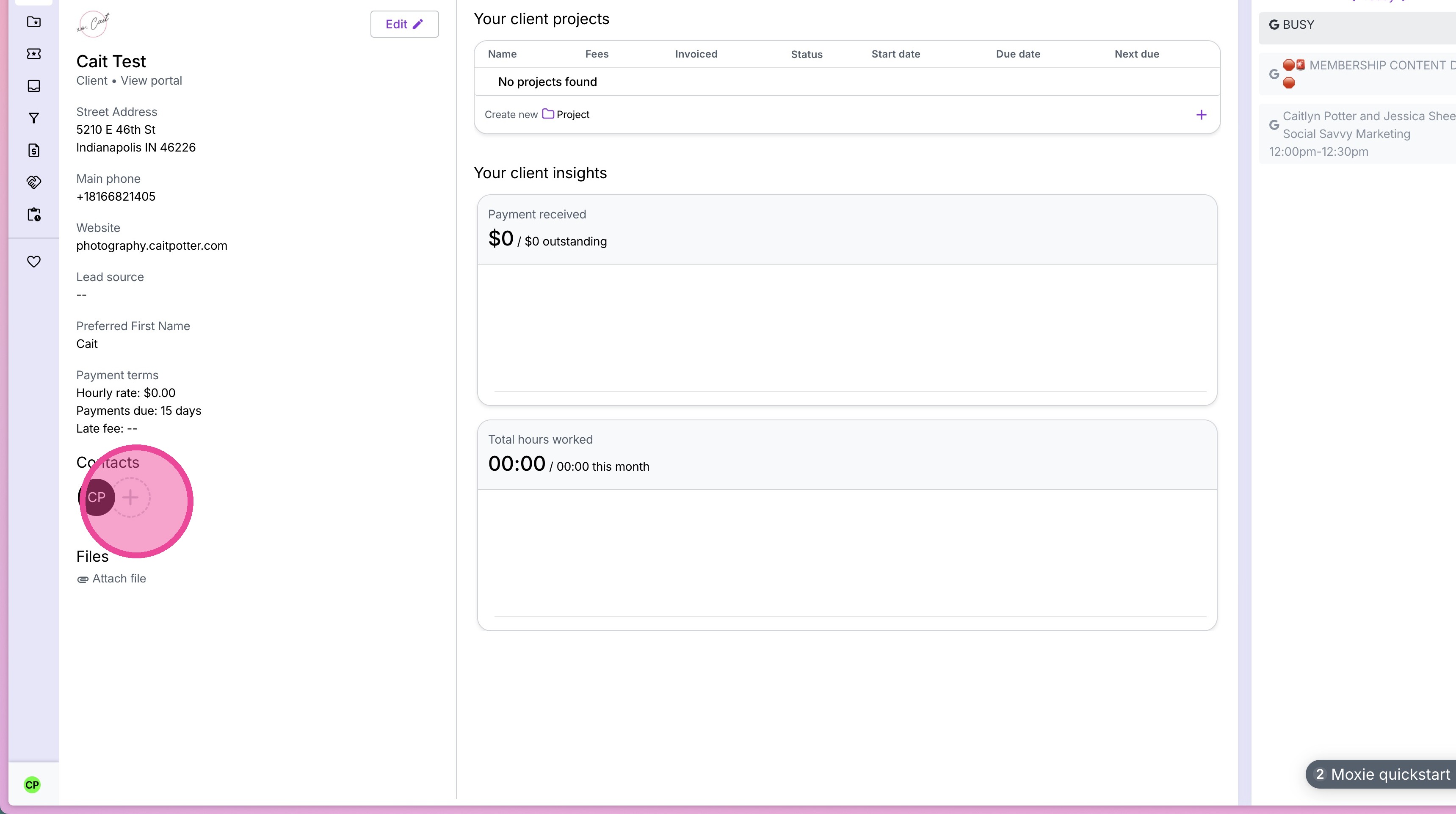
2. Click the plus button under "Contacts" on the left side profile.
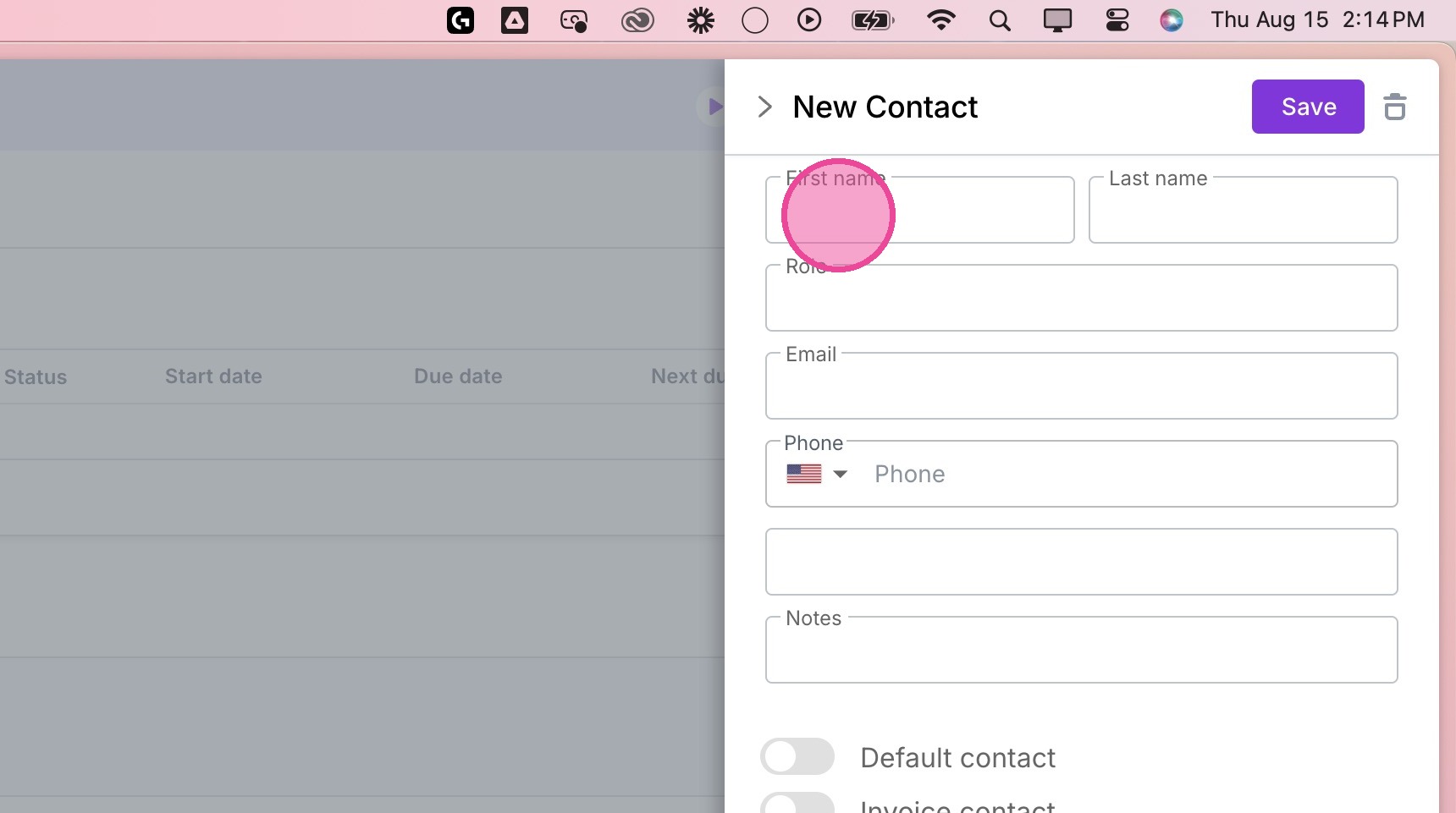
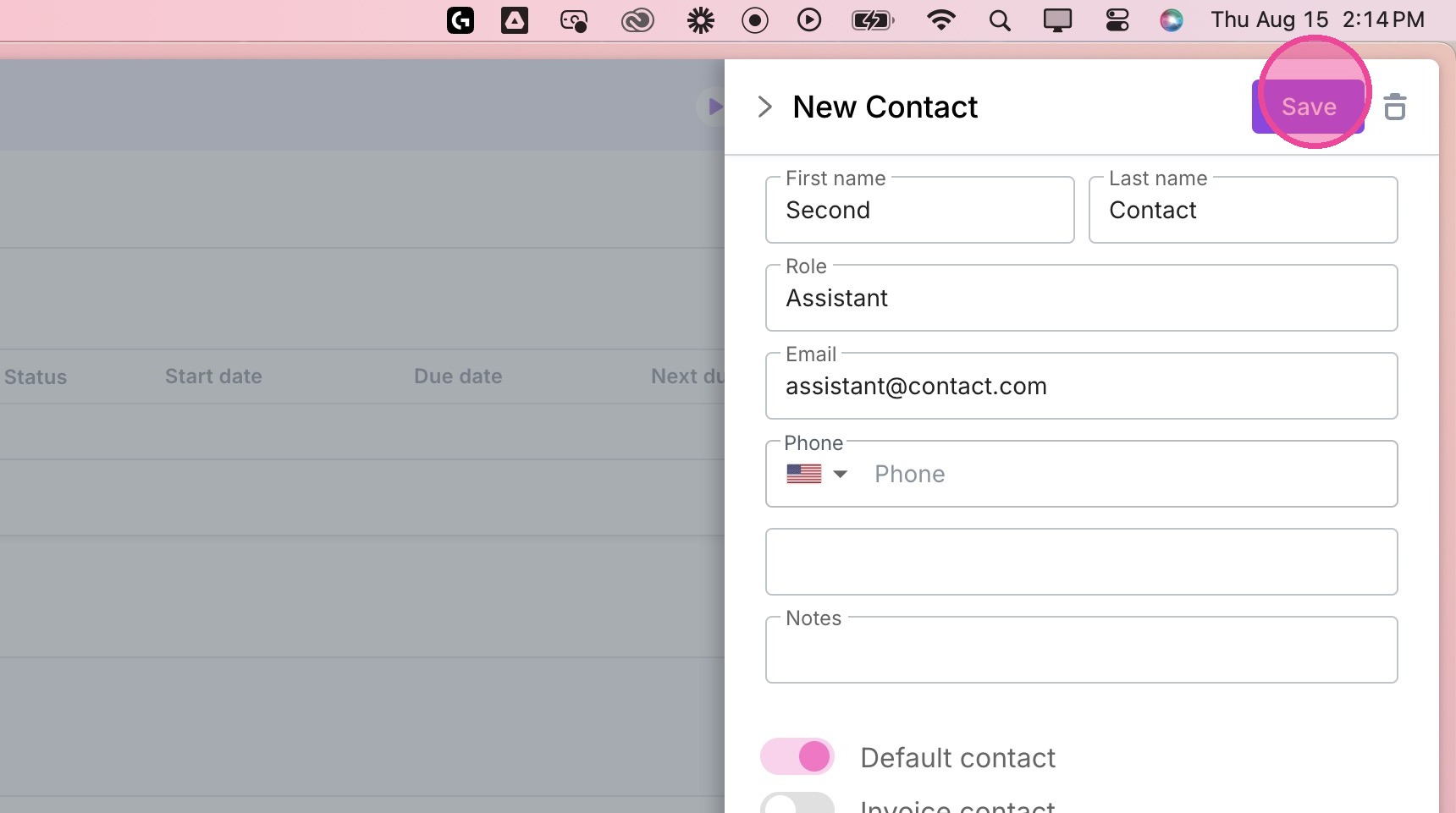
3. Fill in the Contact's information.
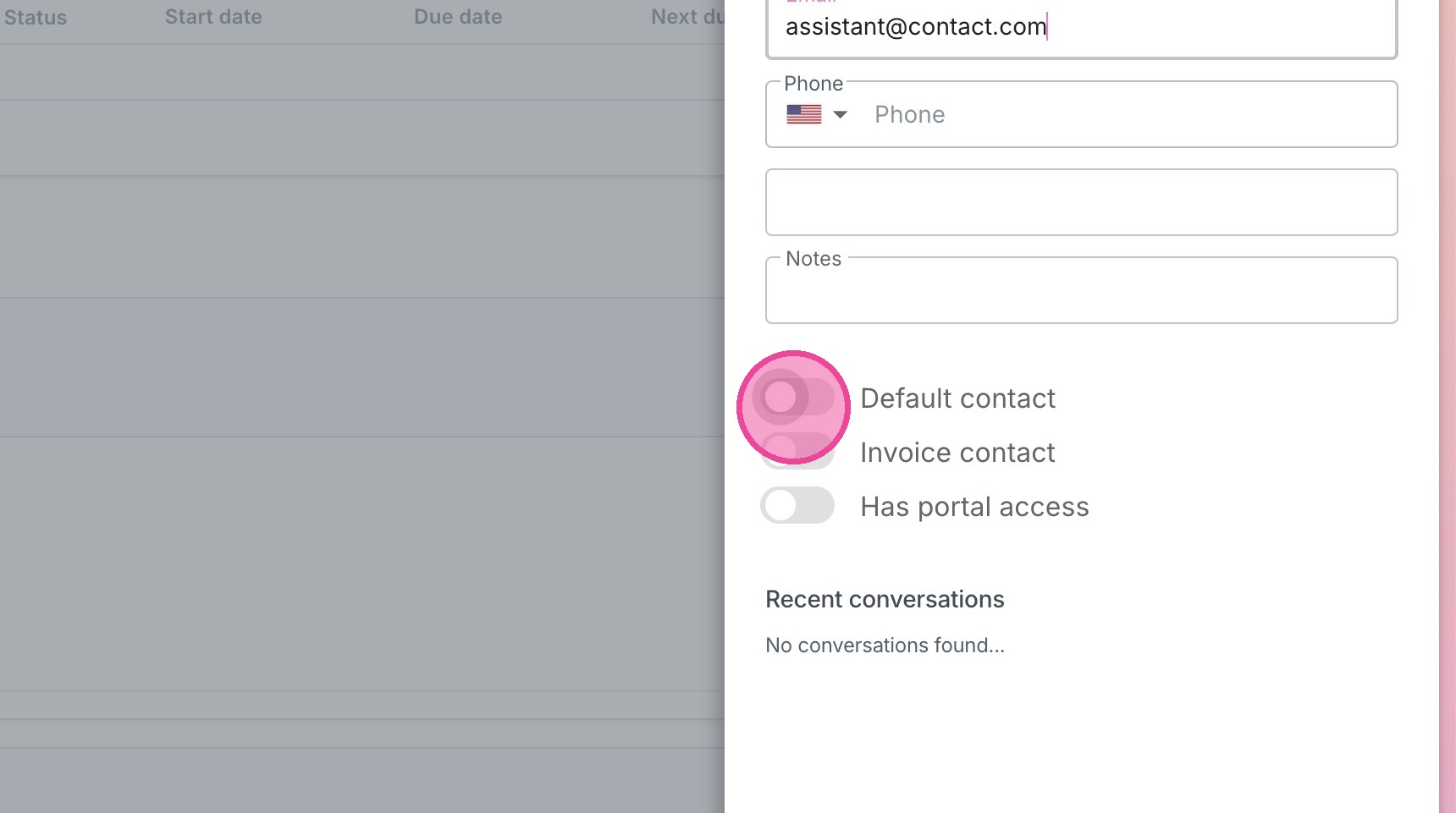
4. If this contact should be receiving most workflow emails, make sure to set them as a default contact. If this contact should only receive CERTAIN emails, don't select this.
If the contact is who you should contact for invoicing, select "Invoice Contact".
And finally, decide whether you want them to have portal access.
5. Click "Save"
6. You will now see the second contact linked under the left profile area.