Create Your Feedback Form
A placeholder feedback form has been created for you. You need to add your questions, publish it, and make sure YOUR link is in all the appropriate spots. Check out the tutorials below for how:
Publishing, Adding Questions, & Updating Your Link
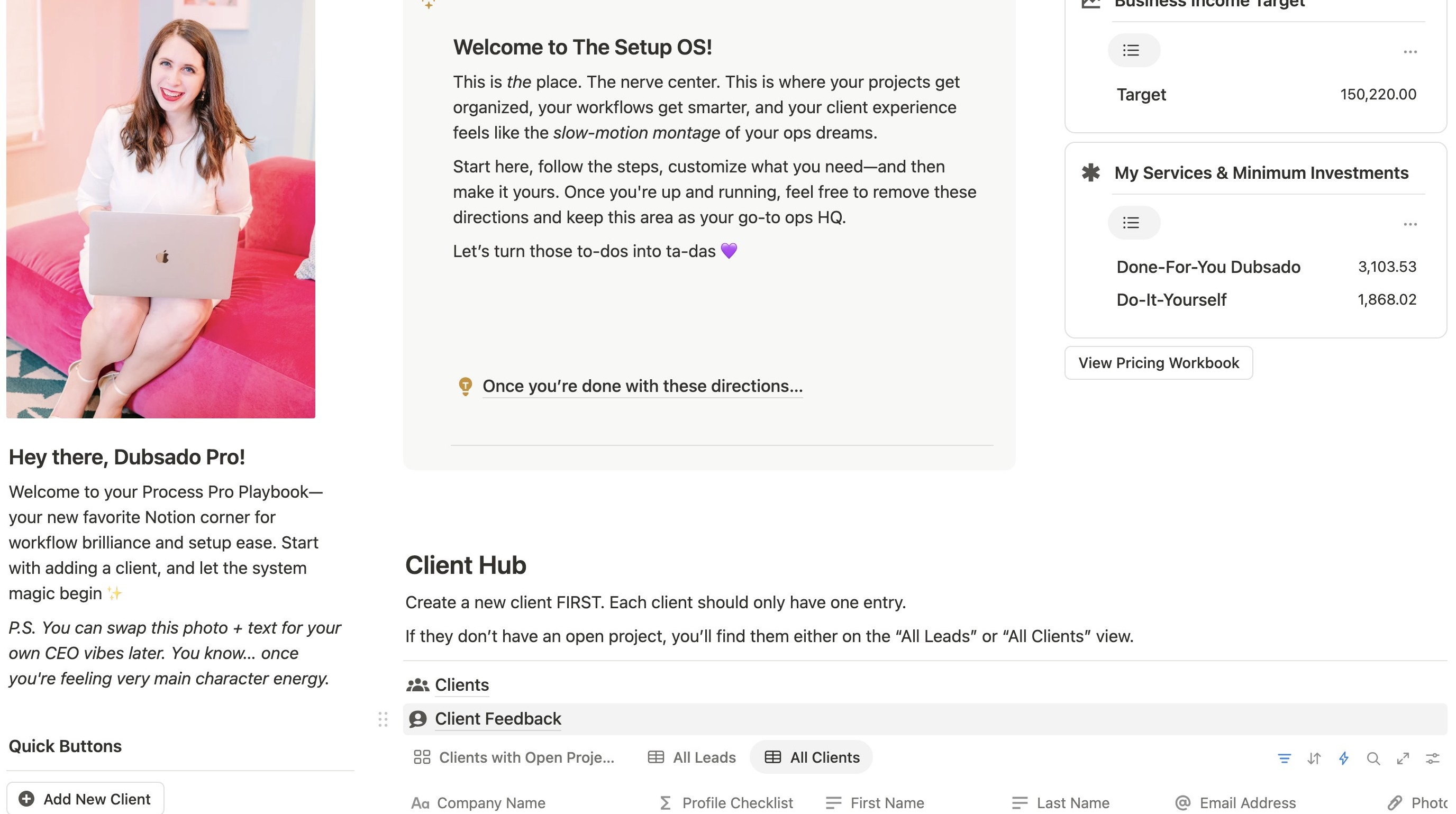
1. Navigate to Home Page of The Setup OS
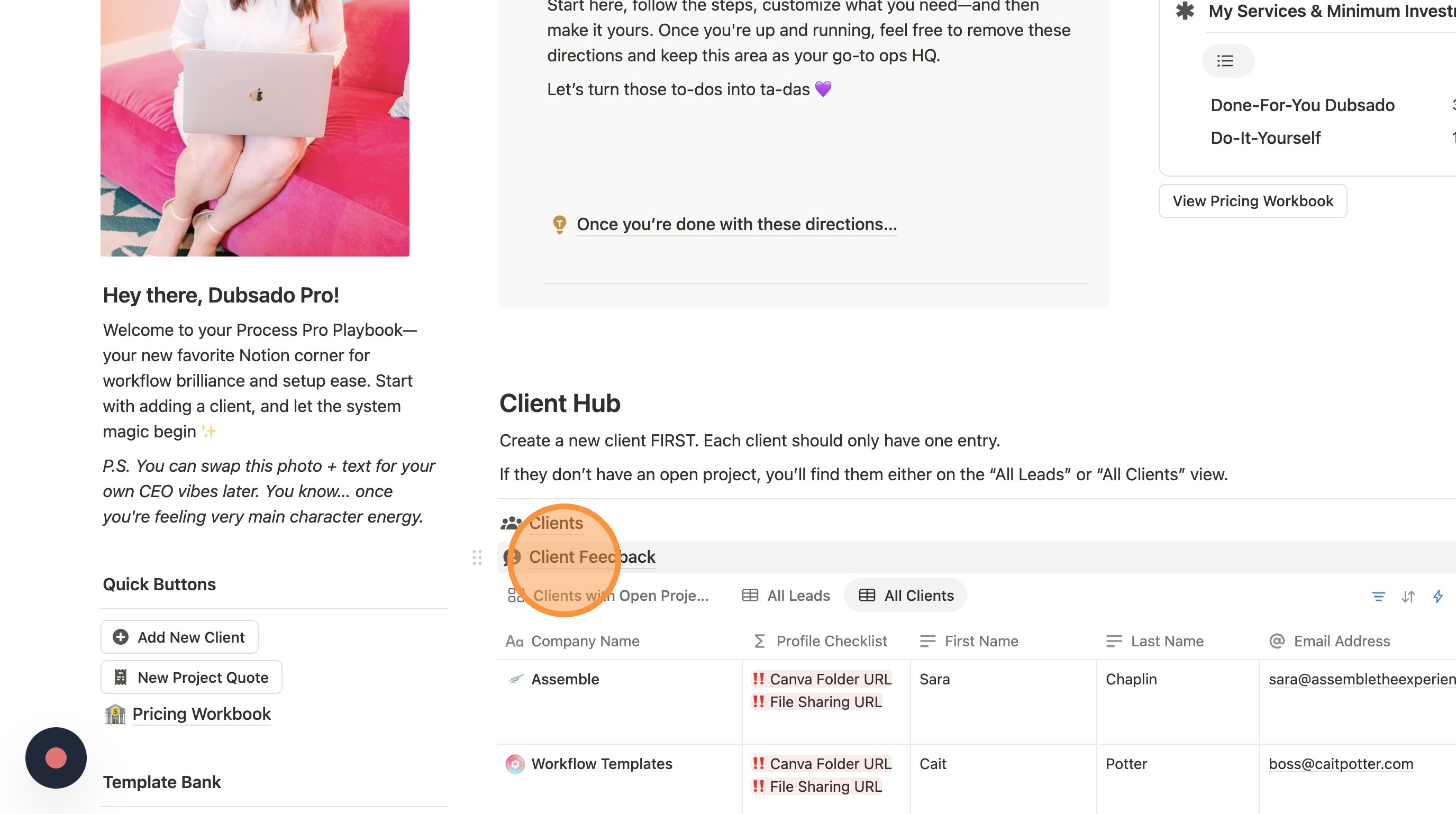
2. Click "Client Feedback"
Add Questions
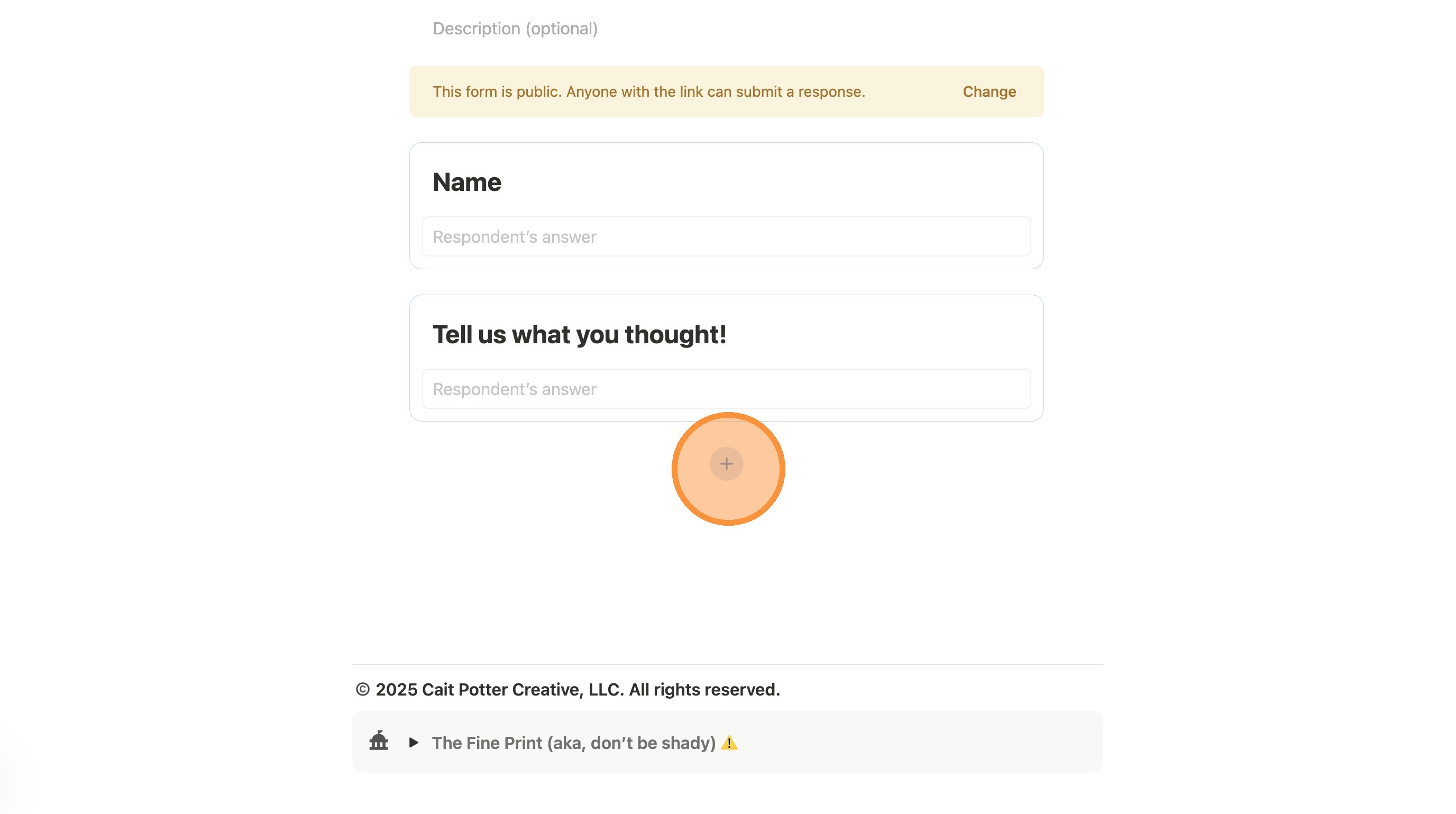
3. Click this icon to add a new question.
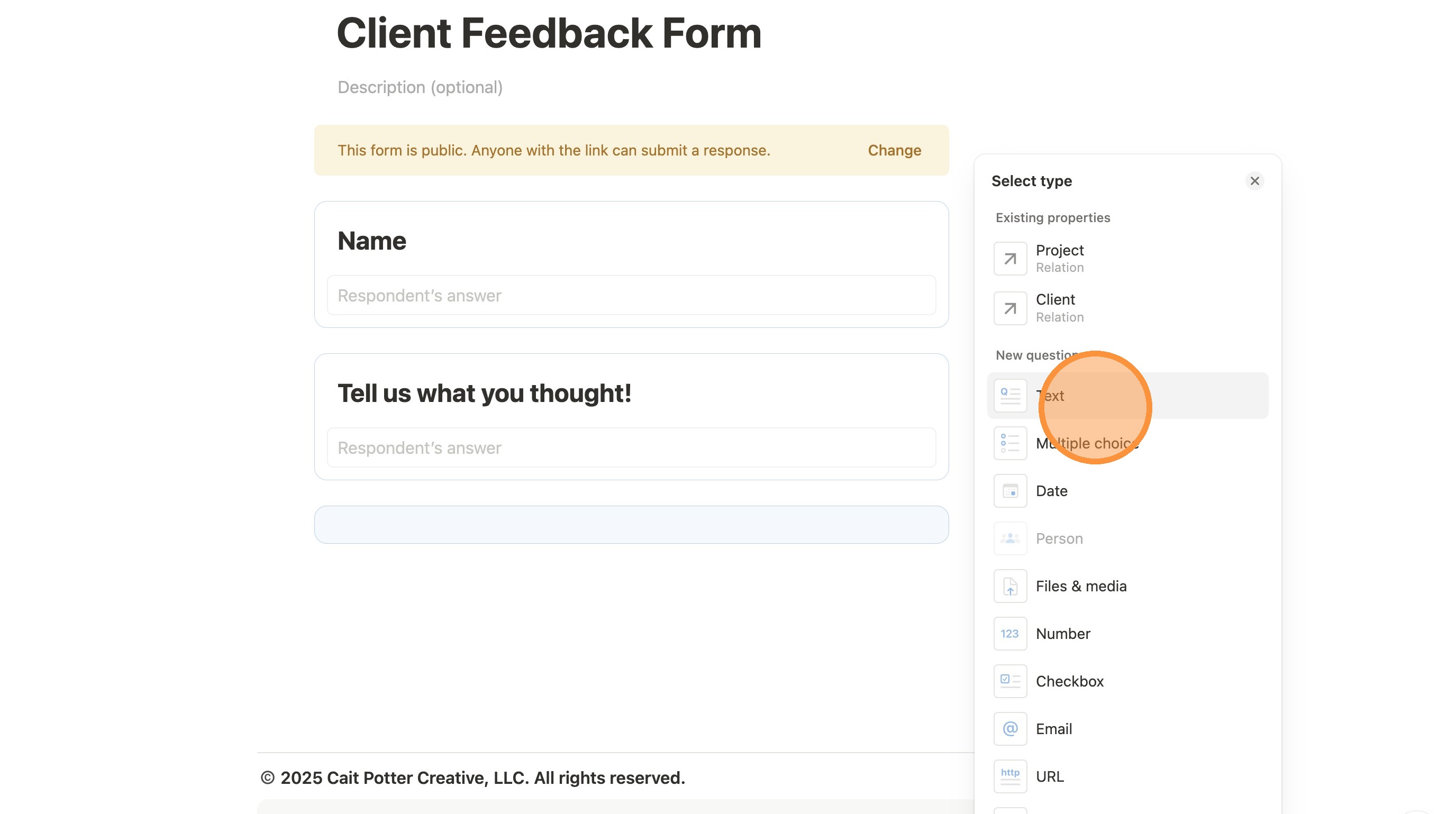
4. Select the question type you want to add. In this case, we'll add text.
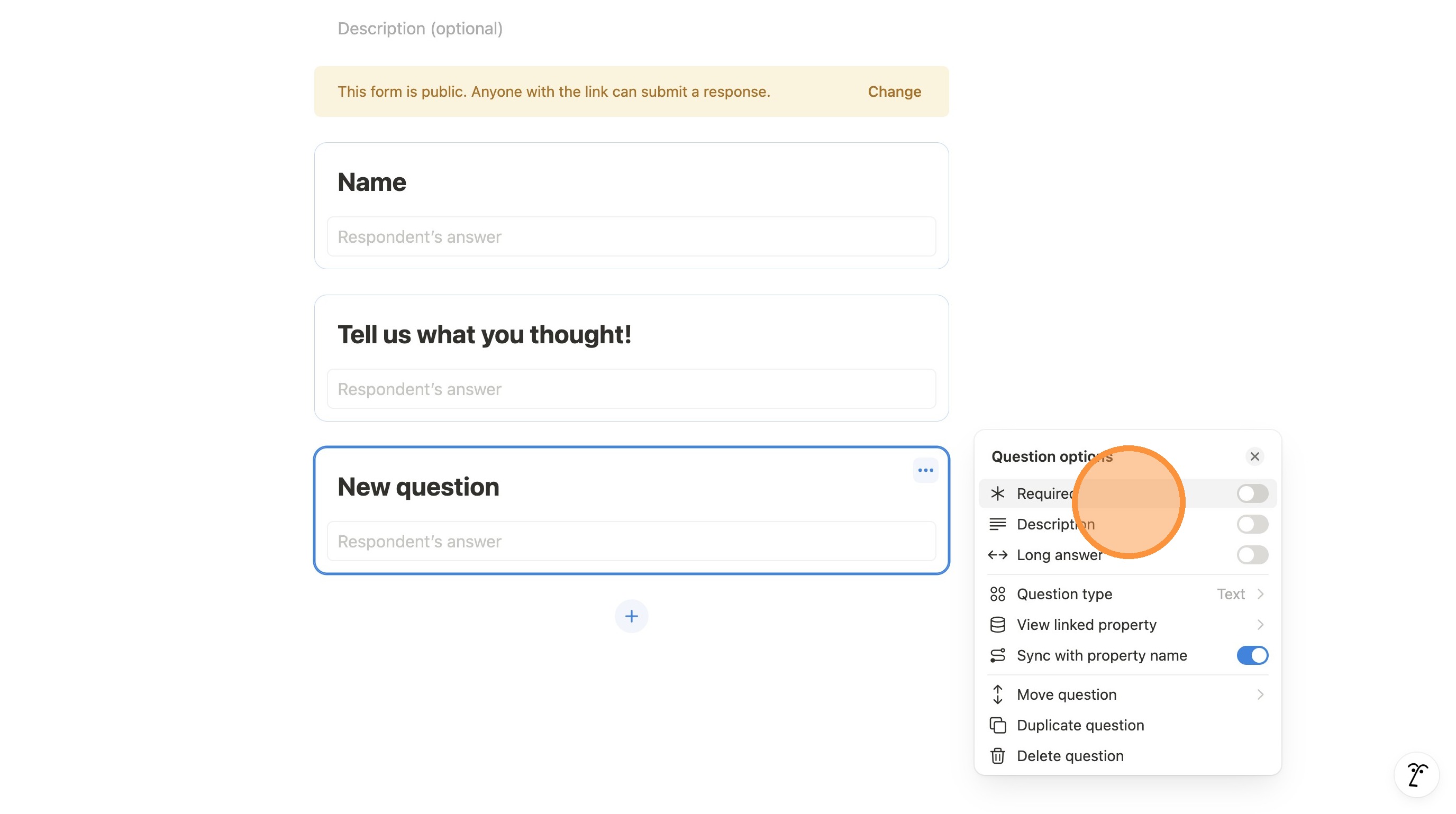
5. Type in your question and update the Question Options as needed. This includes marking it required, adding a description, making the response field longer, or moving the question to a different spot within the form.
Change Sharing Permissions
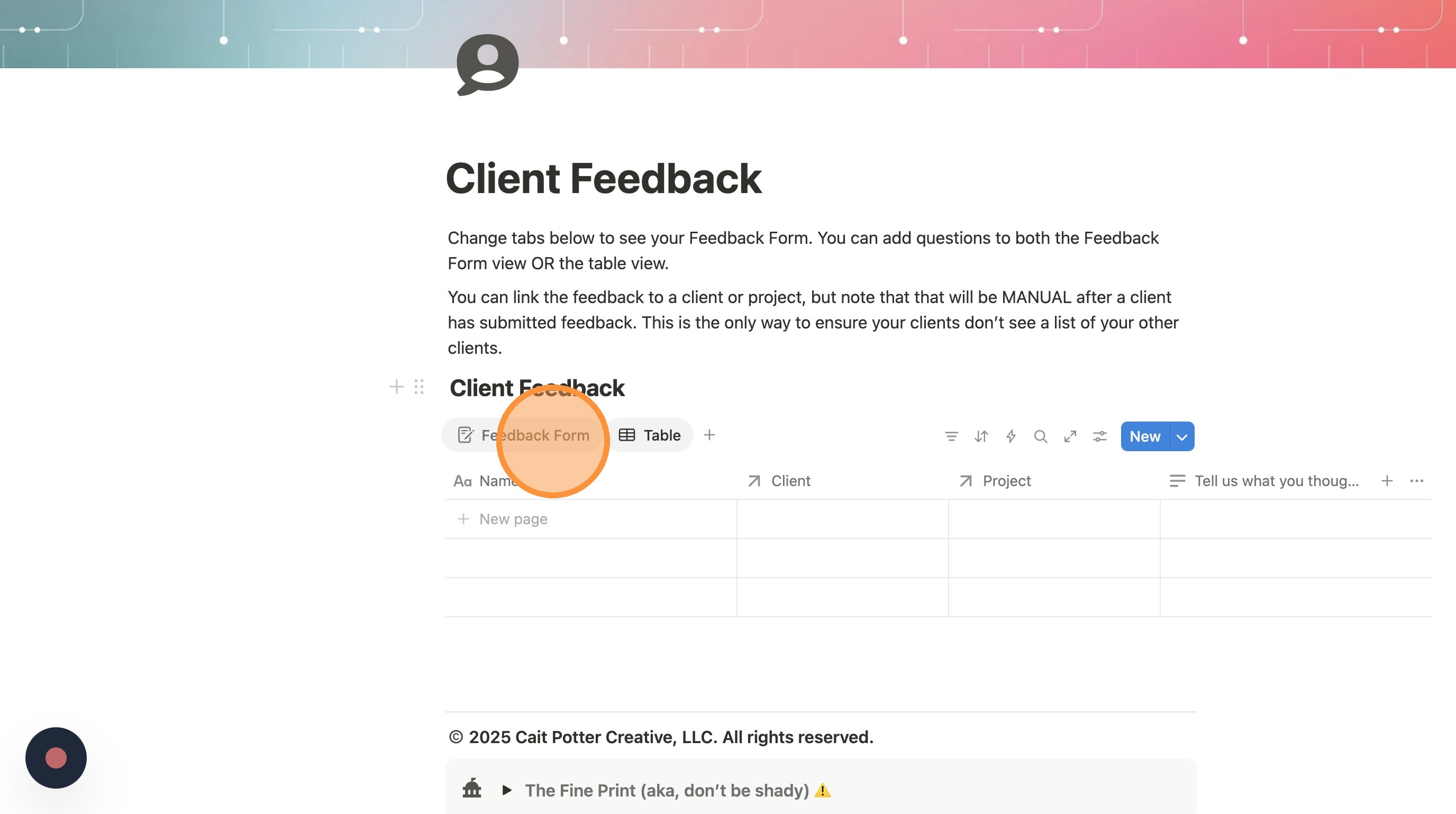
6. Click "Feedback Form"
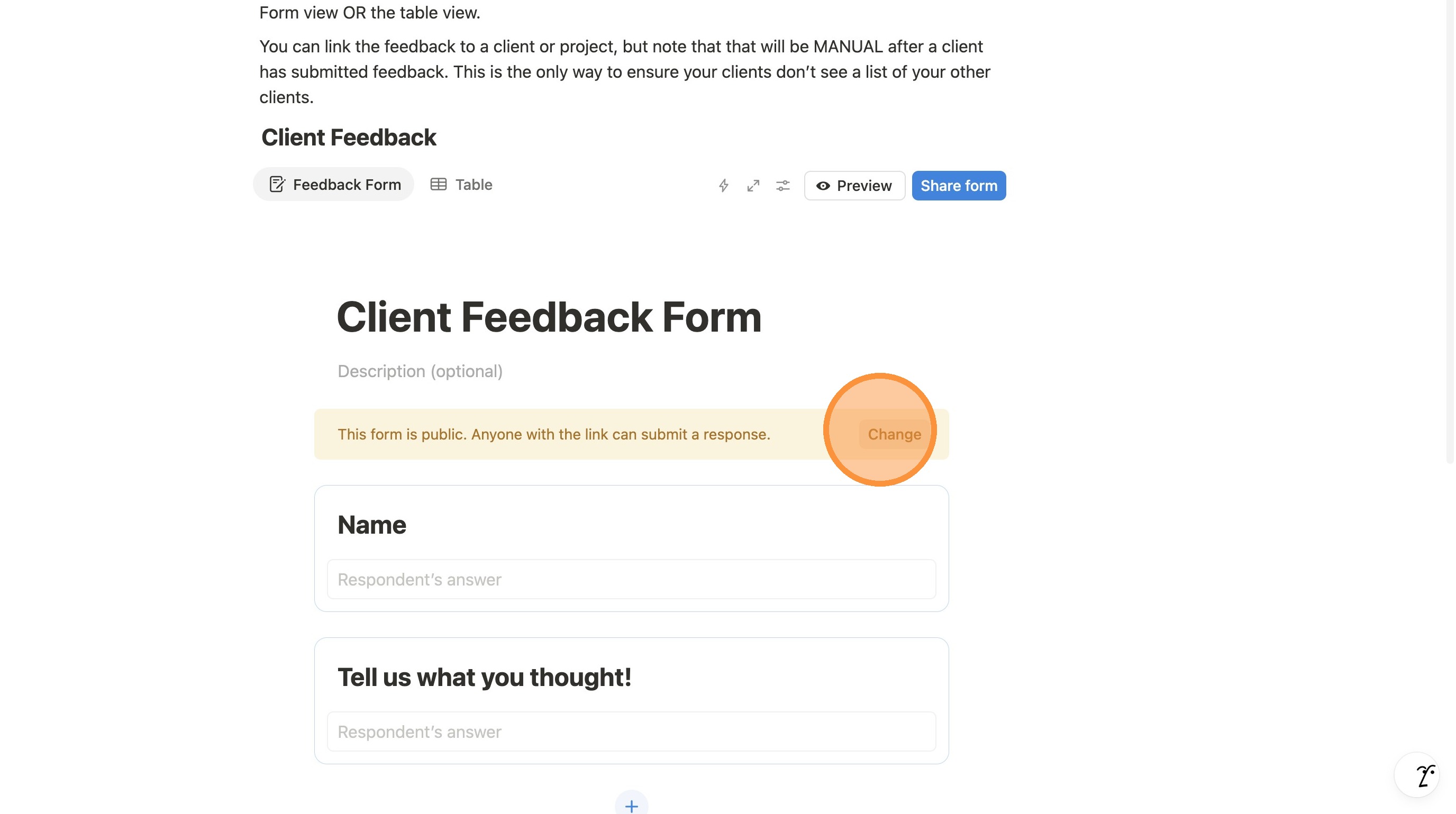
7. Click "Change"
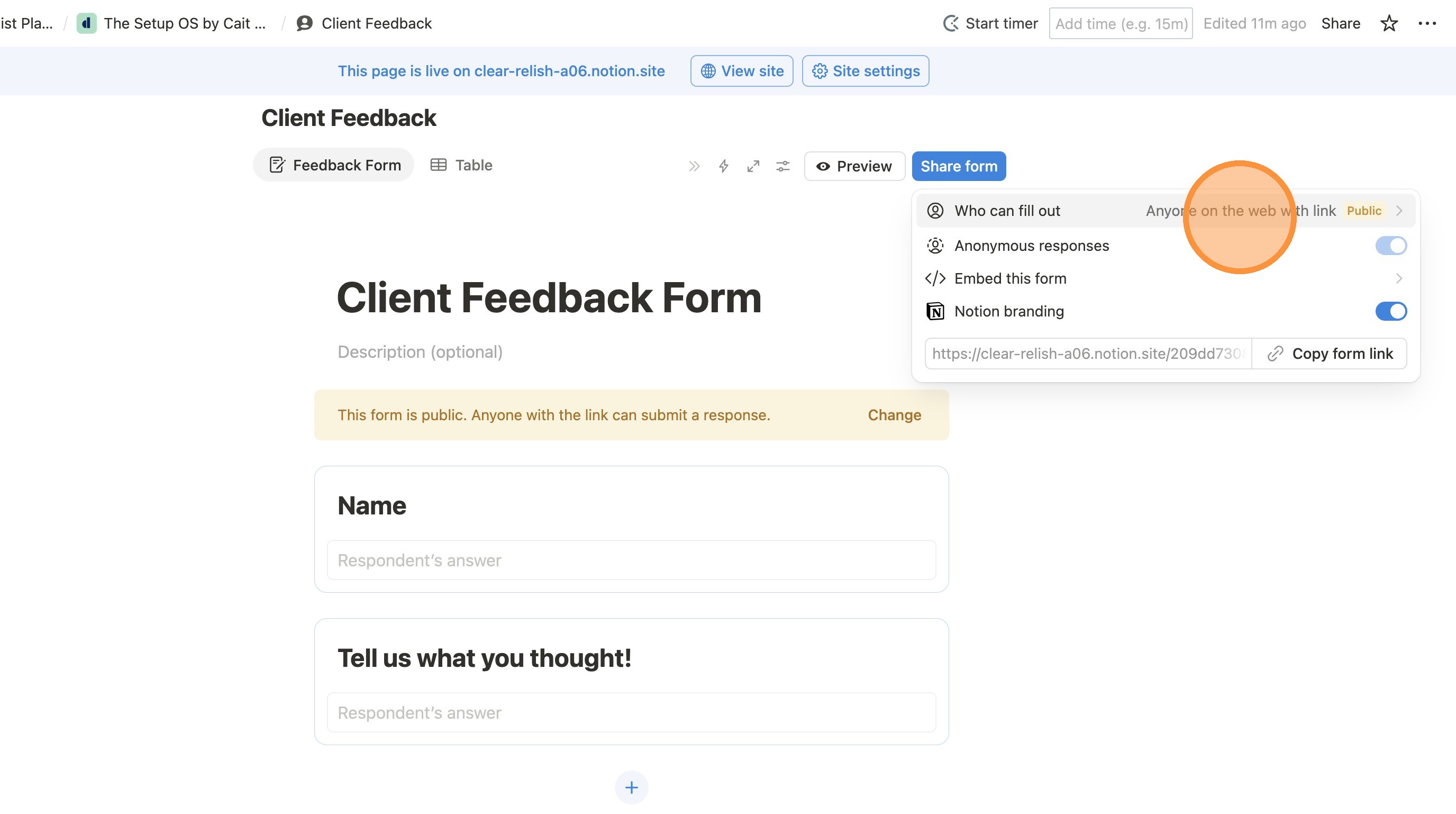
8. Click "Anyone on the web with link - Public". Also make sure you click the "Copy Form Link" button at this time to have it for the next section.
Update Your Link
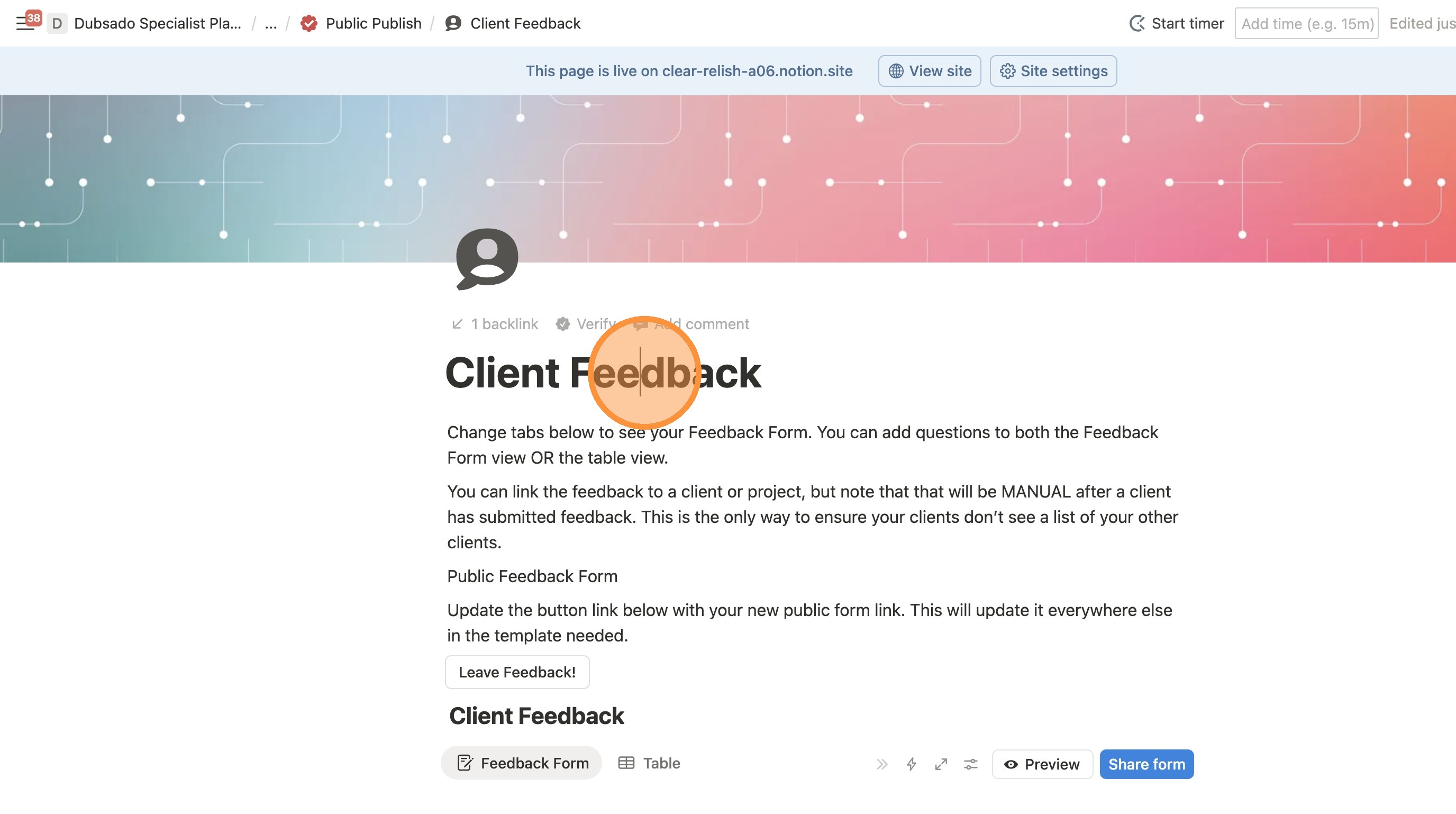
9. Scroll back up to the top. You don't need to click anything here, it's just showing you what you should see.
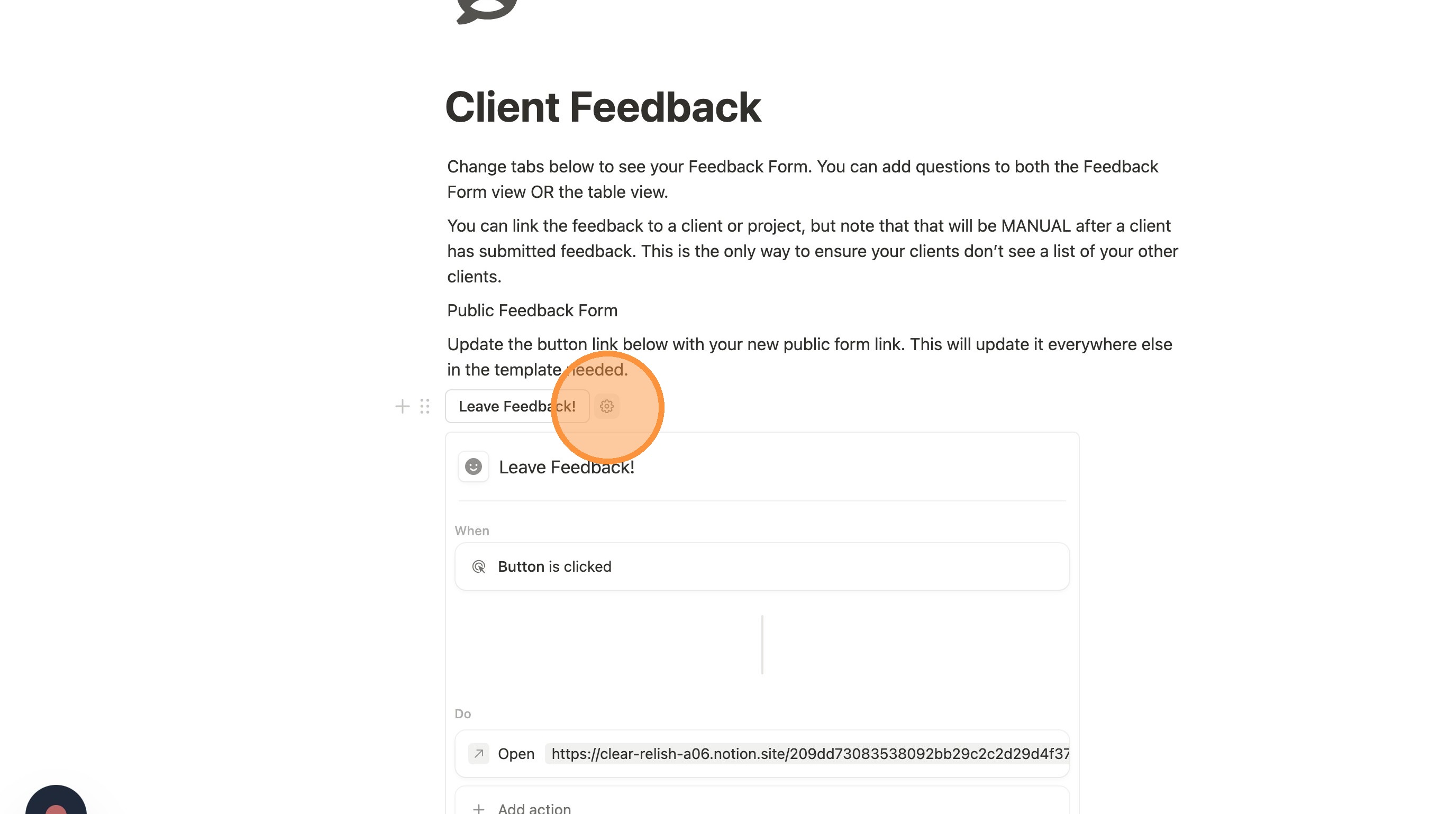
10. Locate the "Leave Feedback" button and click the gear next to it.
11. Click the link that's already in the step to open up the box that allows you to customize the link.
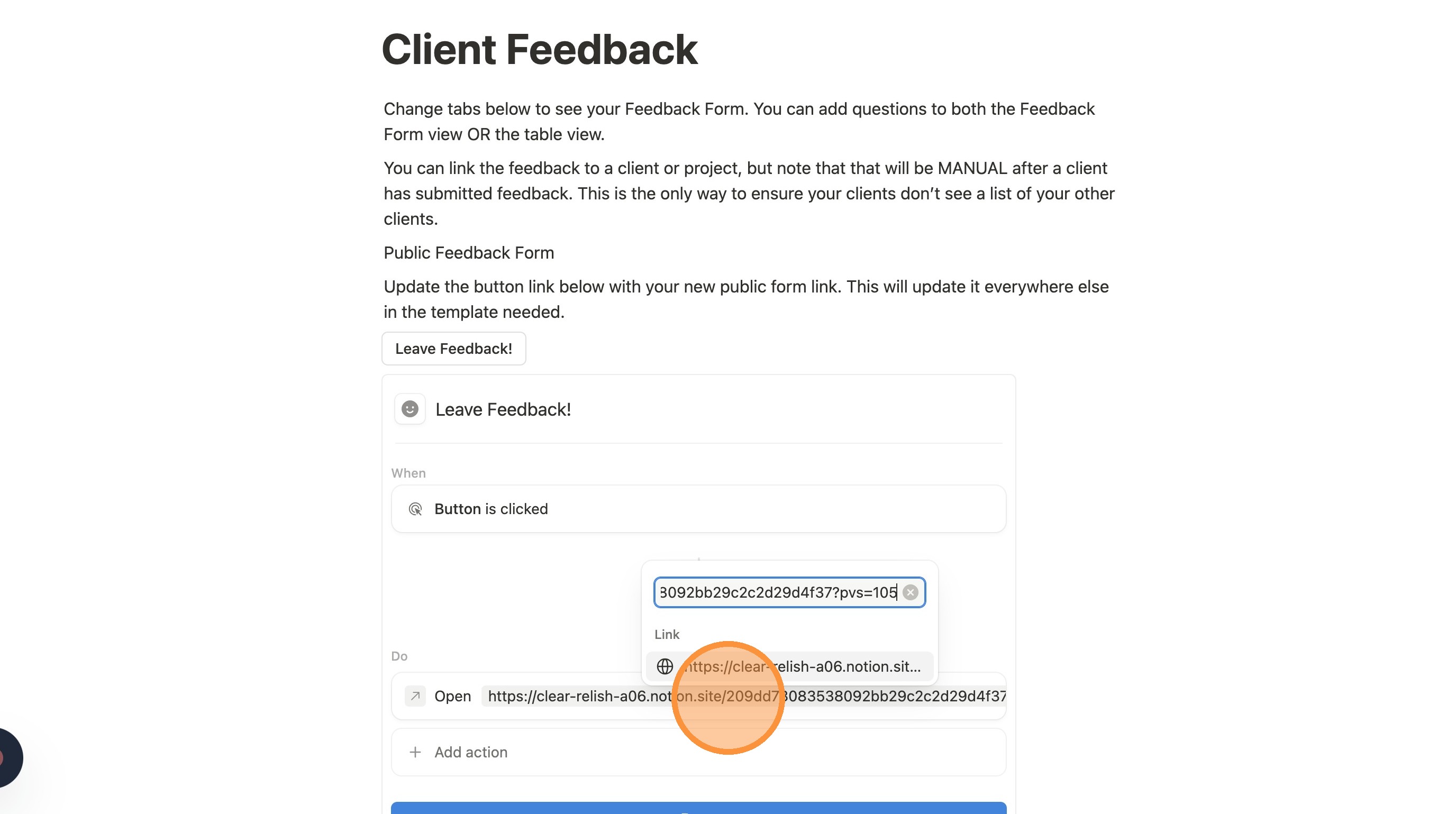
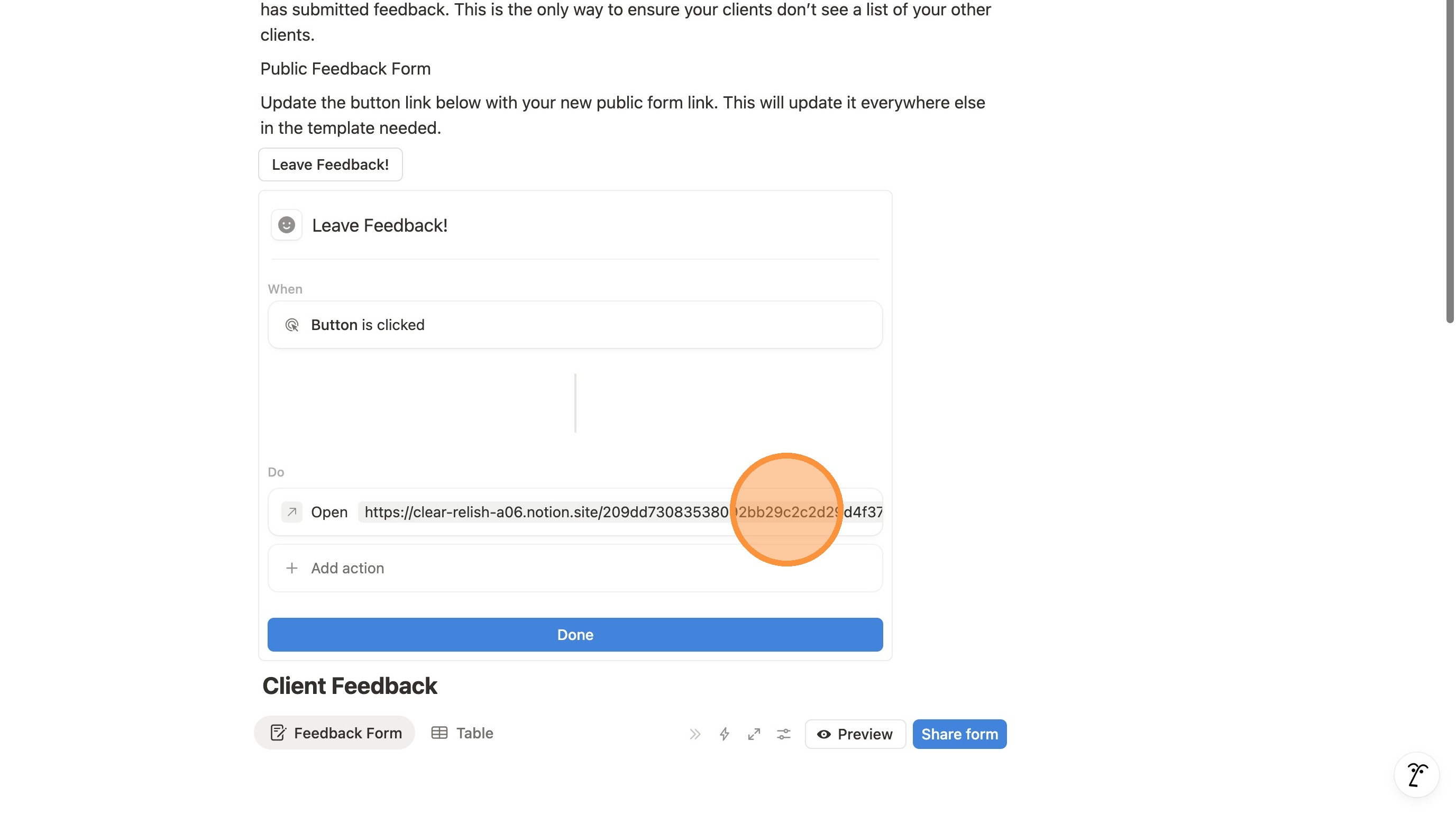
12. Paste in the link that you copied in at the end of the previous section (your public form link)
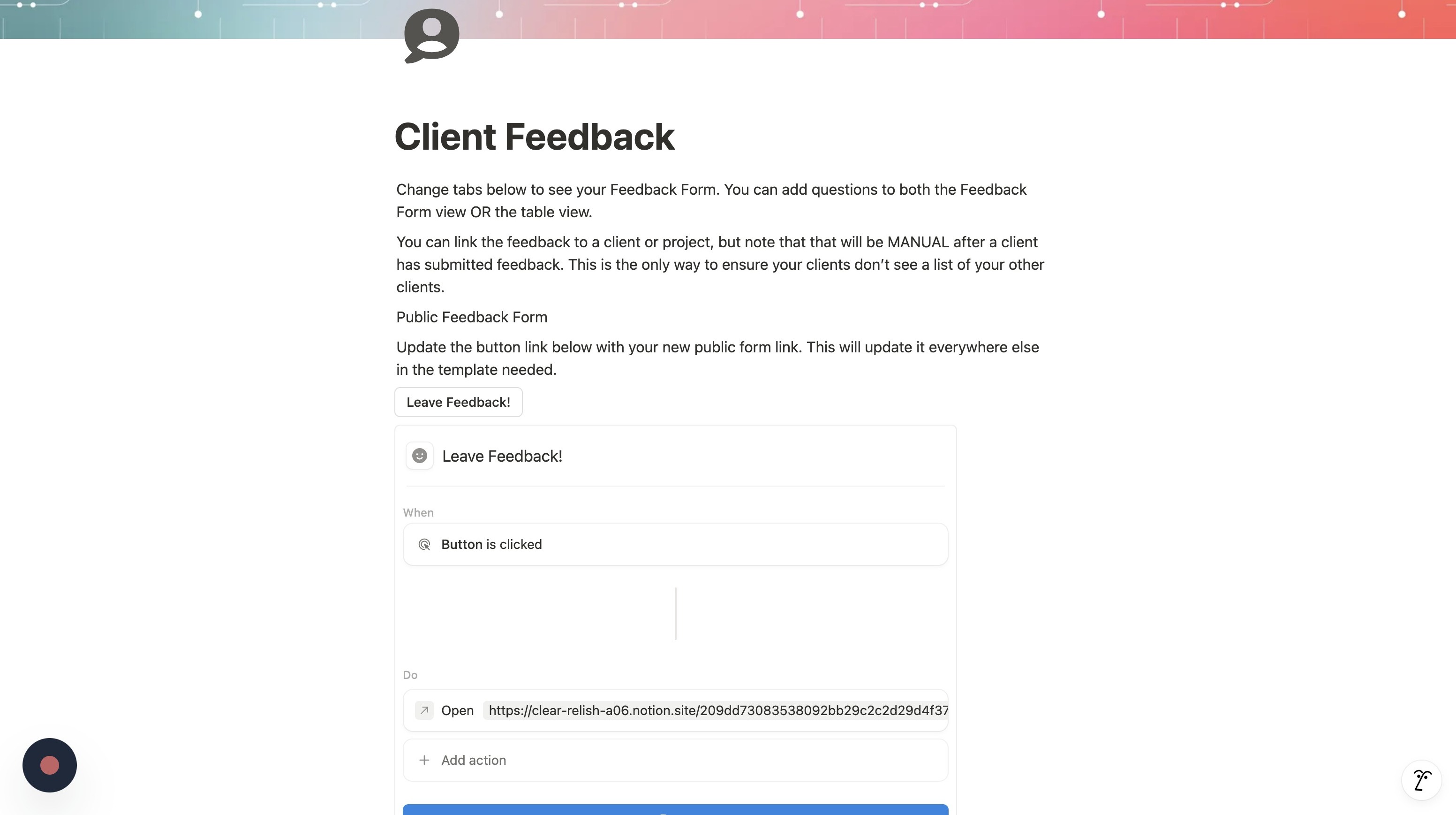
13. The mouse marker is showing incorrectly here, click big blue "Done" button instead. This button is synced to multiple other places throughout The Setup OS. By updating it in this one place, the link has been updated in all needed places!